Best Canva Video Alternatives for Repurposing (2026)
Comparing Canva video alternatives? This 2026 guide splits design-first template makers from browser tools that clip long videos into captioned shorts.
By the Recapo.ai Editorial Team · Fact-checked July 10, 2026
Canva includes video editing inside a broader visual-design platform. A useful Canva video alternative comparison begins by separating two jobs: building template-led visual content and repurposing existing long footage into short clips. This guide compares tool shapes for those jobs from official product information and uses the same source asset for testing rather than assuming one design philosophy is universally better.
Disclosure and method: Recapo.ai publishes this guide and may appear among the tools discussed. We checked official product pages on July 10, 2026. This edition is a desk-research comparison, not a standardized hands-on benchmark. We compare stated workflow fit rather than unverified performance scores and recommend testing the same source file in each finalist. Features, limits, and pricing can change.
Key Takeaways
When to compare Canva's video editor with alternatives
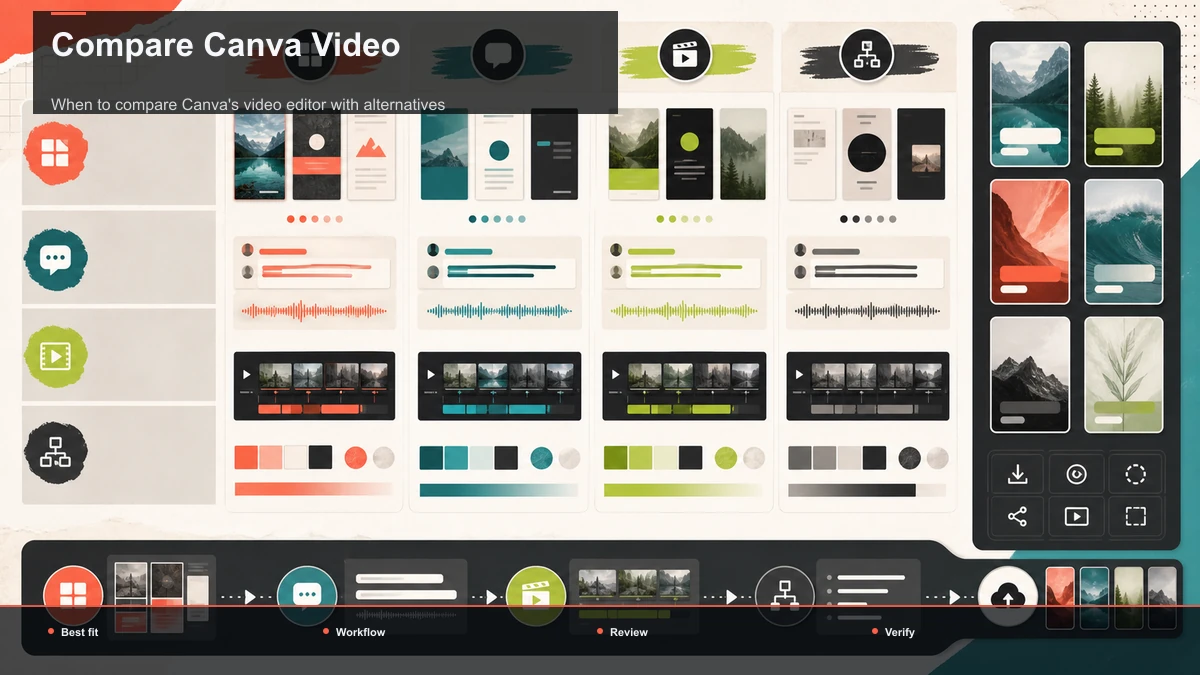
Canva may be the practical choice for branded templates, graphics, social layouts, and teams already using its asset system. A different video tool may fit when the recurring source is a long podcast, interview, course, or stream and the hard work is finding moments, correcting captions, and reviewing many vertical clips.
Do not treat that distinction as a verdict on quality. It is a job-to-be-done test. Use one representative source and one representative template-led project so each candidate is evaluated on the work it claims to support.
The two kinds of Canva video alternative
Almost every tool in this search falls into one of two buckets. Naming them makes the choice obvious.
| Best for | Template and graphic video, branded social posts | Turning long footage into captioned shorts | The core action | Assemble from templates and assets | Cut, caption, and reframe existing video | Starting point | A blank canvas or a template | An existing long recording | Typical output | Promos, slideshows, simple template videos | Shorts, Reels, TikTok clips | What you're doing | Decorating | Repurposing |
If your work lives in the left column, a design-first alternative is your real upgrade path, and I'll cover those honestly below even though Recapo isn't one of them. If your work lives in the right column, skip to the repurposing section — that's the job Recapo is built for. Being clear about this split is the entire point of the article.
Design-first alternatives to the Canva video editor
These are the alternatives to the Canva video editor most people mean when they want the Canva experience — templates, drag-and-drop, quick branded output — but with a different balance of assets, ecosystem, or price. I'm describing each only at its stable, well-known positioning, because free tiers and export terms shift, and confirming them is exactly what the self-test later is for.
| InVideo | Template and script-to-video maker | You want templates plus text- or script-driven generation | Microsoft Clipchamp | Browser editor with templates and stock, tied to the Windows/Microsoft ecosystem | You want a simple template-plus-timeline in the browser | Adobe Express | Quick design and video from Adobe's ecosystem | You want Canva-style creation with Adobe assets and fonts | Animoto | Template-driven maker for simple marketing and slideshow videos | You build promo clips from photos and short segments |
A couple of honest caveats. "Free" and "no watermark" are separate questions — a tool can be free to use and still watermark exports on a lower tier. Template libraries look similar in screenshots but differ a lot in what's actually usable without paying. Don't take any of this on faith from a comparison table, including mine — verify it on the vendor's current pricing page and, better, in a real export.
Browser-based editing and repurposing tools
Now the right column. If you publish short-form video regularly, your bottleneck usually isn't design — it's throughput. You need to transcribe accurately, find the strong 30 seconds inside a long recording, reframe it to vertical, caption it cleanly, and export, over and over, without a heavy setup. That's a fundamentally different tool from a template maker.
Described at their stable positioning, tools in this space tend to specialize:
Where Recapo fits: Recapo is a browser-based AI video workspace built for that second job. It runs in a tab with nothing to install, and it bundles the repetitive short-form steps in one place: transcribe and caption, turn long videos into short clips, generate summaries and scripts, add AI voiceover, resize and reframe to vertical, and design a cover before export. It accepts MP4, MOV, and other common formats at up to 6GB total per task, and pricing lives on the pricing page. It's honestly not a template-driven design tool — if you want to lay out branded graphics from a template, use the left column. If your work is captioned social clips at volume, this is the shape that fits.
For the broader landscape here, our roundup of the best AI clip generators goes deeper on adjacent options.
How to test any Canva alternative in 20 minutes
The single most useful thing you can do is stop reading feature lists and run a controlled test with your own footage. A marketing page won't tell you whether a tool handles your accent, your export target, or your watermark question. A short test will. This framework works for any tool in either column.
- Pick one real, representative file. Not a clean demo — an actual recording you'd publish, ideally 5–10 minutes with some background noise and natural speech.
- Do the same job in each tool. For repurposing, that's usually: auto-caption it, cut one 30–45 second highlight, reframe to vertical, and export.
- Measure four things and write them down:
| Caption accuracy | Read the transcript against the audio and count real errors — don't eyeball it | Time to first export | Start a stopwatch; how long until a finished clip? | Watermark on export | Export at the free or entry tier and open the actual file — this settles the "no watermark" question directly | Format and size support | Upload your real file, not a resized sample — confirm it accepts your format and length |
- Compare the finished files side by side, not the editing screens. Your audience sees the output, not the interface.
- Cut anything that fails step 2. If you can't finish one clip in 20 minutes on a representative file, it isn't your tool — no matter how good the landing page looks.
This is deliberately how the whole article is written: I won't assert a competitor's price, watermark policy, or export limit, because those change and you'd have to verify them anyway. The test above tells you the truth for your workflow today.
Repurpose a long video into shorts — no template required
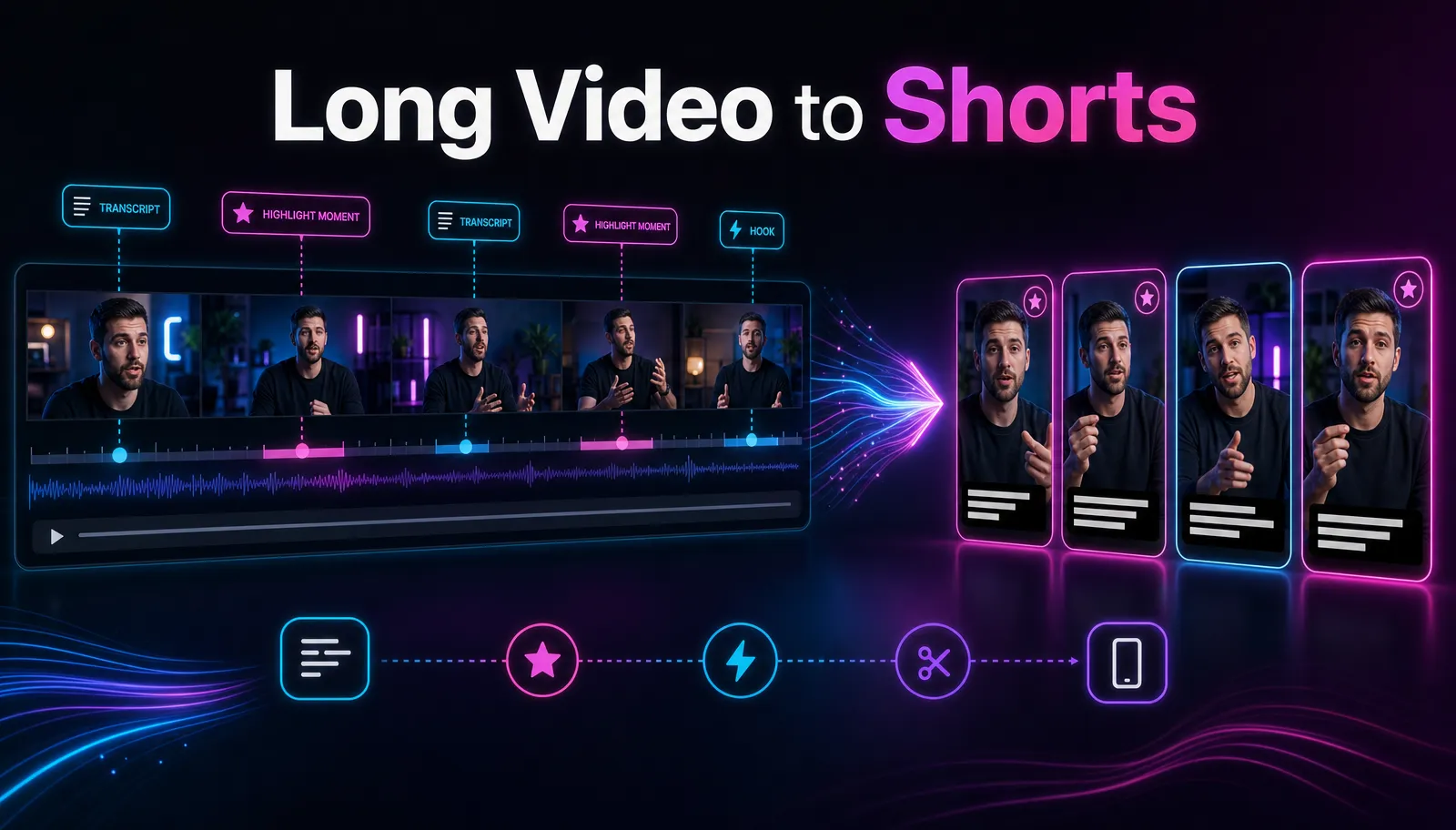
Here's the right-column workflow end to end, entirely in the browser, so you can see what "editing-first" buys you over a template maker. This is the loop most short-form creators run every week.
- Upload your long recording. Drop your MP4 or MOV into the browser AI editor — a full episode, stream VOD, or talking-head recording, up to 6GB total per task.
- Transcribe and caption. Generate the transcript first; auto-captions are both an accessibility win and the raw material for finding your best moments.
- Cut the long video into clips. Pull the strongest 20–60 second segments into standalone shorts. Our guide to making YouTube Shorts from long videos covers how to spot moments that actually travel.
- Reframe to vertical. Resize each clip to 9:16 so it fills the frame on TikTok, Shorts, and Reels instead of sitting letterboxed.
- Polish and export. Fix any caption errors, optionally add a voiceover or a summary, design a cover, and export a clean file ready to post.
Because it all runs in a tab, you can work from any machine and skip the template-assembly step entirely — you're editing footage you already have, not decorating a blank canvas.
Which Canva video alternative actually fits you?
Match the job to the column and the decision gets simple.
| Branded graphics, promos, template videos | Design-first makers (InVideo, Clipchamp, Adobe Express, Animoto) | You loved Canva's templates but want a different ecosystem or price | Design-first makers | High-volume captioned shorts for social | Editing & repurposing tools (Recapo and peers) | Turning long recordings into many clips fast | A browser AI editor with clipping | Slideshows and photo-based promos | Template-driven makers | Captioning and reframing existing footage | Browser editing & repurposing tools |
The honest summary: there's no single best canva video maker alternative, only a best fit for the job in front of you. If you make branded, template-driven video, a design-first tool is your real match. If you're a social creator drowning in captioning and repurposing, a browser AI workspace removes the most friction — and this article is happy to point you either way.
FAQ
What's the best free alternative to Canva for video? It depends on your job. If you want template-driven design, several browser makers offer free tiers — but "free" and "no watermark" are separate questions, so export at the free level and check the actual file. If your job is repurposing long footage into captioned shorts, a browser AI editor removes the template step entirely. Rather than trust any ranking, run the 20-minute self-test on your own clip.
Is there a Canva video maker alternative that runs in a browser? Yes — most do, since Canva itself is browser-based. Design-first makers like Clipchamp and Adobe Express run in a tab, and so do editing-first tools like Recapo. The real question isn't browser versus install; it's whether you're decorating from templates or repurposing existing footage. Pick the column that matches your job.
Can any Canva alternative turn long videos into short clips? Not the design-first ones, generally — template makers are built to assemble a video, not to cut one down. For long-to-short repurposing you want an editing-first tool with clipping and captions. Recapo, for example, transcribes a long upload, helps you pull the strongest segments, reframes them to vertical, and exports — the loop templates don't cover.
Do I need a canva video editing alternative if I just make simple social posts? Probably not. If your output is on-brand template videos and graphics, Canva or a design-first alternative is the right shape of tool, and switching would only add friction. Look for an alternative when your work shifts toward editing real footage, captioning at volume, or repurposing long recordings — that's a different job.
Will I lose quality moving off Canva? No — quality is mostly determined by your source footage and export settings, not the tool's brand. What changes is the workflow. Use the 20-minute self-test to compare finished exports side by side; if the output is clean and matches your target platform's specs, you've lost nothing but the parts of Canva you weren't using.
Try it on your own footage
A quick way to decide whether an editing-first workflow fits you is to run one real clip through it. Upload a long recording, auto-caption it, cut a vertical short, and export — then compare that finished file against whatever you'd build from a template. Create a free Recapo account and put it through the 20-minute test on your own video. If your job is captioned social clips, you'll feel the difference on the first export; if it's branded template graphics, you'll know that too, and you'll have a much clearer sense of which column you belong in.
References and official sources