Cut Video Online
Cut video online: set precise start and end times, preview the trimmed clip, and export directly in your browser — no software to install.
Click to upload or drop a video
Live-preview & trim in your browser; rendering runs in the cloud — don't leave this page (leaving cancels the render)
Up to 2 GB per file
How to cut video online
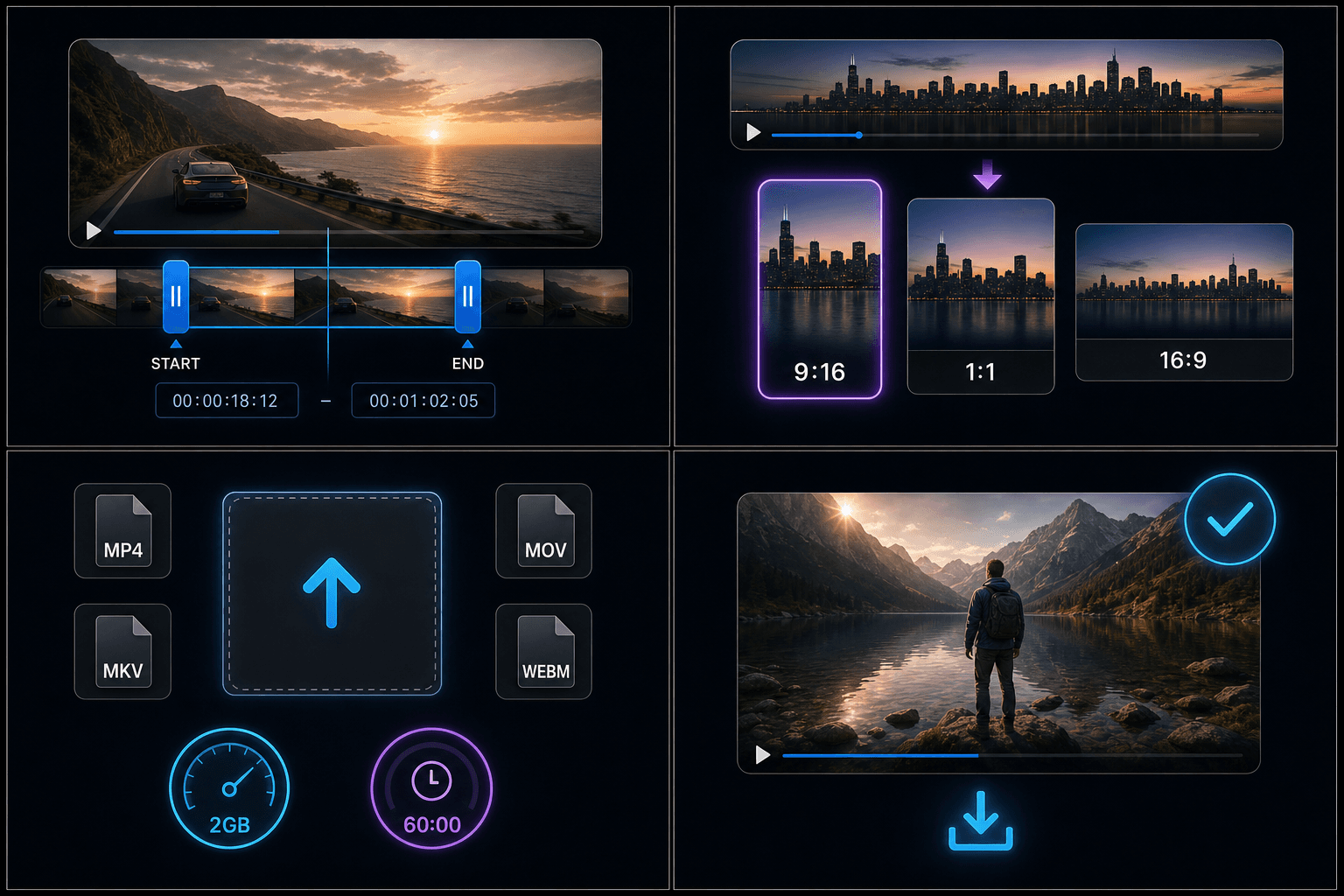
Upload a file, scrub to the moment you need, and mark where the clip should begin and end. The preview updates in real time so you can fine-tune by a frame or two before exporting.
- 01
Upload your video
Add a local MP4, MOV, MKV, WebM, or similar file. The timeline loads as soon as processing starts.
- 02
Set start and end times
Drag the handles or enter timecodes for the exact range you want. Preview plays only the selected segment.
- 03
Export the clip
Download the trimmed file, or continue in Recapo with compression, captions, or aspect-ratio cropping.
Trim with precise timecodes
Enter exact timestamps when you already know the range — useful for podcast highlights, reaction clips, or removing dead air at the start of a recording. The cutter keeps the original resolution and frame rate of the source.
- Type start and end times for frame-accurate cuts.
- Scrub the timeline to find the right moment visually.
- Preview only the selected range before export.
Clips for Shorts and social feeds
Cut a vertical-friendly segment first, then pass it to the Shorts maker or a resizer for 9:16, 1:1, or 16:9. Trimming before compression also keeps upload sizes manageable on mobile networks.
Supported formats and limits
Common containers such as MP4, MOV, MKV, and WebM are supported. Maximum file length and size are shown before you start — for very long sources, trim in stages or compress first to stay within limits.
Why use Recapo for trimming
The cutter sits inside a full video toolkit: trim once, then add captions, compress, or extract audio without re-uploading. Processing runs in the cloud, so nothing installs on your device.
Built for these real workflows
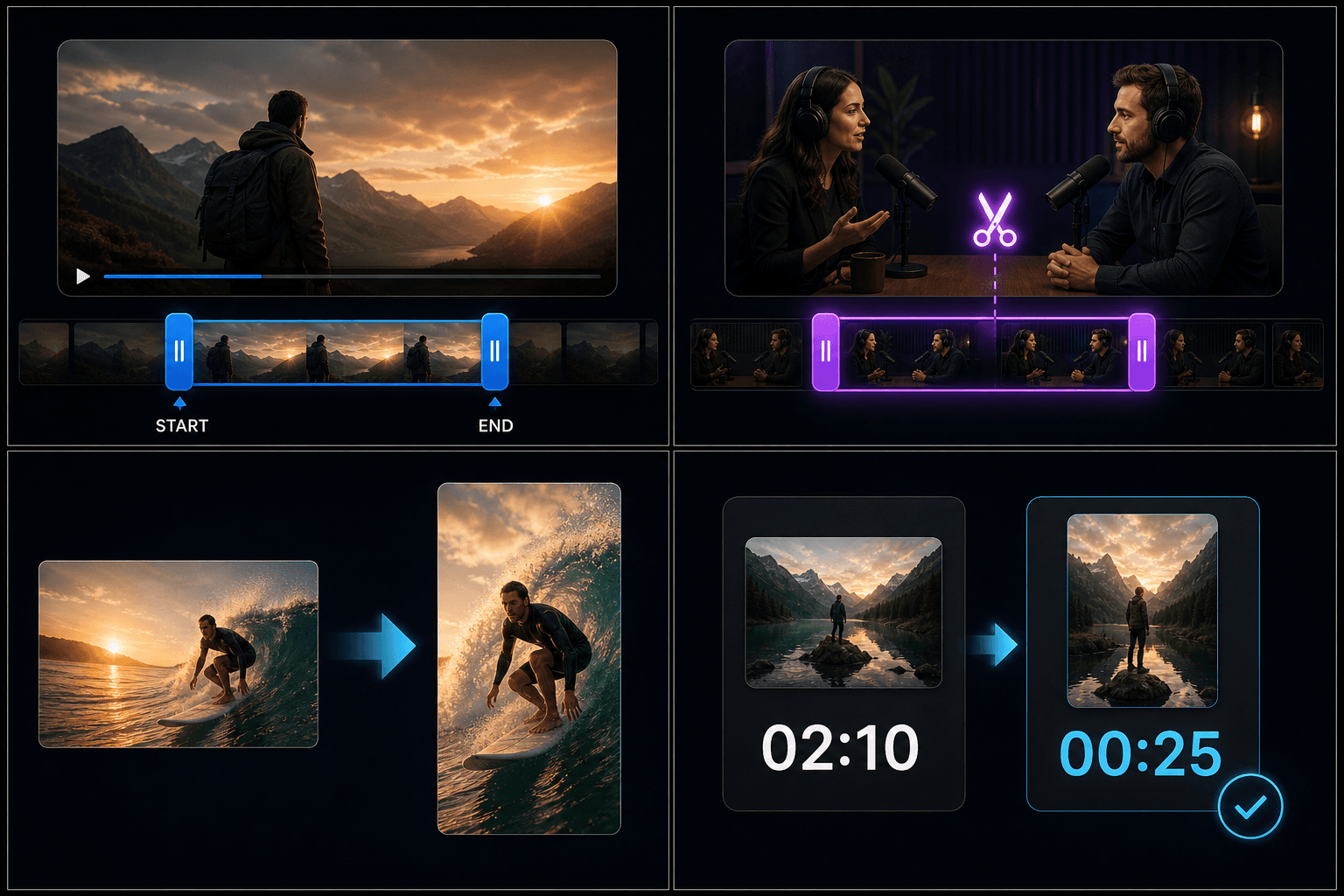
Long video to clips
Vertical-platform reframing
Interview and podcast cuts
Continue with the next step
Frequently asked questions
Can I cut video online for free?
You can try trimming within the free quota. Longer files or batch cuts may use credits — check the pricing page for current limits.
Which video formats are supported?
MP4, MOV, MKV, WebM, and other common formats work. If a file fails to load, convert it to MP4 first using the format converter.
Does trimming reduce video quality?
The cutter exports the selected range without re-encoding when possible. Re-encoding may apply for certain formats, but the tool does not promise lossless output on every source.
Start using Video Cutter
Provide the input and essential settings above. Your result stays in the current tool workflow.
Back to tool