On this page
Recapo user guide
From source footage to a publish-ready video
Recapo connects importing, content understanding, script generation, voiceover, captions, and rendering in one AI video workflow. Start with your goal, then choose a complete workspace or a focused tool.
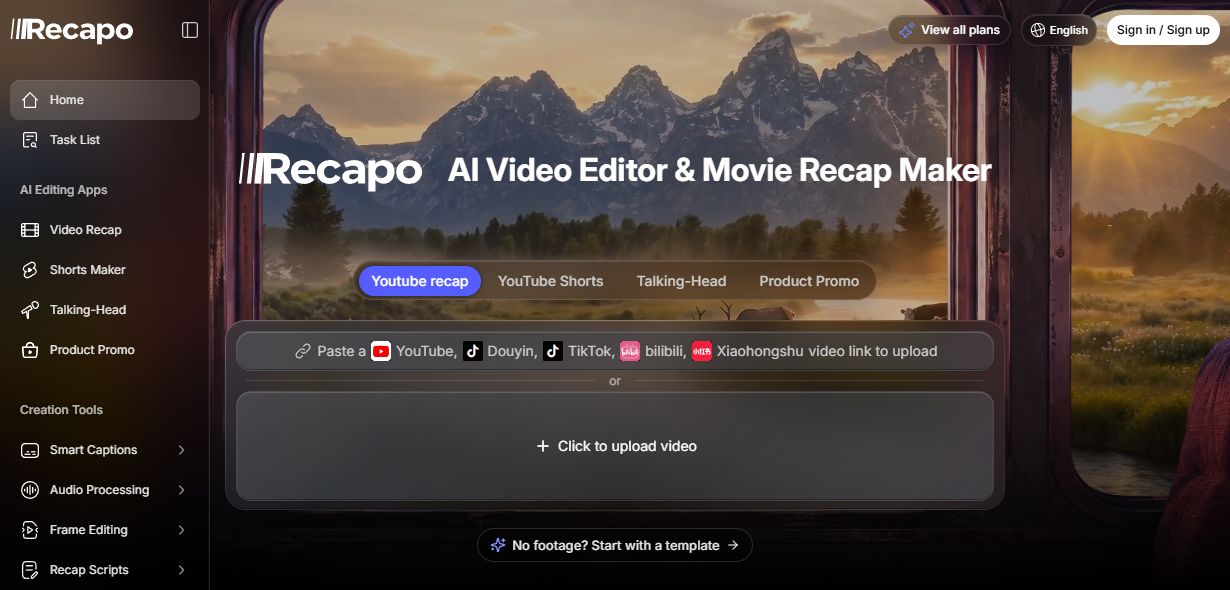
Who Recapo is for
Recapo helps teams turn long-form material into shorter, clearer, publish-ready videos with less repetitive editing and tool switching.
Content creators
Turn film, knowledge, or story footage into structured recap content.
Short-form teams
Find clips in long videos and prepare them for vertical channels.
Podcast teams
Extract strong moments from talking-head, podcast, and interview footage.
Marketing teams
Organize product material into promotional and social videos.
Four core creation workflows
The workspaces share one import and task system while tailoring controls to a specific content outcome.
Video Recap
Let AI understand your source, then create a recap structure, narration, captions, and final video.
Best for
- For film, story, and knowledge content
- Start from a local file or supported link
- Keep scripting, voice, and rendering in one task
Core features
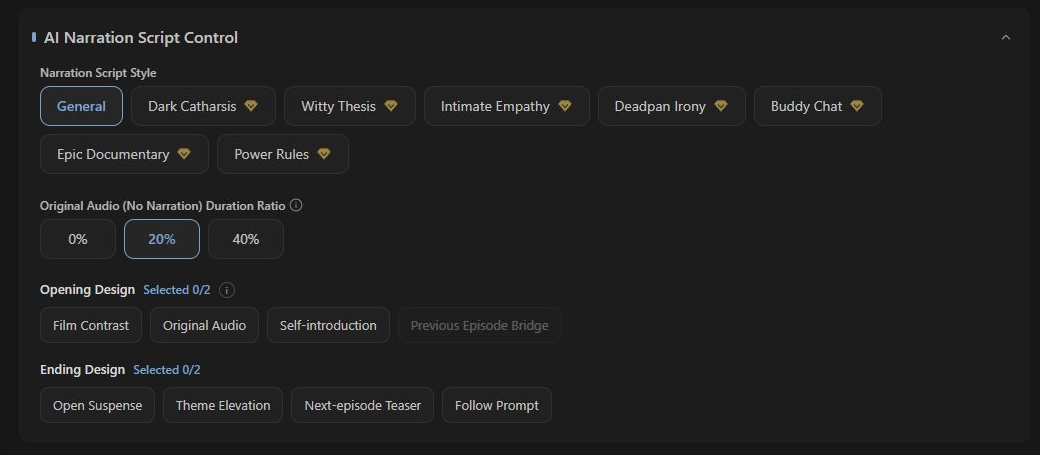
AI narration controls
Choose a script style or use your own script.

Voice and music
Choose the narration voice and background music.
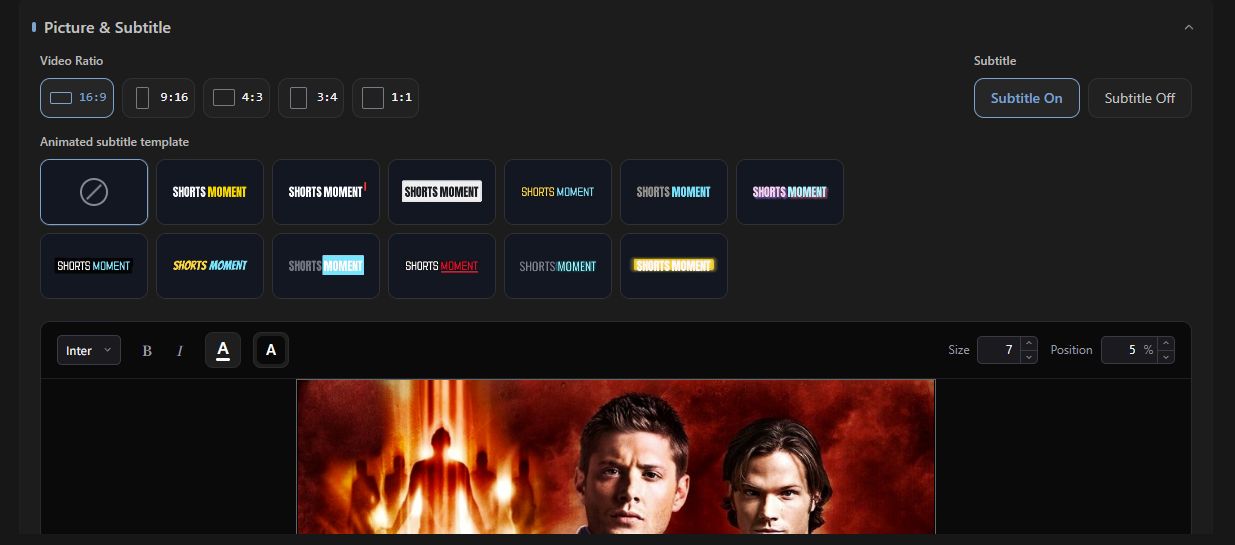
Picture and captions
Set aspect ratio and caption styling.
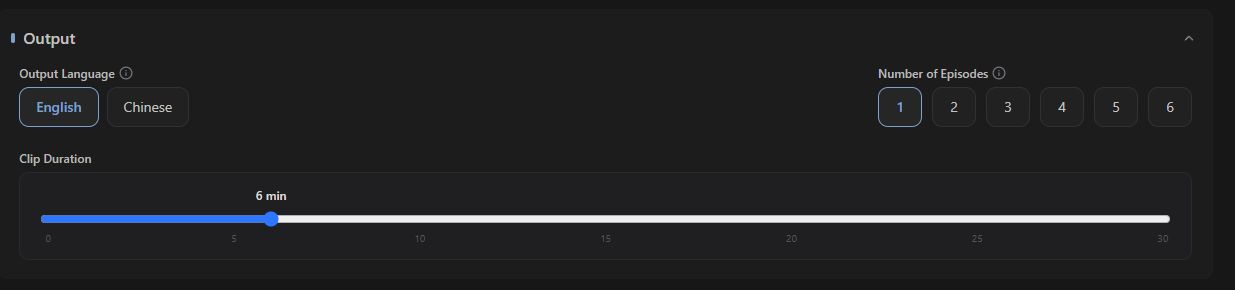
Output settings
Set duration, language, and output count.
Shorts Maker
Identify shareable moments in long-form content and turn them into focused short videos.
Best for
- For podcasts, interviews, courses, and long videos
- Build shorts around highlight moments
- Designed for vertical and Shorts publishing
Core features

Source range
Select the part of the long video to analyze.

Clip duration
Set the target length of each short.
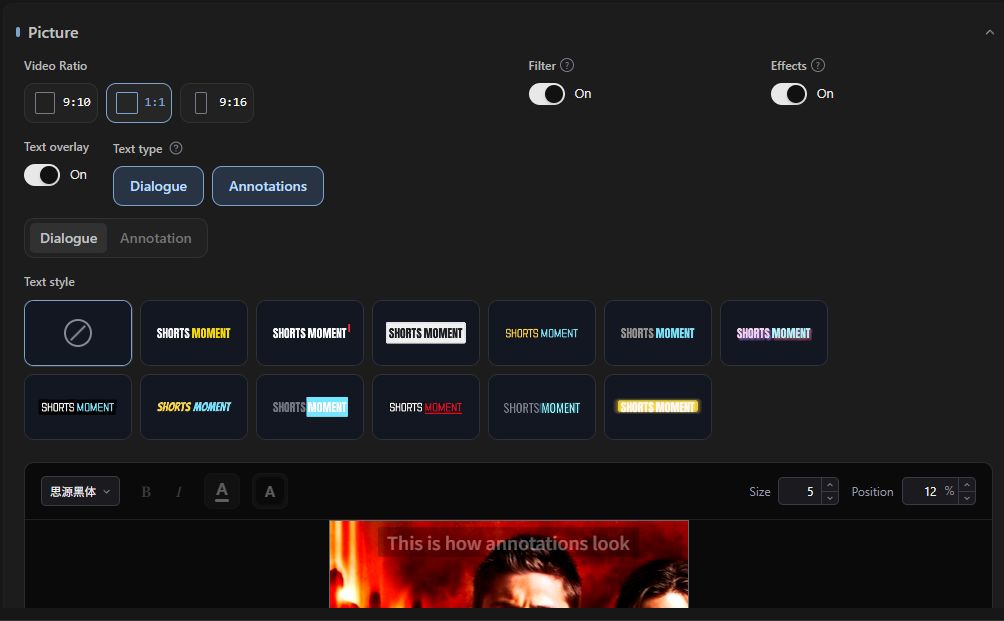
Vertical enhancement
Set vertical framing, filters, and motion.

Text and audio
Control dialogue text, source audio, and music.
Talking-Head Clips
Find complete ideas and strong statements in interviews, podcasts, and talking-head footage.
Best for
- Focus on ideas, quotes, and complete meaning
- Spend less time finding clips manually
- Finish with captions and vertical framing
Core features
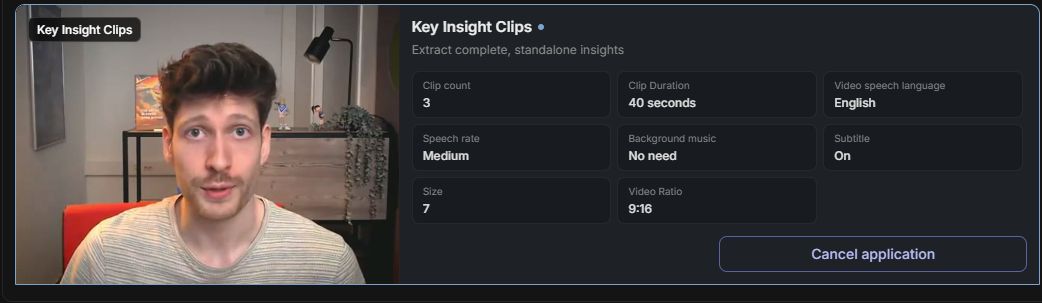
Semantic clipping
Extract complete ideas and strong statements.
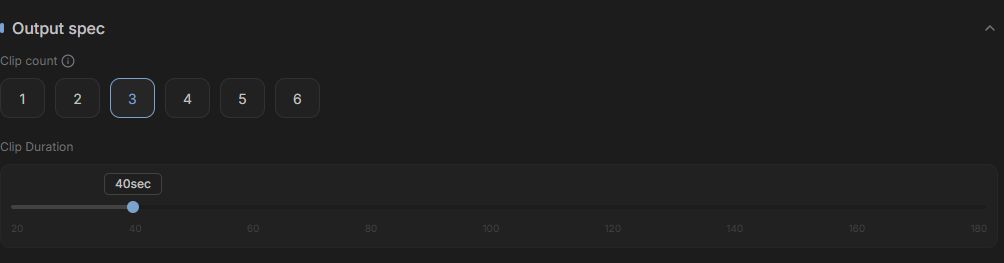
Batch output
Set clip count and per-clip duration.

Language and pace
Choose language and speaking pace.
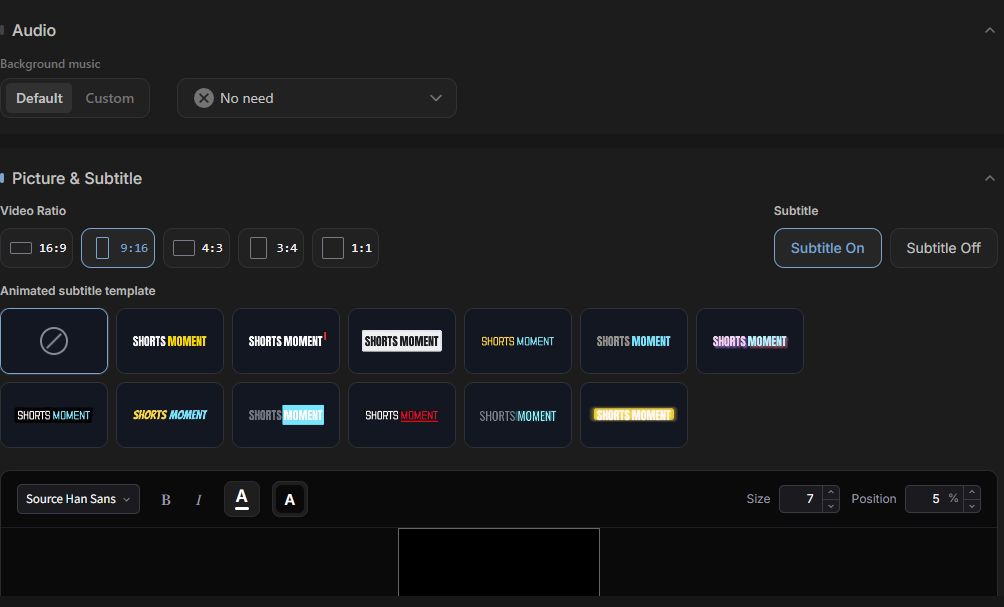
Output styling
Set music, aspect ratio, and captions.
Product Promo
Organize A-Roll and B-Roll around product benefits to create a complete promotional video.
Best for
- For product explainers and social promotion
- Structure scripts and media around a marketing goal
- Produce voiceover, captions, and video together
Core features
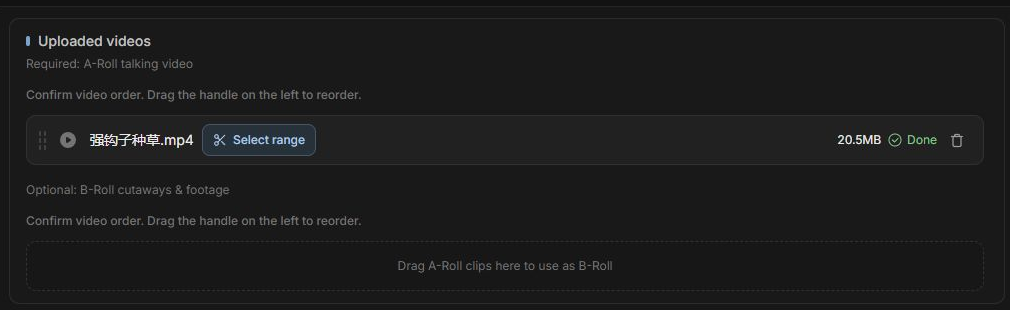
A-Roll and B-Roll
Manage primary and supporting footage separately.

Media sequencing and trim
Order sources and refine every used range.
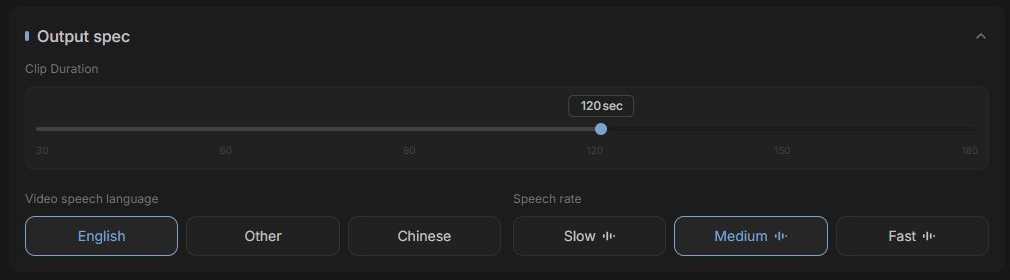
Pacing controls
Set duration, language, and pace.
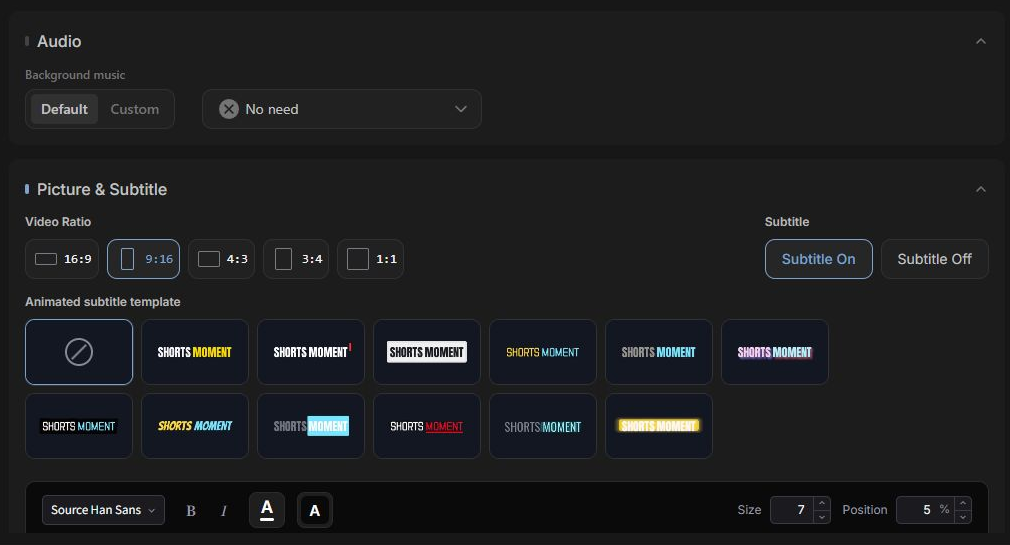
Branded output
Set music, aspect ratio, and captions.
One clear creation path
Controls vary by use case, but the material and task lifecycle remains consistent.
- 01
Choose a workflow
Select the workspace that matches the outcome you need.
- 02
Import media
Upload a local video or paste a supported video link.
- 03
Set requirements
Choose language, style, voice, captions, and framing.
- 04
Generate with AI
Recapo handles understanding, scripting, voice, and rendering.
- 05
Review and export
Follow progress in Tasks, then preview and download the result.
Shared creation capabilities
These capabilities work across Video Recap, Shorts, Talking-Head Clips, and Product Promo.

Create from a video link
Paste a link and move directly into creation.

Local upload and media management
Upload local video and manage source material.
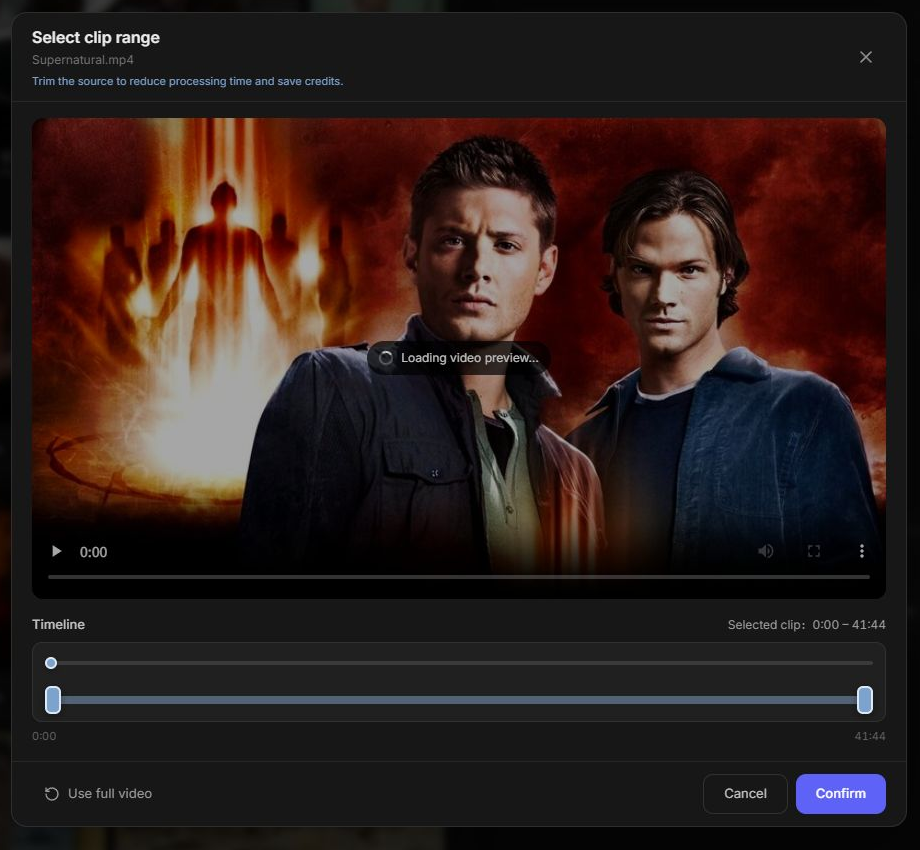
Trim after upload
Refine the start and end time after upload.
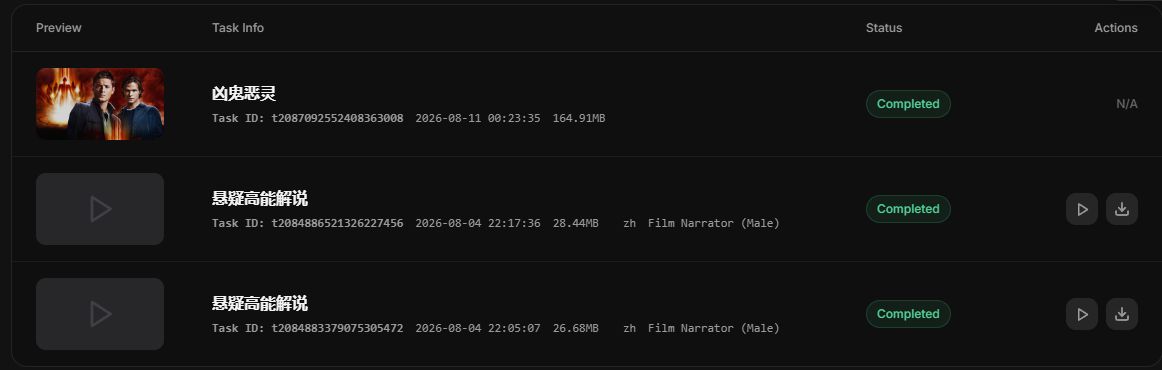
Unified task management
Track progress, preview results, and download videos.
Not sure where to start?
Choose the outcome you want and open the closest workflow.
Frequently asked questions
Do I need video-editing experience?
No professional editing software experience is required. Choose a workflow, provide your source and goal, and use the generated result as your starting point.
Can I leave while a video is being generated?
After a task has been submitted, you can follow it from the task list. Make sure any upload has finished before leaving the page.
Should I use a workspace or a focused tool?
Use a workspace when you need a complete source-to-video flow. Use a focused tool for a single job such as captions, audio, or format conversion.
Do all workflows share the same task list?
The four AI creation workflows use the task list for task status and results, giving you one place to manage generated videos.
Choose a goal and create your first video
Open the workflow closest to your current need. Recapo keeps the next steps together in one creation flow.