Video Mosaic Editor
Draw mosaic regions over faces, license plates, or sensitive details in your browser, set independent time ranges and strength, add keyframes for moving subjects, then export the censored video.
Static vs dynamic mosaic
Static mode keeps a blur box fixed in place for a time range—ideal for logos or text overlays. Dynamic mode uses keyframes: mark the box at several timestamps and the exporter interpolates motion between them, so you can follow a walking subject without manual frame-by-frame work.
- 01
Upload video
Upload a local MP4, MOV, MKV, or WebM file. The editor loads it in your browser for instant preview.
- 02
Draw mosaic regions
Box areas to blur, set start/end times, and add keyframes on dynamic mode when the subject moves.
- 03
Export
Submit the job to cloud FFmpeg processing and download the finished video when ready.
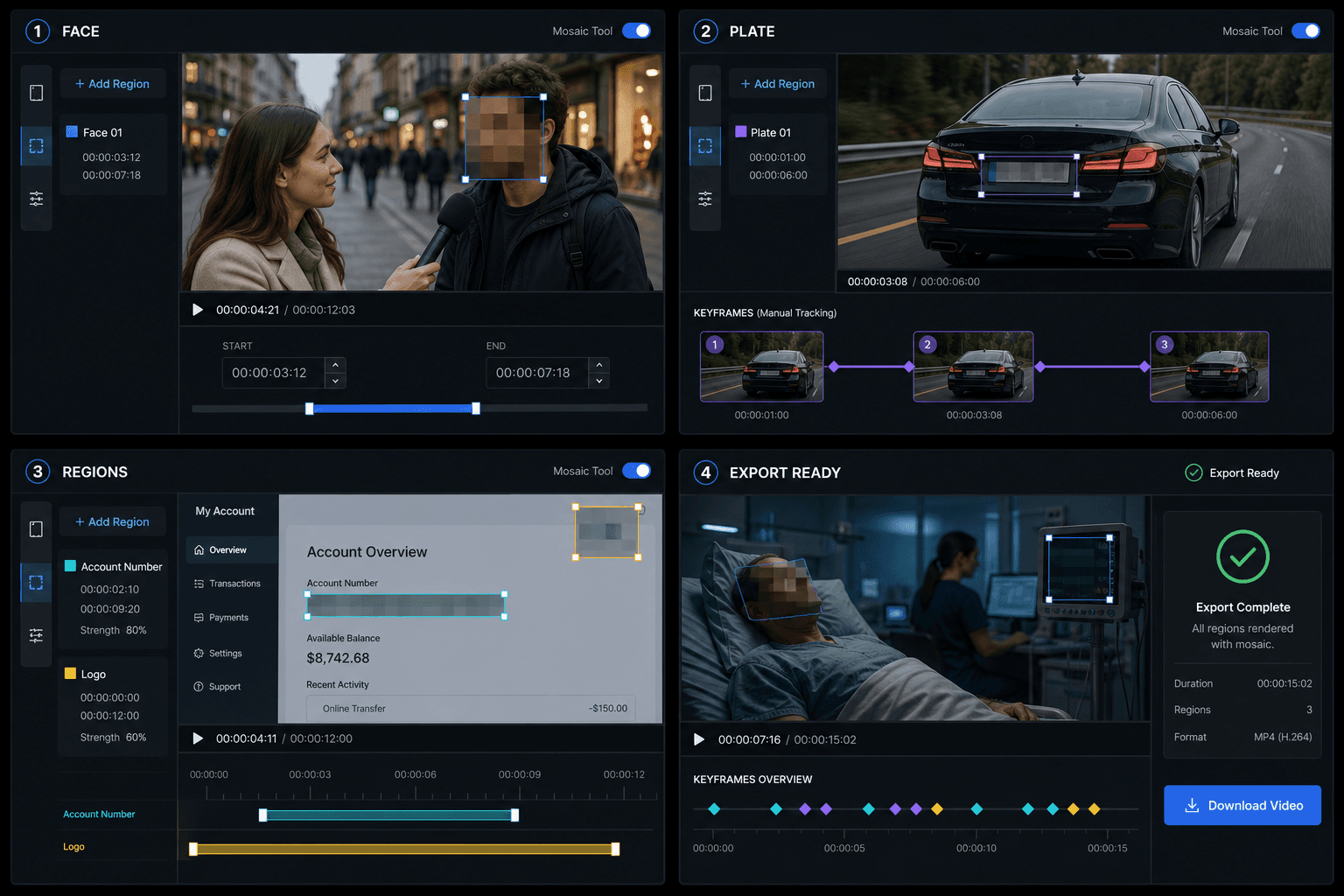
Mask multiple regions and export them together
Add up to 30 regions to one video, each with independent start and end times, position, and pixel strength. Hide faces, plates, and account details separately, review the result, then export one permanently censored video.
Built for these real workflows
Video cover design
Social creative
Key visual extraction
Continue with the next step
Frequently asked questions
Can I blur multiple areas at once?
Yes. Add up to 30 regions, each with its own time range, size, and pixel strength.
Does dynamic mosaic follow objects automatically?
You place keyframes manually at different times—the cloud renderer linearly interpolates between them. Full AI tracking is not included in this version.
Is the mosaic editor free?
You can use the daily free quota like other tools. Additional exports consume credits per the pricing page.
Start using Video Mosaic Editor
Provide the input and essential settings above. Your result stays in the current tool workflow.
Back to tool