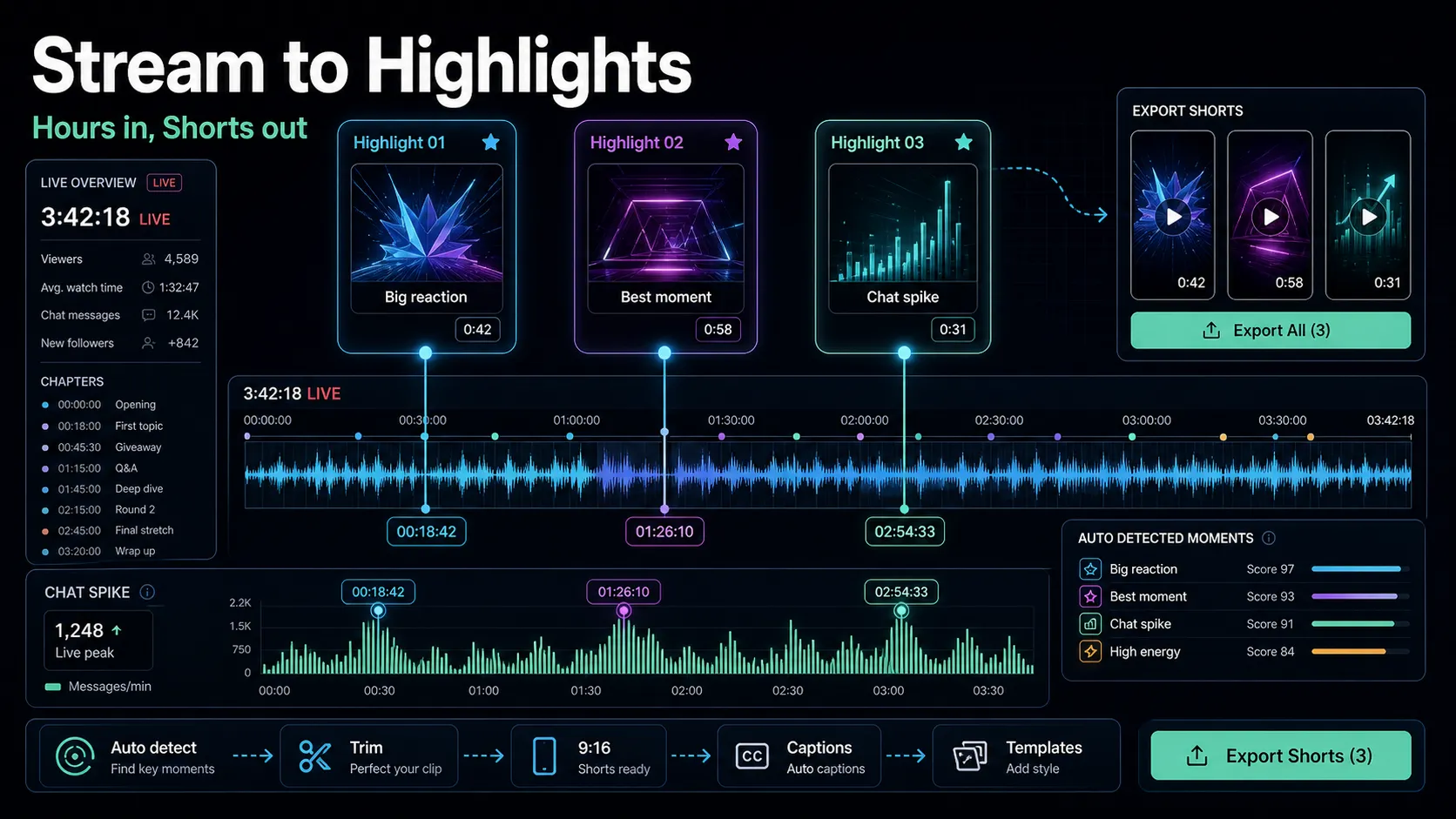
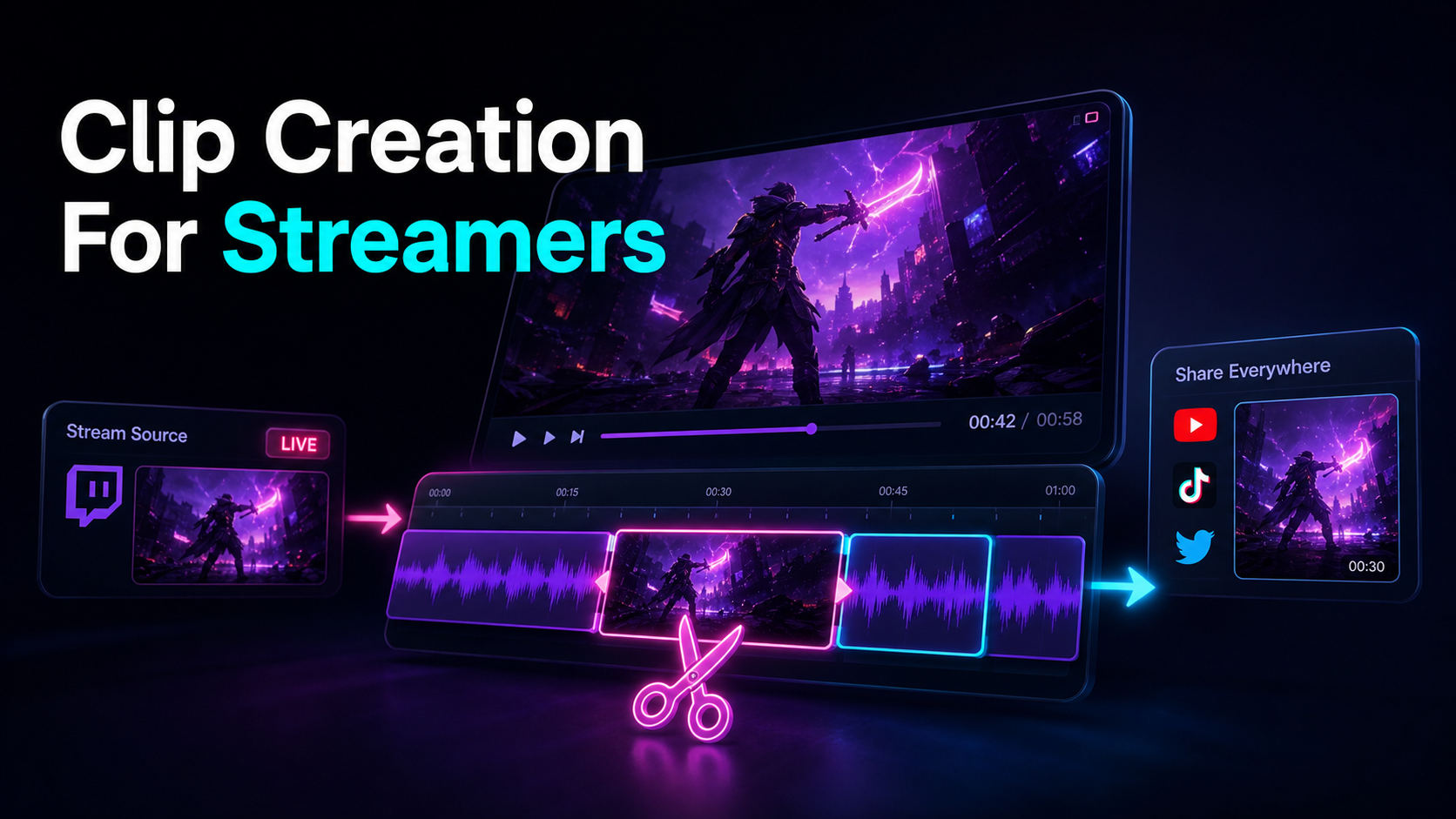
Clip Creation for Streamers: Turn Stream Highlights into Shorts
Clip creation for streamers as a repeatable pipeline: turn talk-heavy stream VODs into vertical Shorts, TikToks, and Reels with speech-first clipping.
By the Recapo.ai Editorial Team · Fact-checked July 10, 2026
Clip creation for streamers isn't a project you finish — it's a pipeline you run every week, because every broadcast you do is source material for Shorts, TikToks, and Reels whose keeper yield must be reviewed. This guide is written specifically for streamers whose value lives in what they say, not just what they play: Just Chatting, IRL, interviews, reactions, and podcast-style streams. That angle is deliberate, because most tools marketed as a "streamer clip maker" are built around gaming moment-detection — kill feeds, chat hype spikes, health bars — which is a poor match for talk-heavy content where the clip-worthy moment is a line, a take, or a story, not a visual event.
Below we build a repeatable pipeline to turn streams into shorts around speech instead of gameplay signals, show where a general long→short tool like Recapo fits honestly (and where it doesn't), and give you a self-test for choosing between gaming-native clippers and speech-first ones. If you run pure gameplay and want automatic detection from the game feed itself, that's a different category — and we'll point you toward it rather than pretend Recapo is that tool.
Why clip creation for streamers is a recurring pipeline
A streamer's problem is the inverse of most creators'. You don't struggle to produce footage — you drown in it. A broadcast can contain several postable moments, but only review can establish the number. The bottleneck was never finding content; it's the repetitive pass that turns a landscape VOD moment into a vertical, captioned, ready-to-post clip. Do that pass by hand for every clip, every stream, and it quietly eats more time than streaming itself.
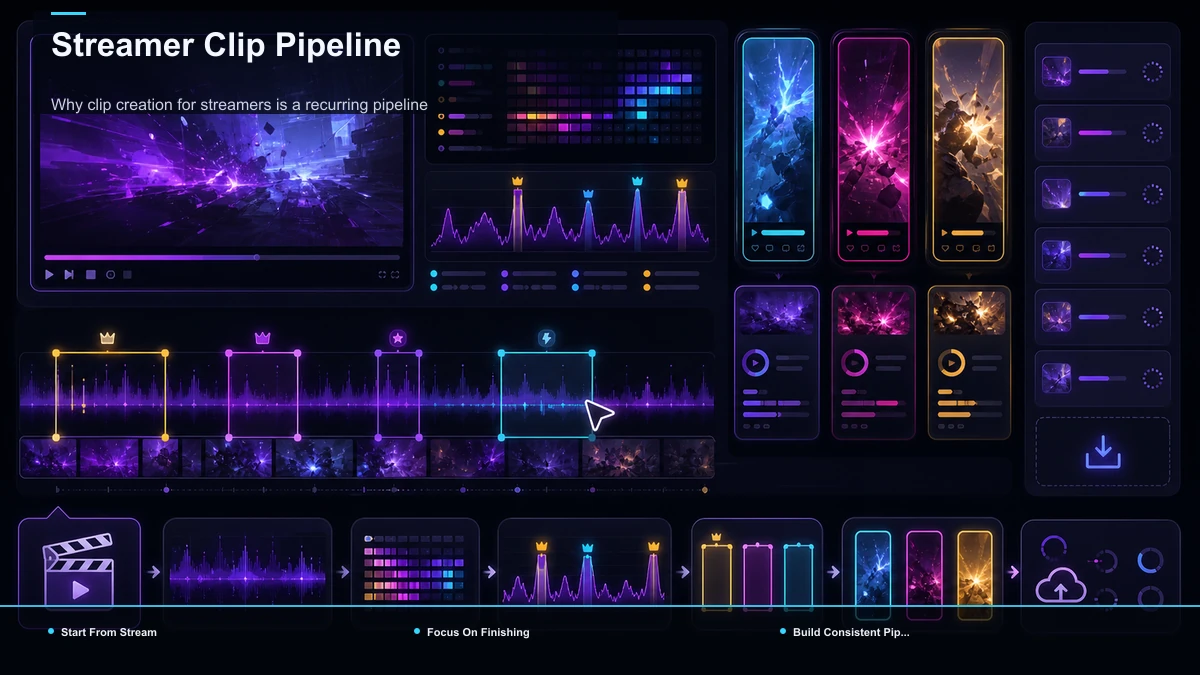
That's why the useful frame here is a pipeline, not a one-off edit. The streamers who grow off-platform aren't the ones with the best single clip — they're the ones who ship consistently, week after week, from footage they already have. The recurring shape looks like this:
Treat clip creation as a production line, and the tooling question becomes simple: what removes the most friction from the finishing stage, given the kind of stream you run?
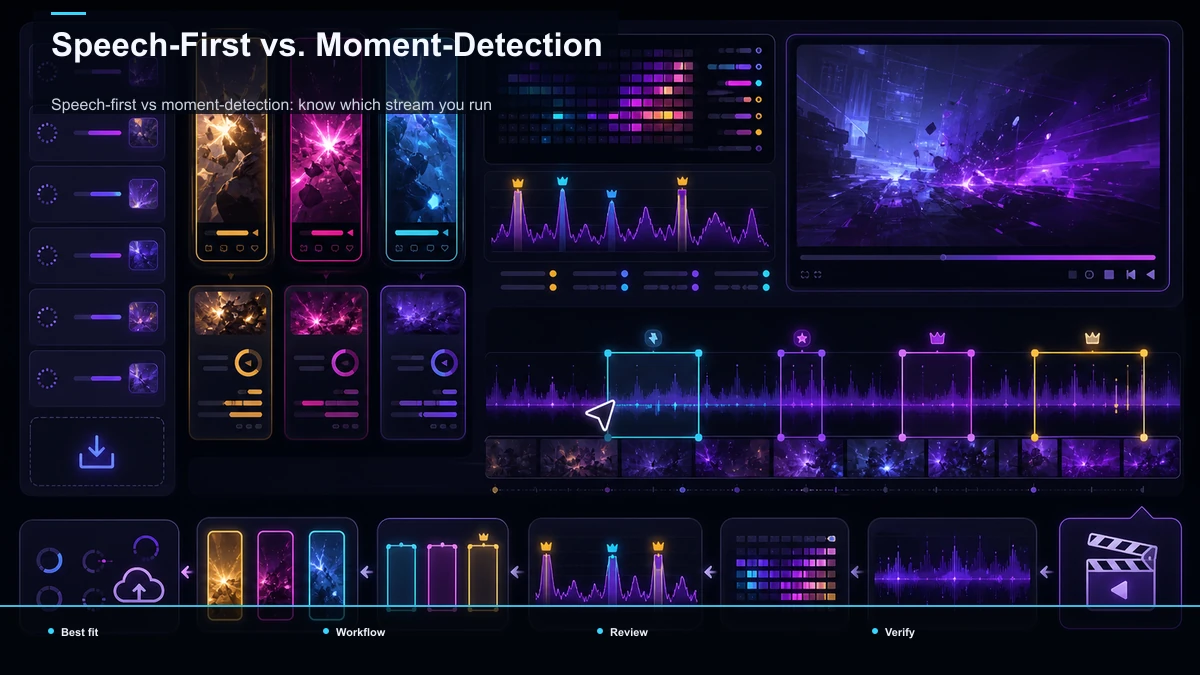
Speech-first vs moment-detection: know which stream you run
This is the fork in the road, and getting it right saves you from buying the wrong tool. The clip-worthy moment in a gameplay stream is a visual event — a clutch, a kill, a scoreboard flip — which is exactly what gaming clippers detect from the game feed. The clip-worthy moment in a talk-heavy stream is a spoken beat — a hot take, a punchline, a confession, a clean answer to a chat question — which lives in the transcript, not the pixels. A tool that watches for health-bar changes can't find "the thing you said at 2:14:30 that the chat lost it over." A tool that reads the transcript can.
Here's how the common stream types map to the right detection approach and tool category:
| Competitive / mechanical gameplay | A visual play (clutch, kill, win) | Moment-detection from the game feed | Gaming-native auto-clippers | Just Chatting / IRL | A spoken take or story | Reading the transcript | Speech-first long→short tools | Interviews / co-streams | A quotable exchange | Reading the transcript | Speech-first long→short tools | Reactions / watch-alongs | Your commentary line | Transcript + timing to the reaction | Speech-first long→short tools | Podcast-style streams | A self-contained point | Reading the transcript | Speech-first long→short tools |
The honest read: if you're a pure gameplay streamer chasing mechanical highlights, gaming-native clippers built for that detection are likely the better fit, and we won't pretend otherwise. If most of your value is in the mic — which is true for a huge slice of streamers — a speech-first tool that transcribes, lets you clip by what was said, then reframes and captions is the closer match. Recapo sits in that second lane. For the platform-by-platform mechanics of grabbing highlights in the first place, our guide on how to clip a YouTube live stream covers the capture side; this article is about the finishing pipeline that comes after.
Turn a stream VOD into vertical clips, step by step
Everything below runs in a browser tab — nothing to install, which matters when your editing machine is already busy running your stream setup.
- Upload the VOD. Bring in the MP4 or MOV. Recapo accepts files up to 6GB total per task, so a long, high-bitrate broadcast uploads without you pre-compressing it first — one less step in the pipeline.
- Find the moments by speech. Run the AI clip generator to transcribe the stream and surface self-contained segments, then pick the beats that actually stand alone. Because this reads what was said, it's built for the Just Chatting / interview / reaction moments that gaming detection can't see — this is the livestream-to-short-video handoff that speech-first tools do well.
- Tighten each clip. Trim to the tightest 15–45 seconds around the line. Resist the montage instinct; short-form rewards one idea, cleanly delivered.
- Reframe to 9:16. Use the TikTok video resizer to convert landscape to vertical. For a solo talker, keep your face centered and high; for a two-person interview, a stacked layout (one speaker above, one below) keeps both readable on a phone.
- Burn in captions. Generate synced captions with auto-captions. For talk content this is the highest-leverage step there is — some feed views happen on mute, and if your clip is a spoken take, no captions means no content.
- Hook, cover, export. Put your strongest second first, set a cover frame, and export a 9:16 MP4 per destination. Keep captions burned in, since uploaded subtitle files aren't reliably shown on Shorts, TikTok, or Reels.
That's the full stream-VOD-to-clips pass, and none of it depends on gaming signals — it depends on your transcript, which is exactly the point for talk-heavy streamers.
Captions and reframing for talk-heavy clips
If gaming clips live or die on the play, talk clips live or die on captions and framing. Here's why each matters more for your content specifically.
Captions carry the whole clip. When your value is a spoken take, the caption isn't decoration — it is the video for viewers watching without sound scrolling a feed. Accuracy matters too: talk streams are full of names, slang, and inside references your chat knows, and a caption that mangles them reads as sloppy. Always scan the auto-generated text for the words that actually carry the joke or the point, and fix those before you export. Get the punchline word right and the whole clip lands.
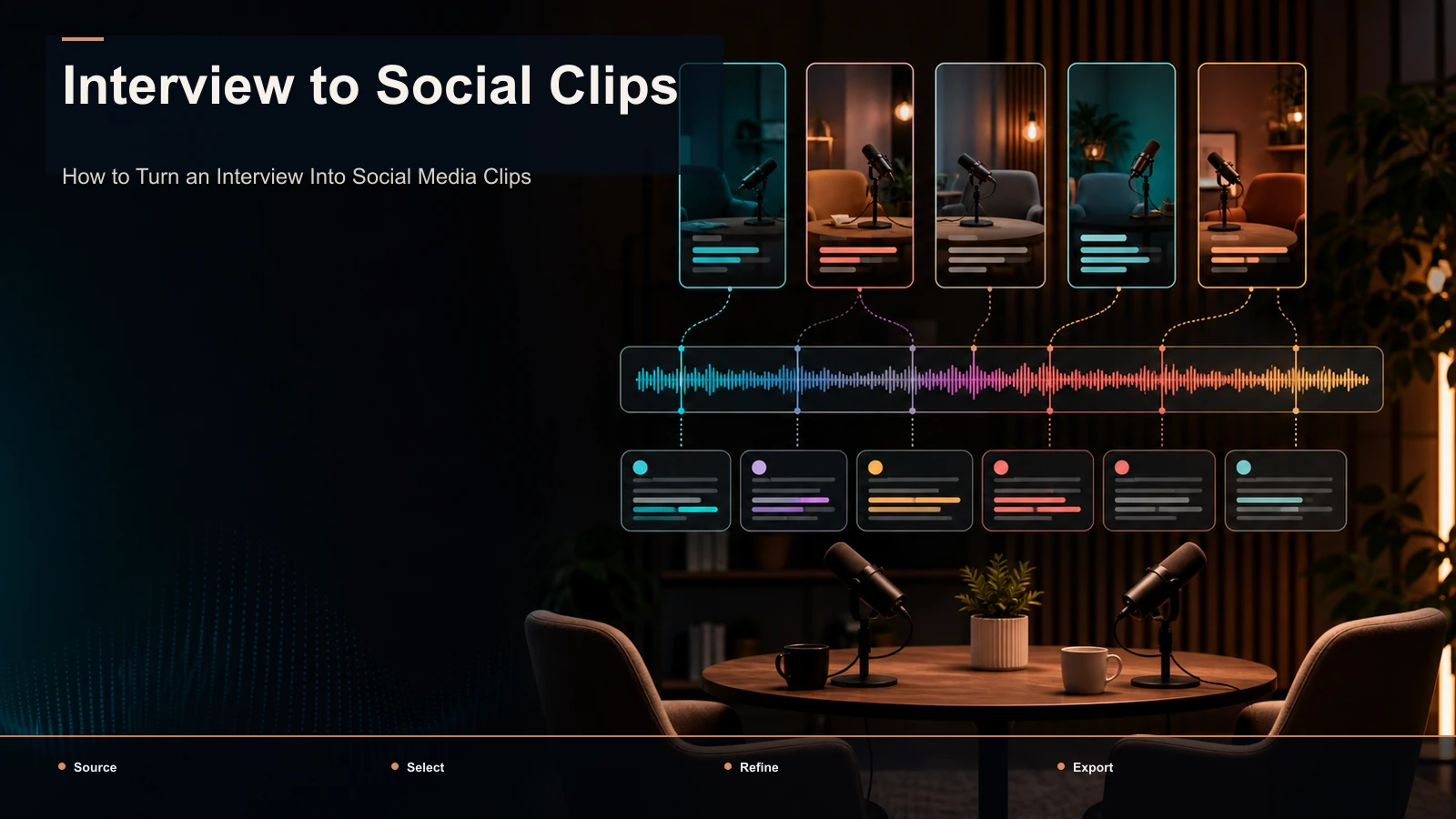
Framing depends on how many people are talking. A solo Just Chatting clip wants your face large and high in the 9:16 frame, with room below for captions. An interview or co-stream clip wants both faces legible — a stacked split so the viewer can follow the back-and-forth, not a blind center-crop that guillotines one person out of frame. Decide the layout per clip based on who's carrying the moment. For the interview case in particular — how to cut an exchange so the setup and the payoff both survive — see our walkthrough on how to turn an interview into social clips.
The takeaway that outlasts any tool: for streamers who talk for a living, a hand-picked spoken beat that's reframed tight and captioned clean will beat a perfectly "detected" moment that ships letterboxed and silent, every time.
Batch one stream and set the cadence from keeper yield
The cadence discipline is what actually compounds. A four-hour talk stream rarely gives you one clip — it gives you a batch. Processing that batch in a single sitting, rather than making a one-off clip whenever you remember, lets a channel set its cadence from an approved queue instead of editing one clip at a time.
A workable rhythm:
This is how a handful of talk-heavy streams becomes a steady stream-highlights-to-TikTok engine without adding a second job.
Choosing a streamer clip maker: a self-test, not a ranking
The streamer clip space has entrenched specialists — StreamLadder, Eklipse, and ClipGPT are among the most recognized, with tools like StreamGen and general editors such as Kapwing and FlexClip also in the mix — plus general repurposing tools like Recapo. Rather than hand you a fabricated feature-by-feature table (limits and features change constantly, and any numbers I invented would be worthless to you), here's a self-test. Answer these against your streams and the right category becomes obvious:
That framework outlasts any comparison chart. Match the tool category to what your streams are made of, verify on your own VODs, and ignore anyone crowning a single winner. If you talk for a living, weight speech-first accuracy; if you play for a living, weight moment-detection — and be honest with yourself about which one you are.
FAQ
What's the best way to do clip creation for streamers who mostly talk? Work from the transcript, not the timeline. For Just Chatting, IRL, interview, and podcast-style streams, the clip-worthy moment is something you said, so a speech-first tool that transcribes the VOD and lets you clip by spoken lines will surface far more usable moments than a gaming clipper watching the game feed. Then reframe to vertical and burn in captions before you post.
How do I turn a stream VOD into clips for TikTok, Shorts, and Reels? Export the VOD as an MP4 or MOV, find the standout spoken moments (by transcript for talk streams), trim each to a tight 15–45 seconds, reframe from 16:9 to 9:16 so faces read on a phone, burn in synced captions, add a hook and cover, and export a vertical file per platform. Batch the whole VOD in one sitting rather than making one clip at a time.
Do gaming clip tools work for a Just Chatting or interview stream? Often not well. Gaming clippers are tuned to detect visual events — kills, clutches, scoreboard changes — which don't exist in a talk stream. The moments there are spoken, so detection based on the transcript is the better fit. If your channel mixes gameplay and talk, you may end up using both kinds of tools for different segments.
Why are captions so important for streamer clips? Because some feed views happen on mute, and for talk-heavy content the words are the entire clip. Burned-in, synced captions let a scroller absorb your take without sound, and they give the eye something to lock onto in the first half-second. Accuracy matters most on names, slang, and the punchline word — scan and fix those before exporting.
How many clips should I pull from one stream? There's no fixed number — it depends on how many genuinely self-contained moments a broadcast produced. A quiet stream might give you two; an eventful one might give you eight. Pull only the beats that stand on their own without the surrounding stream context, and remember that a few tight, well-captioned verticals will out-perform a dozen loose landscape uploads.
Build your streamer clip pipeline
Every finished stream is a new source for Shorts, TikToks, and Reels — the only missing piece is a repeatable finishing pass. Export your VOD, upload it (files up to 6GB total per task), surface the spoken moments with the AI clip generator, reframe to vertical with the TikTok video resizer, and burn in captions with auto-captions — all in your browser, no install. Create your free Recapo account and turn your next broadcast into a batch of ready-to-post clips instead of a VOD that gathers dust.
References and official sources