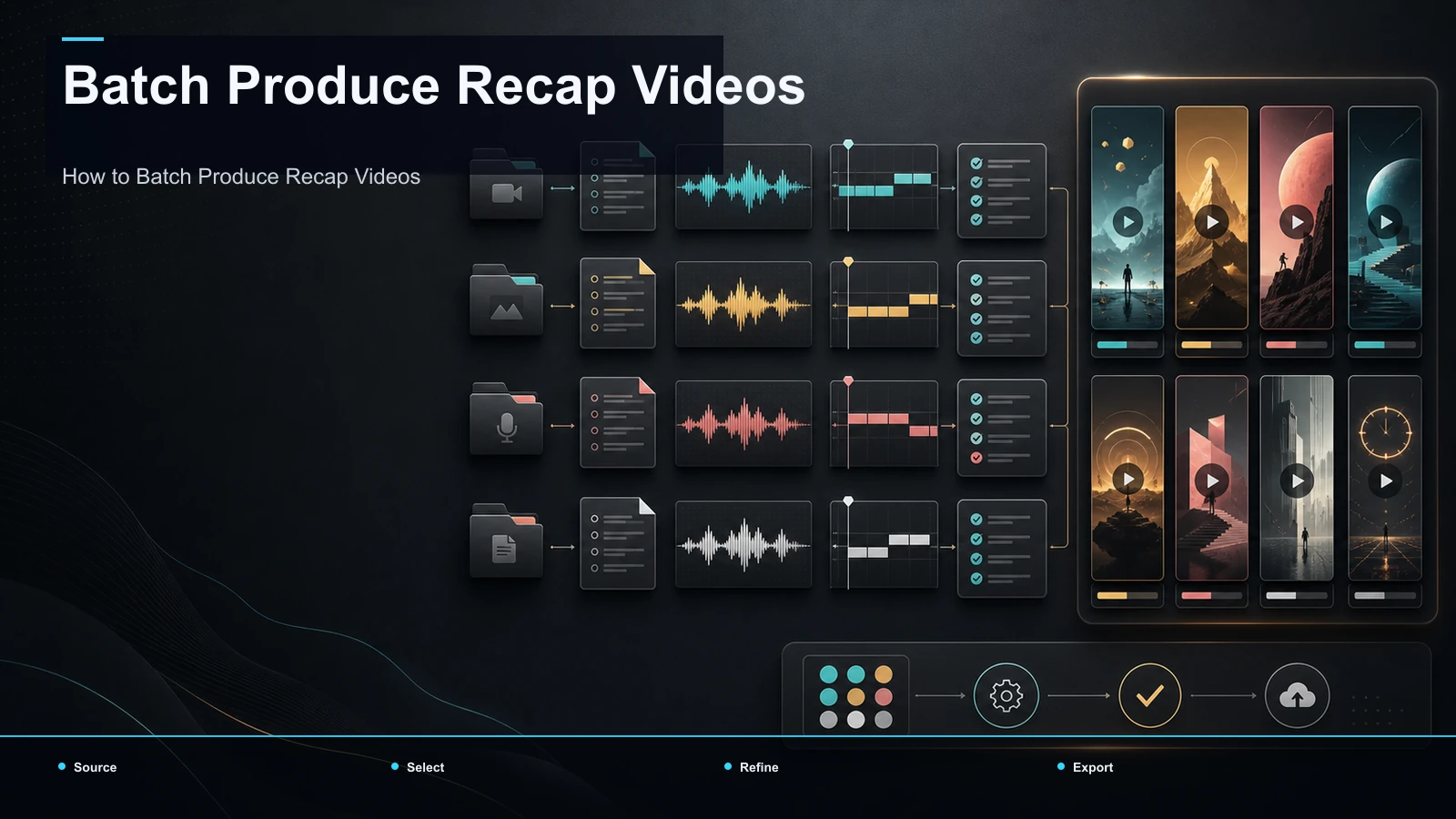
How to Batch Produce Recap Videos
Batch-produce recap videos with a reusable template and a documented script, narration, clip, caption, review, and export workflow.
By the Recapo.ai Editorial Team · Fact-checked July 10, 2026
If you run a recap channel, the thing quietly capping your growth is not ideas — it's throughput. This guide shows you how to batch produce recap videos: build a reusable template once, then run a repeatable assembly line — script → voiceover → clips → captions → cover → export — that turns a whole week or month of episodes into a single production session. The angle here is scale for heavy recappers: not "how to make one recap," but how to mass produce recap videos on a schedule without burning out or rebuilding your format from scratch every time.
Most recap tutorials walk you through a single video end to end. That is the wrong unit of work if you publish two, three, or five recaps a week. Volume creators need a pipeline, not a project. Below is the assembly-line model, the reusable template that makes it possible, a stage-by-stage workflow, a concrete one-month plan, an honest look at Content ID and compliant reuse, and a self-test for picking a tool that can keep up. Whether you call it bulk recap videos, batch create recap videos, or a personal content factory, the mechanics are the same.
Information note: This is general information, not legal advice. Copyright outcomes depend on the facts and jurisdiction; primary sources were checked on July 10, 2026.
What batch producing recap videos actually means
Batching is not "finish one recap, then start the next." It is completing one stage across every episode before moving the whole set forward. You write all your scripts in one sitting, record or generate every voiceover in the next, clip all the footage in the third, and so on. Each stage runs once, in flow, instead of context-switching through the full pipeline six times.
The mental shift is from making videos to running a line. A one-off creator opens a project, finishes it, ships it, and starts cold the next day. A batch creator treats an episode as one unit passing through fixed stations. The setup cost of each station — loading the tool, remembering your settings, warming up your narration voice — is paid once for the whole batch, not once per video.
That reframe is what separates channels that post daily from channels that go quiet after three uploads. When the format is fixed and the work is staged, output stops depending on motivation.
The reusable recap template: build it once, run it forever
The engine of any batch is a template — the set of decisions you make once so you never re-decide them per episode. This is the difference between a factory and a craft shop. Lock these down before your first batch:
| Template element | Decide once | Why it enables batching |
|---|---|---|
| Hook structure | A fixed opening pattern (e.g. "the question," "the cold open") | Every script starts the same way; no blank-page stall |
| Script skeleton | Setup → escalation → payoff → CTA | You fill a mold instead of writing from zero |
| Narration voice | One AI voice or one recording style | Every episode sounds like the same channel |
| Caption style | Font, size, position, highlight color | Auto-captions inherit the look; no per-clip styling |
| Pacing | Target length and cut rhythm | Editing decisions become repeatable, not improvised |
| Cover layout | Title placement, framing, type treatment | Covers become a fill-in-the-blank, not a redesign |
| Outro / CTA | Same closing line and end card | Consistency trains subscribers to expect it |
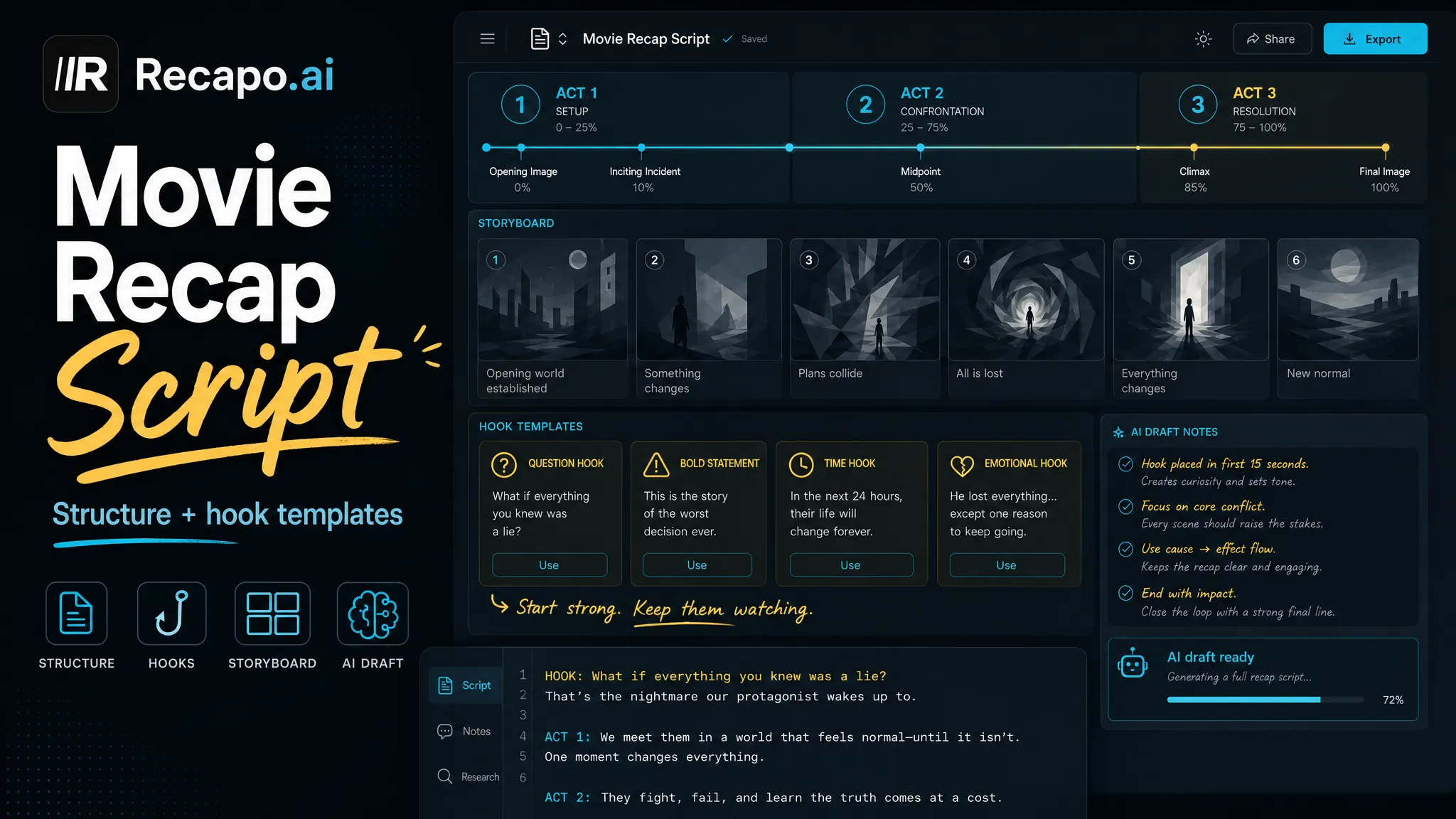
Here is the practical test: if a new episode forces you to reinvent any row above, it is not yet a template — it is a habit. A real template lets a collaborator (or a future, tired you) produce an on-brand recap by swapping the source and filling the blanks. For the script skeleton specifically, how to write a movie recap script breaks down a structure you can reuse across an entire season of uploads.
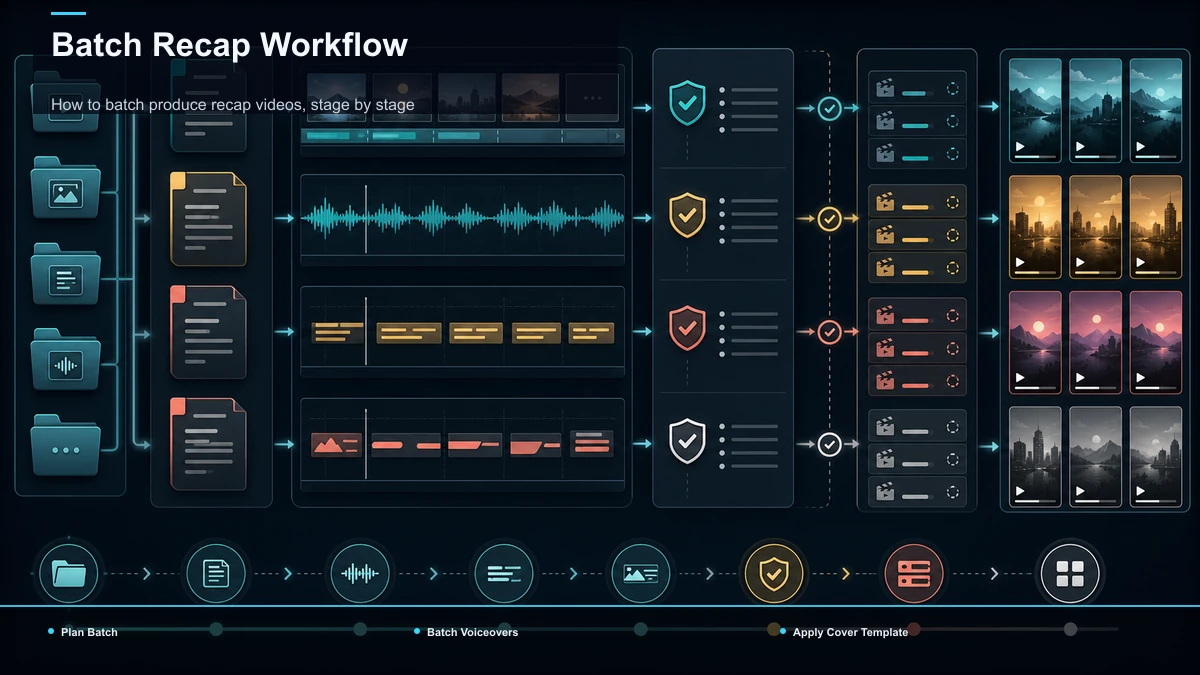
How to batch produce recap videos, stage by stage
Here is the assembly line. Notice that each numbered step is done for the entire batch before you touch the next one — that staging is the whole point.
- Plan the batch. Pick your titles for the week or month and line them up. Decide the count before you start so the batch has a finish line.
- Write every script in one session. Working from your skeleton, draft all of them back to back. Momentum compounds — the fifth script is faster than the first because your voice is already warm.
- Generate all voiceovers together. Feed each finished script through your chosen narration voice in one pass so every episode is sonically identical. Keeping the voice fixed across the batch is what makes the channel recognizable.
- Pull and clip the footage in bulk. Upload each long source and let a long-video-to-short-video AI surface the usable moments, then trim to the beats your script calls for. Browser-based tools accept common formats like MP4 and MOV and handle large sources (Recapo takes up to 6GB total per task), so you rarely pre-compress. An AI clip generator speeds the first pass of finding the moments that match your narration.
- Caption the whole set in your locked style. Run auto-captions across every episode so the words match the voiceover and inherit your template's font, size, and highlight color — no per-clip restyling.
- Make covers from your layout. Drop each title into your fixed cover template so the batch reads as one series, not six unrelated uploads.
- Export the batch and schedule it. Render the finished set in one cycle, then stagger the uploads across the calendar rather than dumping them at once.
Done this way, the slow, setup-heavy parts happen once per stage, and your per-video hands-on time collapses to filling blanks and reviewing output.
Batch vs. one-at-a-time: where the time goes
| Task | One-at-a-time | Batch (staged) workflow |
|---|---|---|
| Scripting | Write, then switch to editing, then come back cold | Draft every script in one warm session |
| Voiceover | Re-warm your voice or reload the tool each video | Generate all narration in a single pass |
| Clipping | Hunt footage per project from scratch | Pull and trim the whole batch in one sitting |
| Captions | Restyle captions on every file | Apply the locked caption style across the set |
| Covers | Design each cover fresh | Fill one cover template per episode |
| Publishing | Post whenever a video is finally done | Schedule the whole batch ahead |
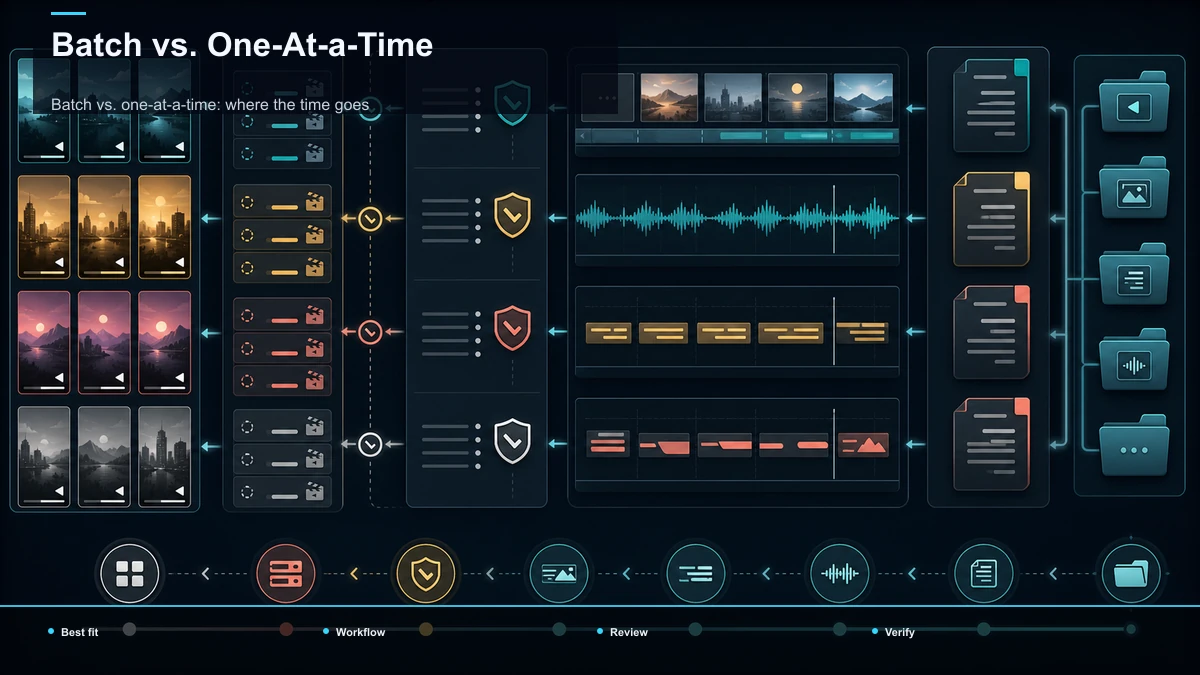
The left column is why so many recap channels produce in bursts and then disappear — every video pays the full setup cost again. The right column is what makes a posting schedule survivable, because the expensive steps are amortized across the batch.
A sample one-month recap batch
To make this concrete, here is how a heavy recapper might lay out twelve episodes (three a week) as four staged sessions instead of twelve separate projects:
| Session | Focus | Output |
|---|---|---|
| Session 1 | Plan + write | 12 titles locked, 12 scripts drafted from the skeleton |
| Session 2 | Voice + clip | 12 voiceovers generated, 12 sources clipped to the beats |
| Session 3 | Caption + cover | 12 captioned edits in house style, 12 covers filled in |
| Session 4 | Export + schedule | 12 finished videos exported and staggered across the month |
The point is not the exact numbers — your realistic count depends on source length, script density, and how much footage each recap needs. The point is the shape: four focused sessions, each doing one thing well, replacing a month of stop-start single edits. That structure is what "mass produce recap videos" actually looks like in practice, and it scales up or down with your ambition.
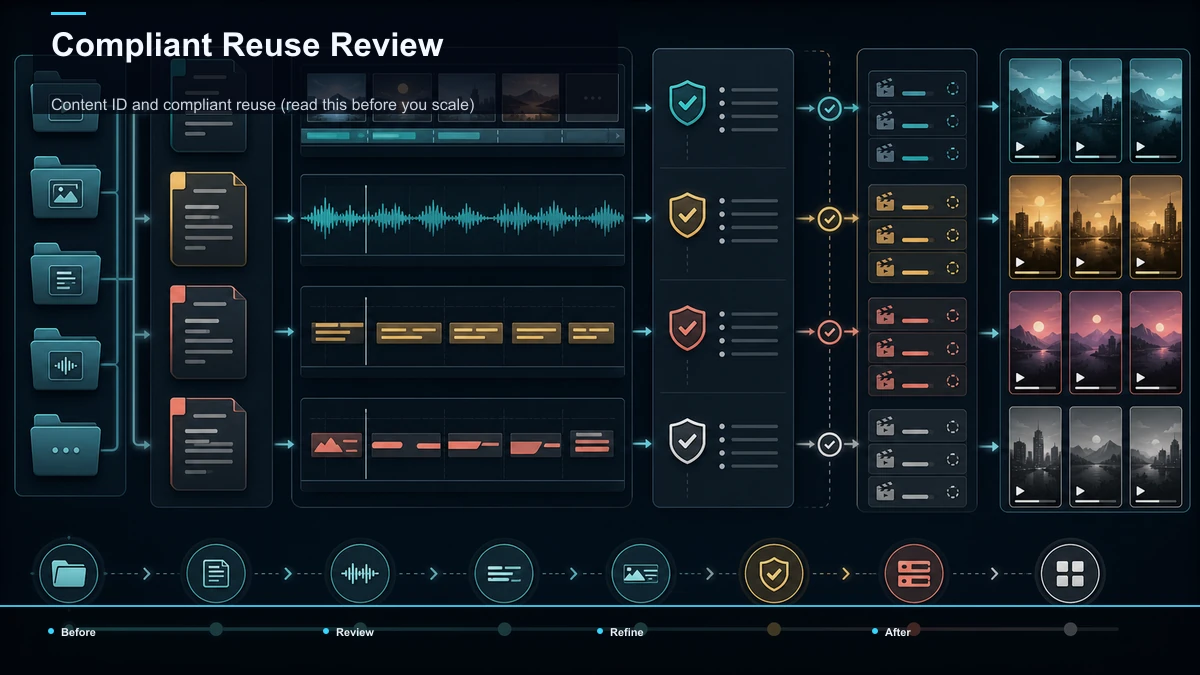
Content ID and compliant reuse (read this before you scale)
Batching multiplies whatever you do — including risk. If your pipeline leans on copyrighted footage, understand how YouTube's Content ID works before you run a hundred episodes through it.
Content ID is an automated system that scans every upload against a database of reference files that rights holders submit. When it finds a match, the rights holder — not you — decides the outcome: the video may be monetized on their behalf, tracked, or blocked in certain regions. A claim is not a strike, but it can redirect or remove your ability to monetize that upload. Because batching means the same sourcing habit repeats across your entire catalog, a template built on long, unmodified clips can generate claims at scale.
The way serious recappers reduce that exposure is baked into the template: original scripts, your own narration, commentary that adds a genuine perspective, and limited, purposeful clips rather than long verbatim stretches. Building transformation into stage one — the script — is more reliable than trying to fix it in the edit.
This is not legal advice. Fair use and copyright rules vary by country and are decided case by case, so review YouTube's official Content ID and copyright policies directly, and for anything high-stakes consult a qualified professional. For a deeper primer on the principle, see YouTube's official fair-use guidance. Nothing here is a promise about monetization or earnings — it is a workflow, not a guarantee.
How to choose a batch recap tool (a self-test)
The batch-video SERP is crowded — template-and-CSV automation platforms, a browser-based clipper known for AI clip selection, a full desktop editor, and all-in-one design suites all pitch "batch." Most of them are built for generic template videos, not narrated recaps. Instead of trusting a feature list, run one real recap through a free trial and score each tool on the dimensions that govern a recap pipeline:
| Dimension | What to test with your own source |
|---|---|
| Voiceover fit | Does the AI narration sound like a channel you'd subscribe to, on your scripts? |
| Clip relevance | Does the auto-selection surface the moments your script actually references? |
| Caption fidelity | Are auto-captions accurate on your narration and consistent in your style? |
| Reframe accuracy | Does the subject stay centered when it converts horizontal footage to vertical? |
| Throughput | Can you push a full batch through without the tool becoming the bottleneck? |
| File limits | Will it accept your longest, largest source without forcing a pre-compress? |
| Friction | Is it truly browser-based, or does it need an install and a local render queue? |
Recapo fits this pipeline as a browser-based option: transcribe and caption, clip long footage down to your beats, generate AI voiceover, reframe to vertical, add a cover, and export — no install, formats like MP4/MOV, up to 6GB total per task. Whether it is right for you depends on how it scores on the test above with your scripts and footage, which is the most relevant benchmark for your workflow. Check current plan details on the pricing page.
Mistakes that break a recap pipeline
- No fixed template. If you redesign the format every episode, you are not batching — you are doing twelve first drafts. Lock the template first.
- Mixing stages. Jumping between scripting and editing kills the momentum that makes batching fast. Finish a stage before you start the next.
- Inconsistent voice. Switching narration style between episodes tells subscribers this isn't one channel. Fix the voice for the whole batch.
- Publishing the batch all at once. A month of recaps dumped in a day cannibalizes its own reach. Stagger the schedule.
- Scaling before compliance. Running a risky sourcing habit across a hundred uploads multiplies the problem. Build transformation into stage one.
- Skipping review. Automation drafts; you approve. Skim every export before it ships — a batch of unreviewed videos is a batch of unforced errors.
FAQ
How many recap videos can I batch at once? There is no fixed number — it depends on your script density, source length, and how much footage each recap needs. Many heavy recappers plan in weekly or monthly blocks (for example, twelve episodes across four staged sessions) rather than by a hard cap. Batch until quality or focus drops, then stop.
What's the fastest way to batch create recap videos? Work in stages, not projects. Write every script in one session, generate all voiceovers in the next, clip and caption the whole set, then export and schedule together. The speed comes from paying each tool's setup cost once per batch instead of once per video, and from a locked template that removes per-episode decisions.
Do I need to install software to mass produce recap videos? No. A browser-based pipeline runs the whole line — clip, caption, voiceover, reframe, cover, export — online, so there is nothing to install and no local render queue to babysit. That is the practical setup for producing bulk recap videos on a laptop.
How do I keep a batch of recaps compliant? Build transformation into your template: original scripts, your own narration, added commentary, and limited, purposeful clips rather than long verbatim footage. Understand that YouTube's Content ID scans every upload and lets rights holders decide the outcome of a match. Review the platform's official policies; this is workflow guidance, not legal advice.
How do I keep a batch consistent across episodes? Lock a template before you start — hook structure, script skeleton, narration voice, caption style, pacing, cover layout, and outro. When those are fixed, every episode inherits the same identity, and batching becomes filling blanks rather than redesigning from scratch.
Ready to turn one production session into a month of episodes? Create your free Recapo account, build your recap template once, and run a script → voiceover → clip → caption → cover → export pipeline in a single browser session — no install, files up to 6GB total per task. If you publish recaps every week, a repeatable batch line is the difference between showing up on schedule and disappearing after three uploads.