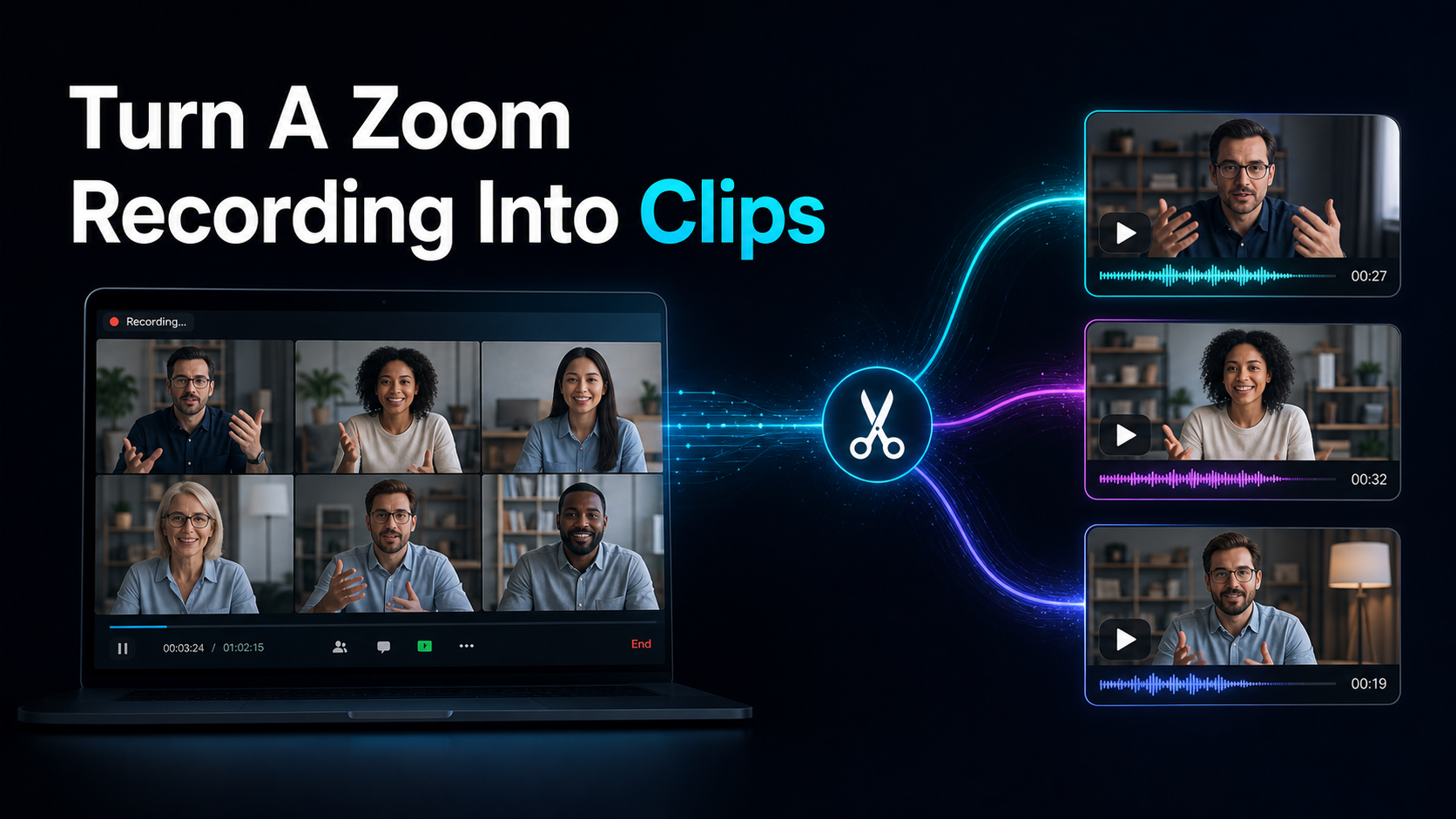
How to Turn a Zoom Recording Into Short Clips
How to turn a Zoom recording into clips: download from the cloud, upload in your browser, auto-find highlights, reframe to 9:16, and add captions — no install.
By the Recapo.ai Editorial Team · Fact-checked July 10, 2026
To turn a Zoom recording into clips, you do four things in order: get the file out of Zoom's cloud, upload it to a video tool, let it find the moments worth cutting, then reframe each one to vertical with captions. The friction most guides skip is the very first step — a Zoom recording usually lives in the cloud or as a raw local MP4, not on your desktop ready to edit — so this article walks the whole path from "the meeting ended" to "the Short is published," and does it in a browser with nothing to install. If you record podcasts, coaching calls, interviews, or course lessons on Zoom every week, that no-install detail is the difference between a repeatable habit and a chore you keep putting off.
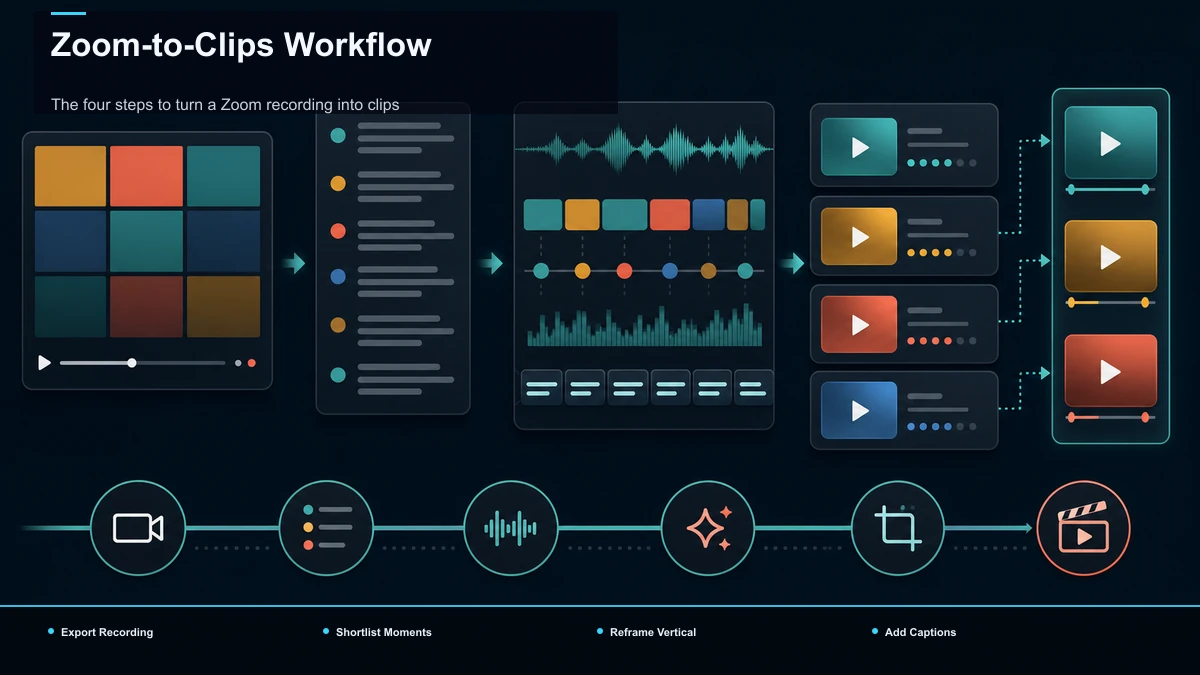
The four steps to turn a Zoom recording into clips
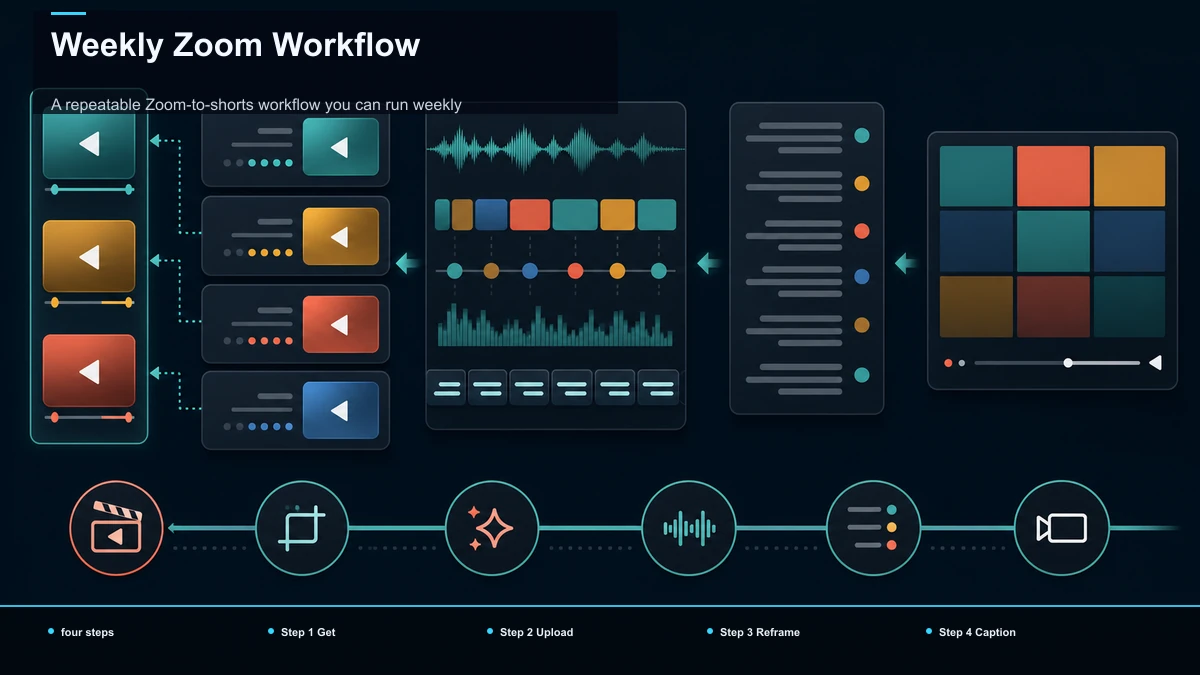
Strip away the marketing and the job is four moves, always in the same order:
- Export: get the recording out of Zoom.
- Shortlist: find the moments worth cutting.
- Reframe: turn 16:9 into 9:16 with the speaker in frame.
- Caption: burn in text for sound-off feeds.
Most tutorials start at step two and assume the file is already sitting on your desktop. It usually isn't. And the reason those four steps are worth systematizing is that a Zoom recording and a publishable Short are almost opposites:
| Horizontal 16:9, or a gallery grid | Vertical 9:16 with one subject centered | 30 to 90 minutes long | 15 to 60 seconds, one self-contained moment | Full of dead air, cross-talk, and "you're on mute" | A hook in the first second | Silent-unfriendly — no burned-in captions | On-screen captions for sound-off scrolling | Locked in the cloud or a raw local file | A file you can upload to an editor |
Close every one of those gaps and you have a clip. The rest of this article is how to close them in a browser, so a podcaster, coach, or course seller can do it the same way every week without installing anything.
Step 1 — Get the recording out of Zoom's cloud
Where your file lives depends on how you recorded, and that changes your first move.
Pick the right file. Cloud recordings often hand you several versions — active speaker, gallery view, shared screen, audio-only. For clipping a person talking, the active-speaker or speaker-view MP4 reframes far more cleanly than a gallery grid, where four faces in a 2×2 can't all survive a 9:16 crop. If you recorded a screen share and the slides matter, keep that file too — you may want it as a cutaway.
Step 2 — Upload and auto-find the moments worth clipping
With the MP4 in hand, the install-nothing path is a browser workspace: open a tab, upload the file, and work from there. A tool like Recapo accepts MP4, MOV, and other common formats up to 6GB total per task, which matters for Zoom because an hour-long call at full quality is a big file — you don't want to transcode it down just to get it into an editor.
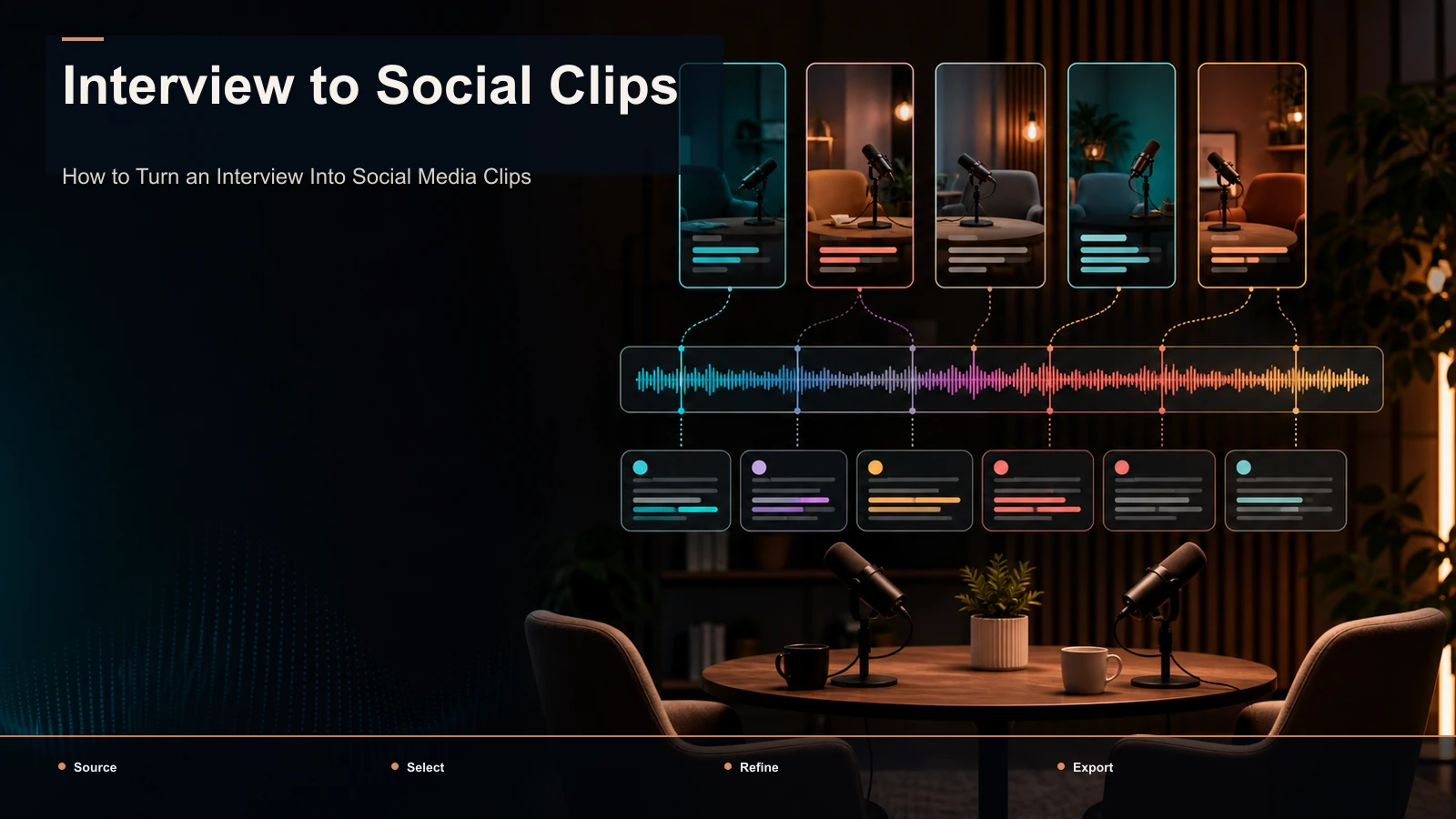
Once it's uploaded, don't scrub the whole hour by hand. Run it through a long video to short video AI that reads the recording and surfaces candidate moments — the strong answer, the story, the one-liner that lands. Treat the output as a shortlist, not a verdict: you know which moment your audience will actually clip on, so review the suggestions and keep the three or four that earn it. This is the step that turns zoom recording to shorts from an afternoon into twenty minutes. When two people are talking, turn an interview into social clips covers how to pick moments that stand on their own out of context.
Step 3 — Reframe to 9:16 and keep the speaker centered
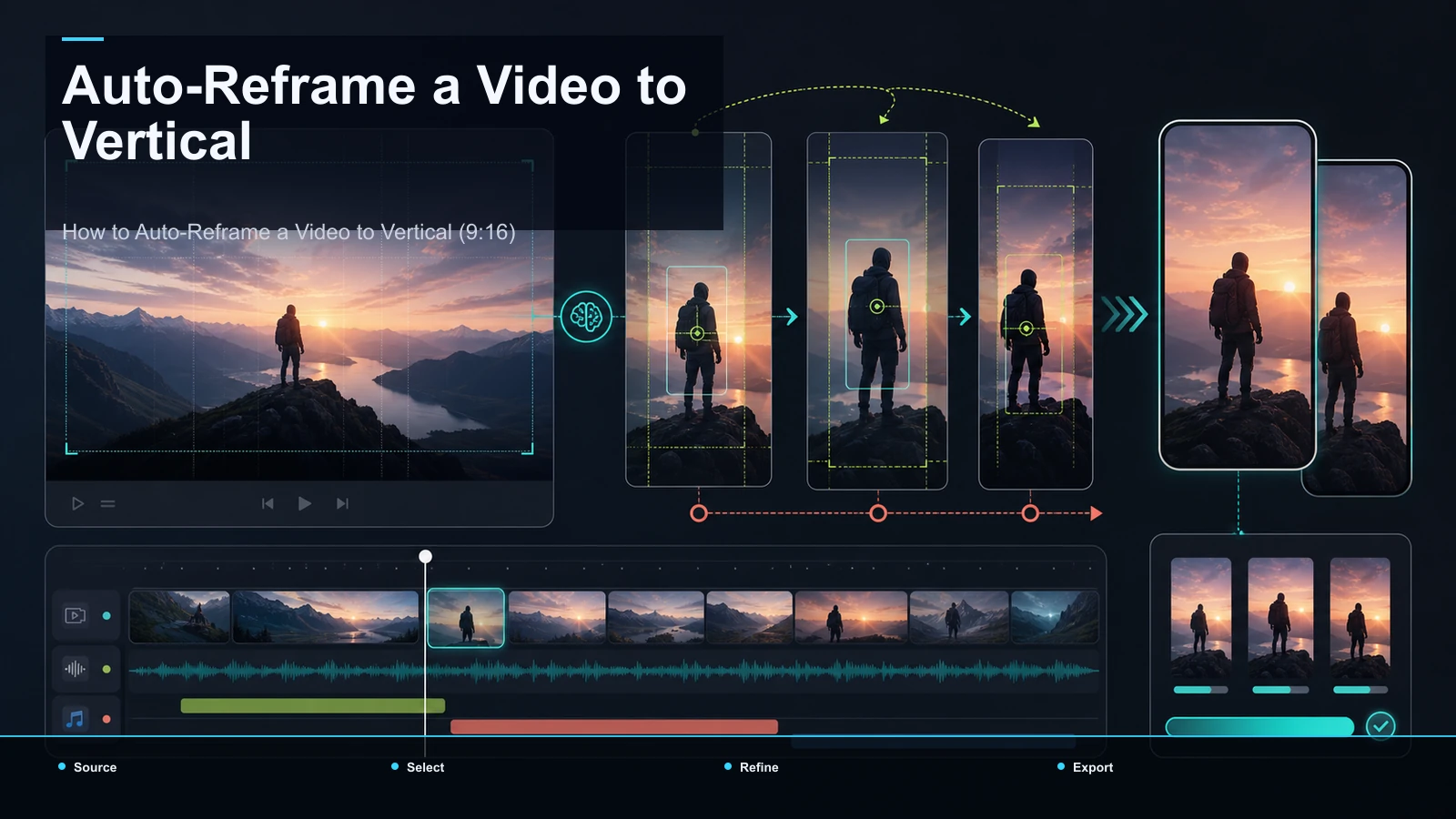
A Zoom recording is horizontal; every vertical feed — TikTok, Reels, Shorts — wants 9:16. The naive fix is to letterbox the 16:9 frame into a vertical box with black bars top and bottom, which wastes two-thirds of the screen and reads as lazy. The better move is to reframe: crop into the frame and keep the speaker centered as the focal point.
This is where speaker view earns its keep. A single talking head sits in the middle of the frame, so a TikTok video resizer that outputs 9:16 can hold the subject centered with little cleanup. That's all it takes to turn zoom to tiktok clips that fill the screen instead of floating in a letterbox. Watch two cases:
Reframe once, correctly, and the same cut travels across every vertical platform. How to auto-reframe a video to vertical goes deeper on keeping a subject in frame when the camera — or the speaker — moves.
Step 4 — Caption the clip for sound-off viewing
Some people watch vertical video with the sound off, so captions improve accessibility and comprehension — they're how the clip gets understood mid-scroll. Run the cut through auto-captions to generate a transcript and burn the text onto the video.
Zoom audio deserves an extra look here. Mic quality varies by participant — a guest on laptop audio, a host on a good mic — and background noise or cross-talk can trip up any transcriber. So review before you export: fix names, brand terms, and jargon the model guessed at, because a caption that misspells your guest's name undercuts the whole clip. Then style it for the platform — legible font, high contrast, safe margins so nothing sits under the interface buttons. Whether you're producing a zoom recording to reels or a YouTube Short, readable captions are what make it land silently.
A repeatable Zoom-to-shorts workflow you can run weekly
Here's the whole thing as a checklist you can run without re-thinking it. The point of writing it down is that once you edit a Zoom recording the same way twice, it stops being a project and becomes a habit.
| 1 | Download the MP4 from Zoom's cloud (or grab the local file) | Zoom portal / cloud storage | 2 | Upload to a browser workspace | Recapo | 3 | Auto-shortlist the moments | long video to short video AI | 4 | Reframe each keeper to 9:16, speaker centered | TikTok video resizer | 5 | Caption, then review names and jargon | auto-captions | 6 | Add a cover, export, publish | Export |
A few habits keep the weekly version fast:
- Record with clipping in mind. Prefer active-speaker recording over a gallery grid, and remind guests to use headphones — cleaner audio means fewer caption fixes downstream.
- Batch it. If you record several calls a week, upload and shortlist them in one sitting rather than one at a time; the setup cost amortizes.
- Keep a caption style. Lock a font, size, and position once so every clip looks like it belongs to the same channel.
Do this a few weeks in a row and one long call reliably becomes a handful of Shorts, Reels, and TikToks — without the whole thing feeling like editing.
Where a no-install tool fits — and how to test it
Now the scope. The SERP for turning Zoom recordings into clips is crowded with dedicated tools — OpusClip and Vizard both ship a "Zoom recording to clips" flow, alongside FlexClip, quso, StreamYard and others. Recapo isn't the only option and won't claim to be. What it offers for this specific job is that the whole path lives in one browser tab with nothing to install: upload the Zoom MP4, shortlist with the long video to short video AI, reframe with the TikTok video resizer, caption with auto-captions, add a cover, and export — without stitching several subscriptions and several exports together.
Because pricing and limits change and every tool markets itself as effortless, don't take any positioning on faith — including this one. Run the same Zoom recording through two tools and score what actually matters:
| Moment quality | How many suggested clips are genuinely usable, not just cut on silence? | Reframe | Does the speaker stay centered, or drift out of the 9:16 crop? | Caption accuracy | How well does it handle your guest's name, brand terms, and uneven Zoom audio? | Effort | How many clicks from uploaded file to a finished, captioned, vertical clip? | Fit | Does one tool cover your whole weekly volume, or do you hit a wall? |
Where Recapo tends to fit is the recurring case: podcasters, coaches, and course sellers who record on Zoom every week and re-clip every week. That repetition is the whole reason a no-install, one-tab workflow beats a chain of apps — the tax you pay isn't one export, it's the same friction fifty-two times a year. Pricing lives on the pricing page; the fastest way to judge fit is one of your own recordings, start to finish.
FAQ
Can I turn a Zoom cloud recording into clips without downloading it first?
In most workflows you need the file. Some tools accept a link import, but a downloaded MP4 from your Zoom portal — or from the cloud-storage folder you route recordings to — is the reliable path, because it clears permission and access issues before they start. Once the MP4 is on your machine, uploading it to a browser tool takes seconds.
What aspect ratio should Zoom clips be for TikTok, Reels, and Shorts?
9:16 vertical for all three. A Zoom recording is 16:9, so the job is to reframe into the vertical frame with the speaker centered, not to letterbox the wide frame with black bars. Reframe once and the same cut works across every vertical feed.
How do I keep the speaker centered when I reframe?
Start from the right source file. Zoom's active-speaker or speaker-view recording puts one person in the middle of the frame, which auto-reframe handles cleanly. A gallery grid is the hard case — no vertical crop fits four faces — so either clip a stretch where one person dominates or reframe manually onto the active speaker.
Will auto-captions be accurate on Zoom audio?
It depends on the audio. Clean, single-speaker audio transcribes well; uneven mics, background noise, and cross-talk make any transcriber guess. Treat the output as a draft — review names, brand terms, and jargon before you export, since those are exactly what viewers notice when they're wrong.
How many clips can I get from one Zoom recording?
It tracks content density, not a fixed number. A focused hour with several strong moments might give you five or six real keepers; a meandering one, two. Chase quality over a quota — a few clips that actually land beat a pile that dilute your feed.
Ready to turn last week's Zoom call into a week of Shorts? Create a free account, upload the recording — MP4 or MOV, up to 6GB total per task — and run the whole pass in your browser: shortlist the moments, reframe each keeper to 9:16 with the speaker centered, and burn in captions styled for a sound-off feed. Do it once with a real recording and time it end to end; if it beats your current chain of apps, you've found the weekly workflow. Start with the Zoom file already sitting in your cloud.
References and official sources