How to Add Animated Captions to Your Videos
Learn how to add animated captions the right way: why word-level timing rules out native TikTok and YouTube, a 6-step burn-in workflow.
By the Recapo.ai Editorial Team · Fact-checked July 10, 2026
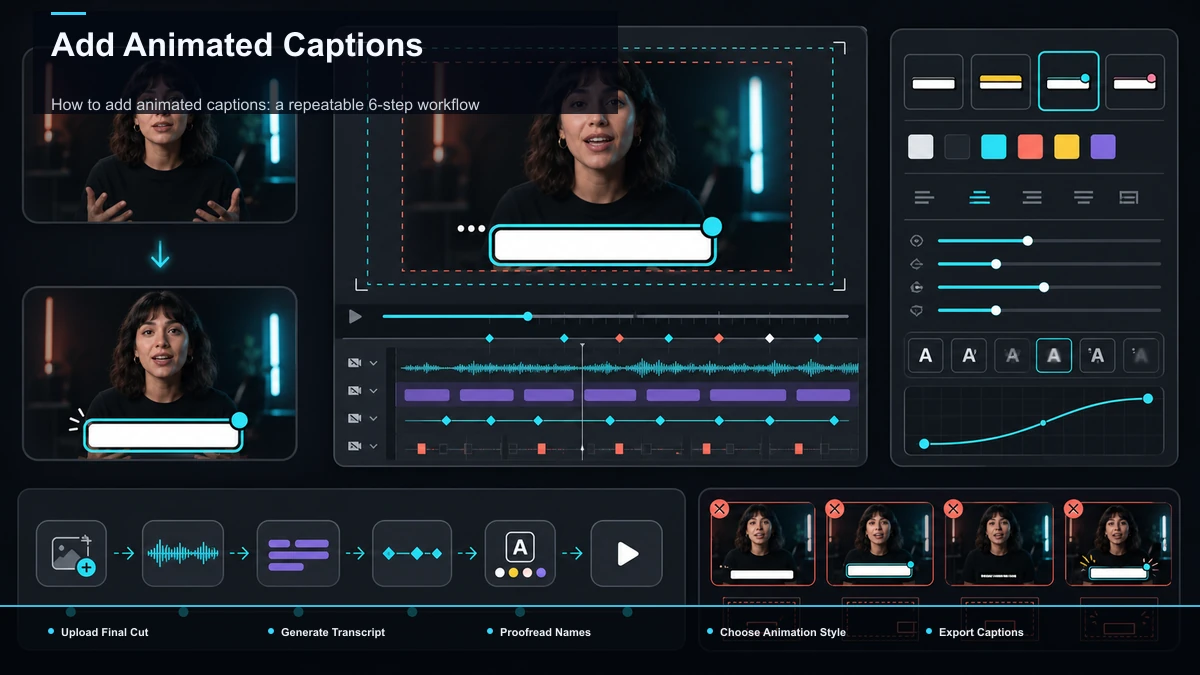
To add animated captions to your videos, you need a tool that generates a word-level transcript, lets you style and animate that text, and then burns the result into the video on export — because animated captions live in a timing layer that TikTok, YouTube, Shorts, and Instagram Reels don't expose in their native editors. That is the whole reason a search for "how to add animated captions" almost always ends with picking a tool: the caption feature built into the app you publish to gives you static text blocks, not the word-by-word, pop-and-highlight motion that makes captions feel alive. This guide explains the two mechanics every animated caption depends on, walks a repeatable workflow, and lays out the style discipline that separates captions that convert from captions that just show off.
What animated captions actually are (and what they aren't)
Animated captions — also called animated subtitles or moving captions — are on-screen text that changes over time in sync with speech, rather than sitting on screen as one fixed block. The defining trait is motion driven by timing: words appear one at a time as they're spoken, the word being spoken highlights like a lyric (that's what people mean by karaoke captions), a keyword scales up on the beat, or a line slides in from the edge. Caption animation is the umbrella term for all of these behaviors.
It helps to name the opposite. Static captions are a line or two of text, timed to a whole phrase, that appear and disappear as a unit. They're perfectly functional — some viewers watch with the sound off, and any captions beat none. But static captions read as an accessibility feature, while animated captions read as production value, and on short-form feeds that difference shows up in the first two seconds, where a viewer decides whether to stay or scroll.
| Caption type | How the text behaves | Where it shines |
|---|---|---|
| Static / block | A full line appears and disappears as one unit | Long-form, tutorials, talking-head |
| Word-by-word | Each word pops in as it's spoken | Shorts, Reels, TikTok |
| Karaoke highlight | The whole line shows; the active word is highlighted | Music, fast delivery, lyric-style |
| Keyword emphasis | Most text is plain; one word scales or colors on a punchline | Hooks and payoffs |
Why you can't add animated captions natively in TikTok or YouTube
Here's the reality that sends every serious creator to a dedicated tool. The caption features built into TikTok, Instagram Reels, and YouTube (including Shorts) auto-generate captions at the line level with a small set of fixed fonts. They're designed for accessibility and speed, not motion design: you don't get a per-word timeline you can edit, and you don't get animation control. So when you search "how to add animated captions," the effect you're picturing simply isn't exposed in the app you're publishing to — you have to build it upstream and bring in a finished file.
Architecturally, the reason is timing granularity. A native auto-caption knows roughly when a phrase is spoken. An animated caption needs to know when each individual word starts and ends, so the animation can fire on the right frame. That per-word data is what native editors don't hand you, and it's the thing a caption tool exists to produce.
The two ingredients every animated caption needs
Strip away the styles and every animated caption comes down to two mechanics. Get both and the rest is taste; miss either and the effect breaks.
- Word-level timing (forced alignment). The tool listens to your audio and assigns every word a precise start and end timestamp. This is what lets a word pop exactly as it's spoken instead of drifting a beat late. Without word-level timing, "animated" captions just fade a whole line in and out — which is not the same effect and is why native captions can't fake it.
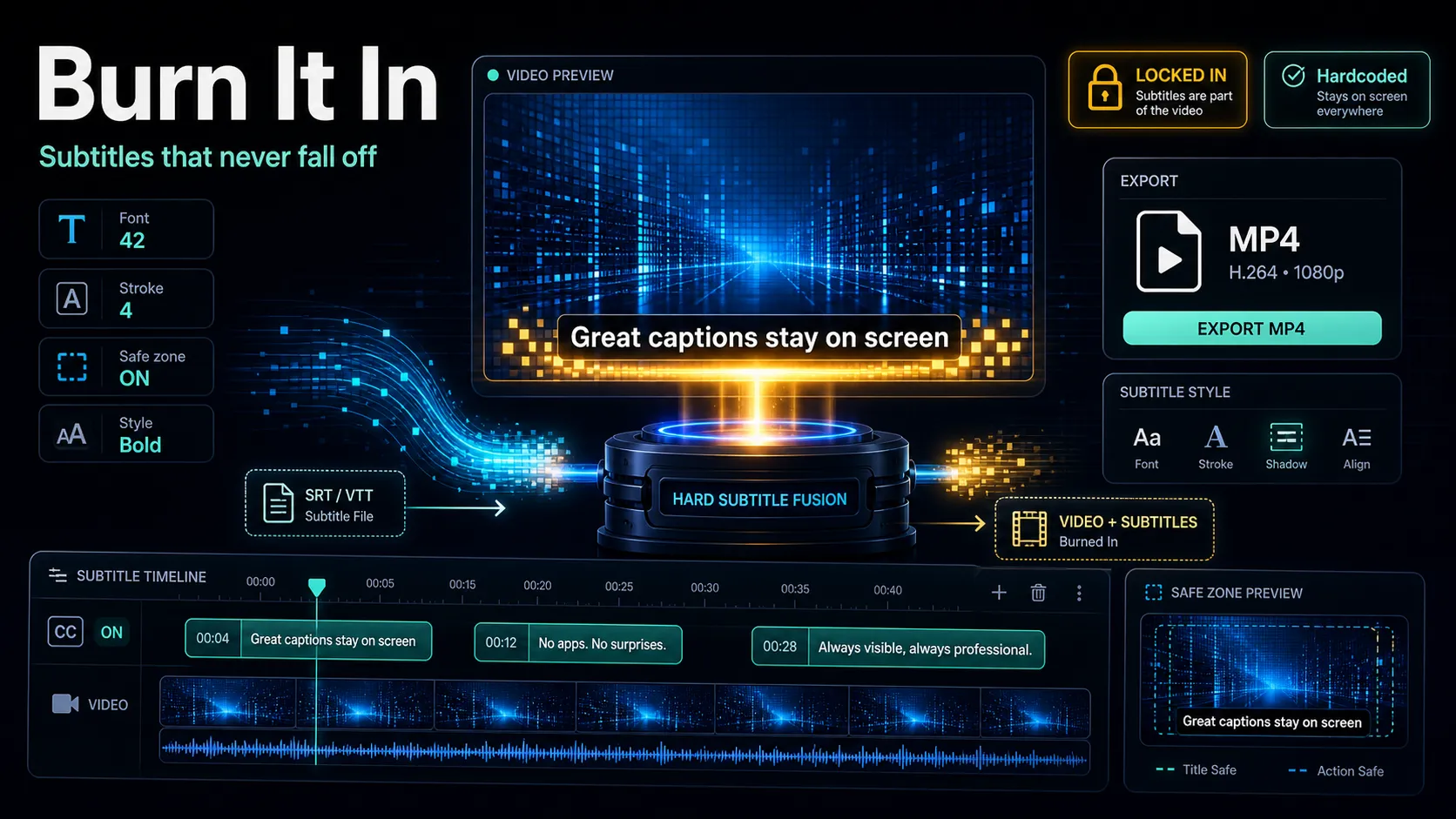
- Burn-in on export. Animation has to be rendered into the actual pixels of the video. A soft subtitle file — an
.srtor.vttsidecar — can carry text and rough timing, but it cannot carry motion, fonts, colors, or position. So animated captions are always burned in: baked into the frames on export. The trade-off is that they're permanent, which is exactly why you proofread before you render. For the mechanics of baking text into frames, our guide on how to add subtitles to a video covers the export side in detail.
Keep these two in mind and every "why won't this work" question answers itself: either the timing isn't word-level, or the captions were left as a soft file instead of burned in.
How to add animated captions: a repeatable 6-step workflow
Once the pieces make sense, the process is short and the same every time. Here's the workflow, tool by tool.
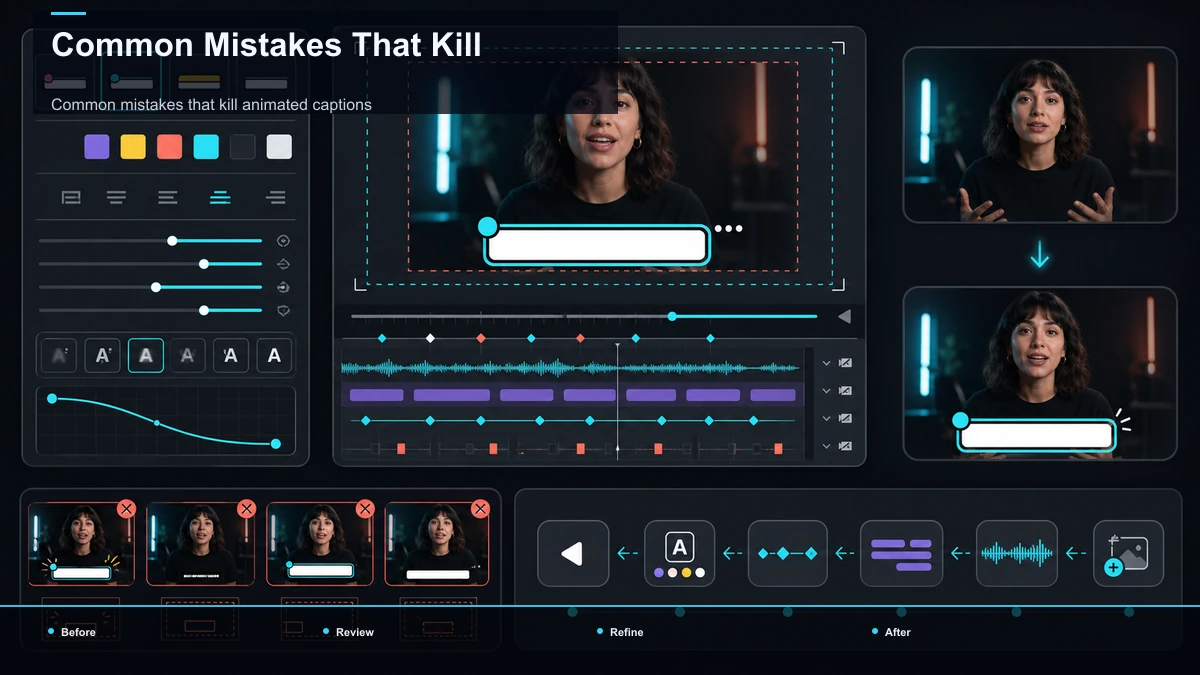
- Upload your finished cut. Start from the edited video — the same file you were about to publish. Doing captions last means the timing lines up with your final audio and you never re-caption after a trim.
- Generate a word-level transcript. Run the audio through auto-captions to get a timed transcript with per-word timestamps. This is the raw material every animation depends on; skip it and you're back to static line captions.
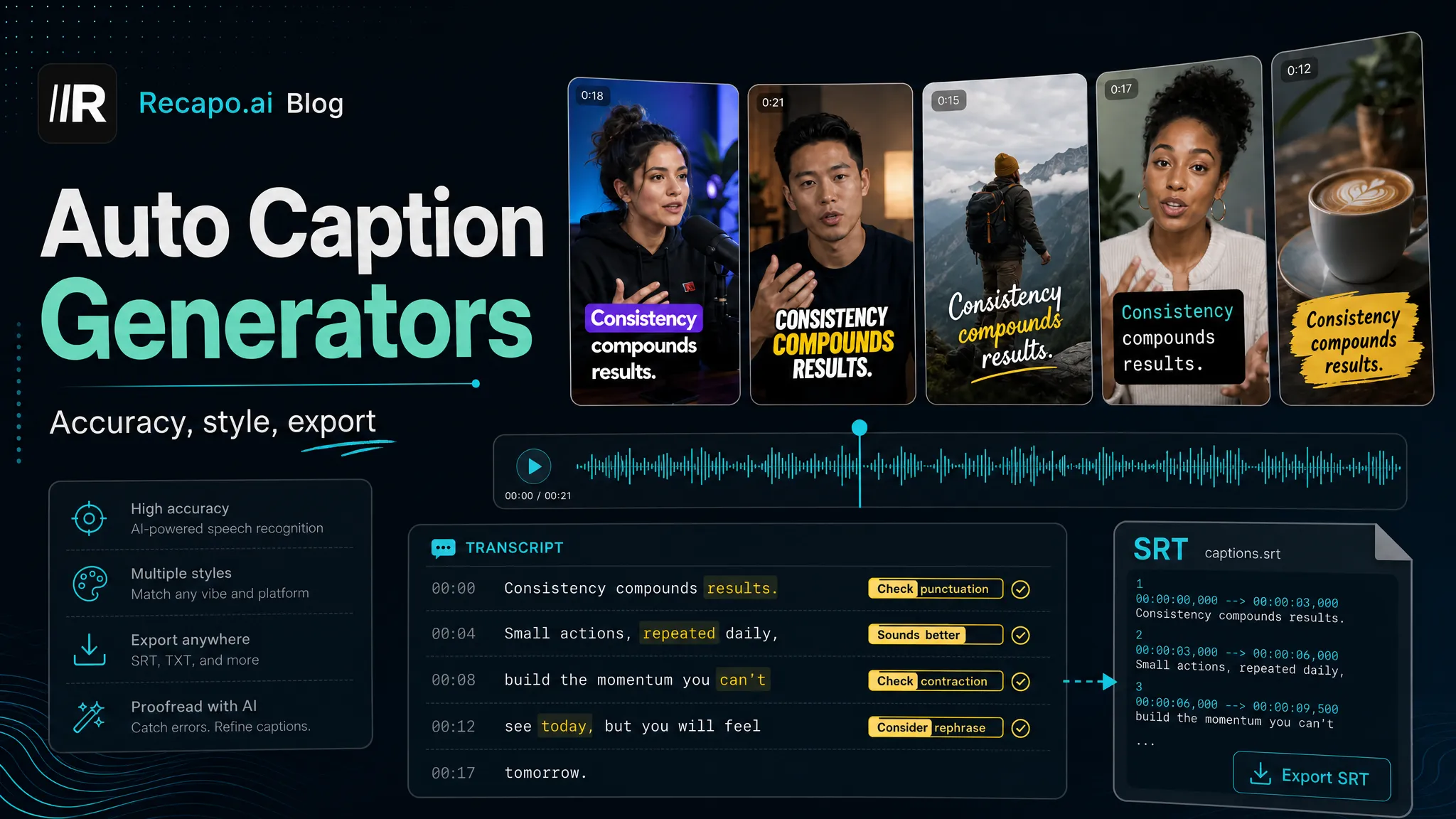
- Proofread names and homophones. Auto-transcription is strong on ordinary speech and weak on proper nouns, brand names, and sound-alikes ("their/there," "your/you're"). Because captions get burned in, a typo is permanent — fix it here, not after export. A video caption generator that shows the transcript alongside the timeline makes this pass fast.
- Choose a style and animation. In the subtitle style editor, pick a font, size, color, outline or background, position, and one animation behavior — word-by-word pop, karaoke highlight, or keyword emphasis. This is where restraint pays off (more on that below): one readable style beats five competing effects.
- Place captions in the safe zone and reframe. On vertical formats, keep captions clear of the UI overlays — the caption, username, and button stack that platforms paint over the lower third and right edge. If you're also going vertical from a horizontal source, reframe to 9:16 before you lock caption position so the text lands where it'll actually be seen.
- Burn in and export. Render the video with captions baked into the frames. Do a final full-screen playback on a phone-sized preview before you publish, because caption legibility looks very different at 6 inches than on your monitor.
That's the loop. After a few videos it becomes muscle memory: upload, transcribe, proofread, style, place, burn.
Caption animation styles that actually convert
The temptation with a fresh style editor is to turn everything on. Resist it. On short-form video, captions have one job — keep a muted viewer reading and watching — and legibility beats spectacle every time. Here's how the common styles map to real use.
| Style | What it does well | Watch out for |
|---|---|---|
| Word-by-word pop | Drives pace, holds attention on fast Shorts/Reels/TikTok | Can feel frantic over slow, thoughtful narration |
| Karaoke highlight | Keeps the full line readable while marking the beat | Needs high contrast between highlight and base color |
| Keyword emphasis | Lands hooks and punchlines without constant motion | Only works if you're selective about which words pop |
| Line slide-in | Clean, calm, good for long-form and talking-head | Too gentle to add energy to a fast hook |
The pattern: match the animation to the tempo of the content, not to whatever looks coolest in the editor. A rapid word-by-word style suits a punchy TikTok-style animated captions look; a calmer slide or a single keyword emphasis suits a two-minute explainer. If you want a deeper library of looks and when to use them, see our roundup of the best caption styles for Shorts.
Karaoke captions and the one-animation rule
Karaoke captions deserve their own note because they're the most requested and the most misused. The effect — full line visible, active word highlighted — works because it does two things at once: it keeps context on screen (the viewer sees the whole phrase) while guiding the eye to the exact word being spoken. That's genuinely useful for fast delivery and music.
The failure mode is stacking. Karaoke highlight plus a bounce plus a color cycle plus a shadow pulse doesn't read as premium — it reads as noise, and it hurts the one metric captions exist to protect: readability. Adopt a one-animation rule. Pick a single motion behavior per video, give it a font heavy enough to survive compression, and set contrast high enough that the caption reads over a busy background — bright text with a dark outline or a subtle box is the reliable default. Restraint isn't the boring choice here; it's the choice that keeps the caption doing its job.
Common mistakes that kill animated captions
Most animated-caption problems come from the same short list. Scan it before you export.
- Over-animation. More effects means less readability. One motion behavior, applied consistently, always wins.
- Low contrast. Thin or same-color text disappears over real footage. Add an outline, shadow, or box.
- Timing drift. If words fire a beat late, you skipped or corrupted the word-level timeline — regenerate the transcript rather than nudging text by hand.
- Safe-zone collisions. Captions hidden behind the platform's own UI are captions no one reads. Keep them in the clear middle band on vertical.
- Tiny fonts. What's legible on a laptop is unreadable on a phone. Size up and preview at phone scale.
- Skipping the proofread. Burned-in typos are permanent. The proofread pass is not optional.
Where Recapo fits
Recapo is a browser-based AI video workspace — nothing to install — and the caption pipeline in this guide happens to sit inside it end to end. You can transcribe and caption to get a word-level transcript, correct names and homophones, style and animate the text, resize to a 9:16 vertical for Shorts, Reels, or TikTok, design a cover, and export with captions burned into the frames — all in one tab, without moving a file between apps. It accepts MP4, MOV, and other common formats, up to 6GB total per task, which comfortably covers a long recording you're captioning after the fact.
The practical fit: Recapo handles the production — transcript, styling, animation, burn-in, and export — but the taste calls are still yours. It won't decide your one animation behavior or your contrast; the restraint discipline above is what turns a technically-animated caption into one that holds a viewer. If animated captions are a recurring part of your publishing routine rather than a one-off, having the whole loop in a single browser tab is the job it's built for. Plans live on the pricing page.
FAQ
Can I add animated captions for free inside TikTok or YouTube?
You can add static auto-captions natively — TikTok, Reels, and YouTube (including Shorts) all generate them, and they're worth using for accessibility. But animated captions with word-by-word motion or karaoke highlighting aren't exposed in those native editors, because they need a per-word timeline the apps don't give you. That's the technical reason "how to add animated captions" almost always leads to a dedicated tool.
What are karaoke captions?
Karaoke captions show a full line of text while highlighting the specific word being spoken, the way a karaoke screen tracks a lyric. They keep the whole phrase readable for context while guiding the eye to the exact beat, which is why they suit fast delivery and music. They depend on word-level timing to fire on the right word.
Why do animated captions have to be burned in?
Because motion, fonts, colors, and position can't travel in a soft subtitle file. An .srt or .vtt carries text and rough timing only, so any animation has to be rendered into the actual video frames — "burned in" — on export. The catch is that burned-in captions are permanent, which is why you proofread the transcript before you render.
Do animated captions actually improve watch time?
They can help by keeping muted viewers reading and watching, and some short-form viewing happens with sound off. But no honest guide can promise a specific lift — results depend on your content, hook, and audience. Treat animated captions as a legibility and polish upgrade that removes a reason to scroll, not as a guaranteed metric boost.
What's the best caption animation style for Shorts and TikTok?
There's no single right answer, but a good default for fast short-form is a word-by-word pop or a karaoke highlight, in a heavy font with high contrast and one animation only. Match the motion to your tempo: punchy content can carry a rapid word-by-word style, while a calmer explainer does better with a single keyword emphasis or a gentle slide-in.
Ready to add animated captions without stitching three apps together? Create a free account, upload your finished cut — MP4 or MOV, up to 6GB total per task — and run the whole loop in one browser tab: transcribe to a word-level transcript, proofread the names, pick one clean animation, reframe to 9:16, and export with captions burned in. You bring the hook and the taste; Recapo handles the production so your next Short ships with captions that hold the scroll instead of inviting it.