How to Cut a Video Online Without Re-Editing the Whole Timeline
Learn how to cut a video online by setting precise start and end points, previewing the result, and exporting only the section you need.
By Recapo Editorial Team · Updated 2026-07-28
Disclaimer: This article provides general product and operational information and does not constitute legal advice. Copyright requirements and platform rules may vary by country, region, and platform. Before processing, modifying, or publishing a video, confirm that you have the necessary rights, authorization, and permissions.
Cutting a video should not require rebuilding an entire editing timeline. If your goal is simply to remove a slow introduction, shorten a recording, isolate one useful moment, or prepare a clip for social media, an online video cutter can be the fastest route.
This guide explains the practical difference between cutting and more complex editing, shows a simple workflow, and covers the decisions that affect timing and export quality.
Product scope, July 28, 2026: Recapo's main editing workflow supports MP4, MOV, MKV, MPEG, MPG, and 3GPP, with up to 20 videos and a combined 6GB upload limit. Available output resolution depends on the selected plan. This article does not make claims about unverified processing time, output bitrate, or quality.
 A simple workflow for selecting a video segment and exporting the result.
What does it mean to cut a video?
Cutting usually means keeping a selected portion of a video and removing the material before or after it. The picture size does not have to change, and you do not need to add transitions, music, captions, or effects.
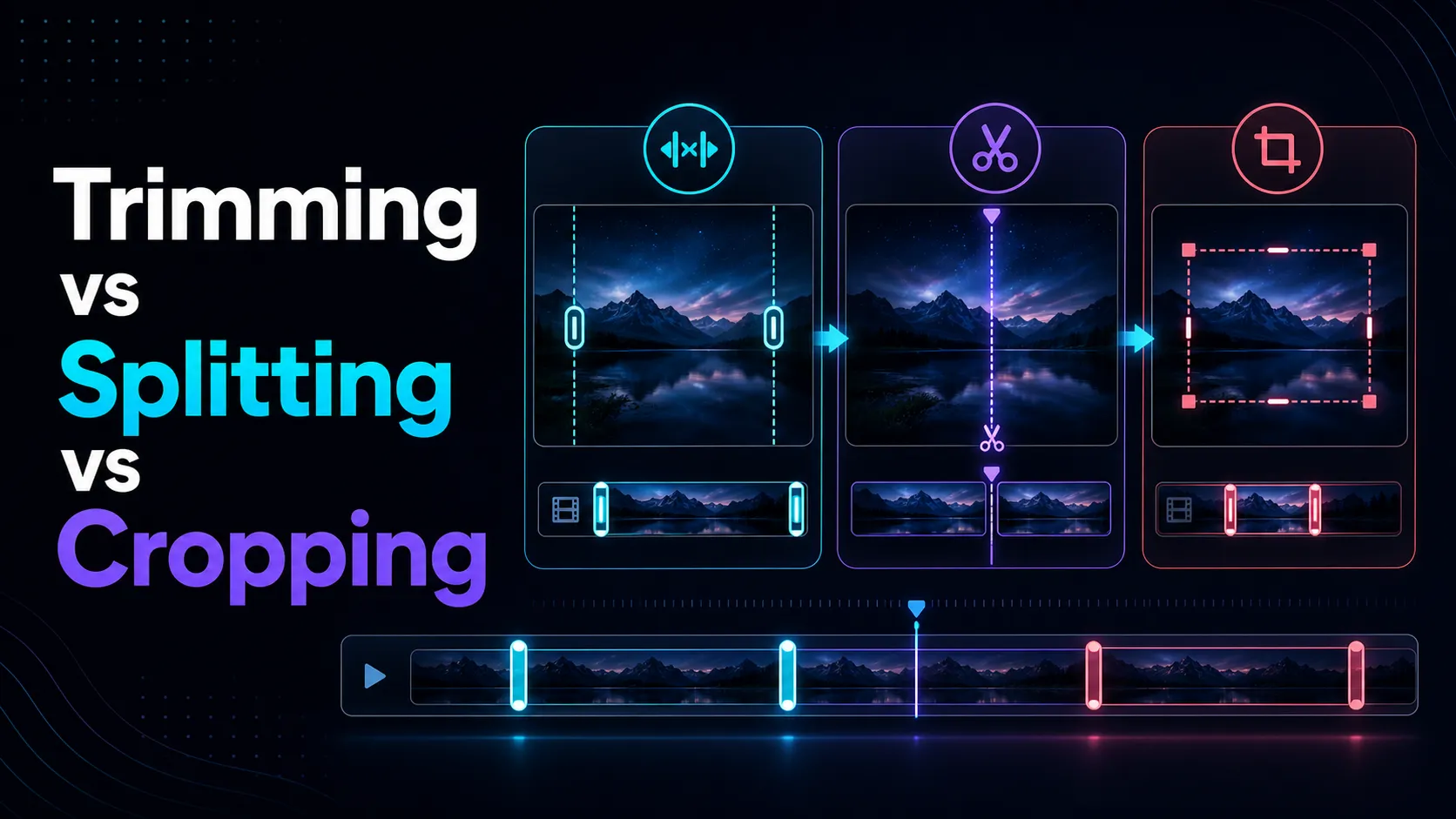
Three terms are often confused:
- Trim: shorten the beginning or end of a clip.
- Split: divide one clip into separate sections.
- Crop: remove part of the visible frame, changing what appears on screen.
If you only need a shorter clip, trimming or cutting is the right starting point. Cropping solves a different problem.
How to cut a video online in three steps
1. Upload a video you own or are authorized to edit
Choose the original file whenever possible. Repeated downloads, exports, and uploads can introduce unnecessary quality loss. Recapo's main editing workflow lists MP4, MOV, MKV, MPEG, MPG, and 3GPP; it accepts up to 20 videos with a combined limit of 6GB. Some standalone tools also list WebM, 3GP, and 3GPP with limits commonly shown as 2GB per file and 180 minutes per video. Check the current upload panel because limits vary by tool.
Russian users can open the localized AI Video Editor. Korean users can use the localized AI Video Editor.
2. Set the start and end points
Move the start marker to the first frame you want to keep, then move the end marker to the last frame you need. Preview the boundary rather than relying only on the timestamp.
For spoken videos, listen to the full sentence around the cut. Removing a fraction of a second too much can clip the first consonant or the end of a word. For music or action footage, cut on a natural beat or movement change when possible.
3. Preview and export
Watch the new opening and ending before exporting. Check that:
- speech begins and ends cleanly;
- no important subtitle is cut in half;
- the selected section contains the full action;
- the output orientation and resolution match the intended platform.
Export the selected section, then open the downloaded file and confirm its duration. Keep the original file until you have verified the result.
Maximum output resolution depends on the selected plan: Starter and Basic list up to 720p, Pro up to 1080p, and Ultimate up to 4K. Confirm the active plan and export setting before promising a particular resolution.
How to make a more precise cut
Small timing mistakes are easiest to notice in talking-head videos. Use these checks:
- Start playback a few seconds before the proposed cut.
- Listen for breaths and the beginning of consonants.
- Leave a short natural pause instead of cutting directly against speech.
- Review the first and last frames at normal playback speed.
- If subtitles are already burned into the video, make sure the last caption is fully readable.
Precision matters more than choosing a round timestamp. A cut at 00:12.37 may feel more natural than one at exactly 00:12.00.
Will cutting a video reduce its quality?
That depends on how the tool processes and exports the file. A tool may copy compatible media streams without fully re-encoding them, or it may encode a new output file. Re-encoding can change file size and quality depending on the codec, resolution, and bitrate.
Do not assume that every “fast” export is lossless. Compare the output resolution and file size with the source, and inspect detailed areas such as text, hair, motion, and low-light footage.
The FFmpeg documentation is a useful technical reference for understanding media processing, formats, and encoding behavior.
When should you use a full video editor instead?
Use a fuller editing workflow when you need to:
- remove several sections from the middle;
- combine multiple recordings;
- change the aspect ratio or composition;
- add captions, B-roll, music, transitions, or branding;
- turn one long recording into several social clips.
If the goal is to identify multiple strong moments from a long recording, an AI Clip Generator may be more efficient than manually creating each cut.
A practical pre-export checklist
Before downloading the result, confirm:
- The source file belongs to you or you have permission to edit it.
- The start and end points do not clip speech.
- The selected duration is correct.
- The orientation and resolution fit the destination.
- The exported file opens and plays from beginning to end.
- The original remains safely stored.
Frequently asked questions
Can I cut a video without installing software?
Yes. A browser-based cutter can handle a simple start-and-end selection without a desktop editor. Support for specific formats, sizes, and browsers should be checked on the product page before uploading.
Is cutting the same as cropping?
No. Cutting changes the duration. Cropping changes the visible area of the frame.
Can I cut a video into several clips?
That requires repeated cuts or a splitting workflow. For a large number of clips, use a tool designed to identify or export multiple sections.
Why does the exported file size change?
The output may be encoded with different resolution, bitrate, codec, audio settings, or metadata. A shorter duration usually reduces size, but export settings also matter.
Should I delete the original after cutting?
Keep the original until the exported clip has been reviewed and backed up. A cut file cannot restore frames that were removed.
Cut only the section you need
A good cut is invisible: the clip begins naturally, ends cleanly, and contains no unnecessary footage. Set the boundaries, preview them in context, and verify the downloaded file before moving on to captions, compression, or publishing.
CTA: Use the Recapo AI Video Editor to trim a video you own or are authorized to edit.