How to Repurpose an Online Course Into Promo Clips
Repurpose an online course into promo clips: split each lesson into social teasers and 60–120s previews, add hooks and captions.
By the Recapo.ai Editorial Team · Fact-checked July 10, 2026
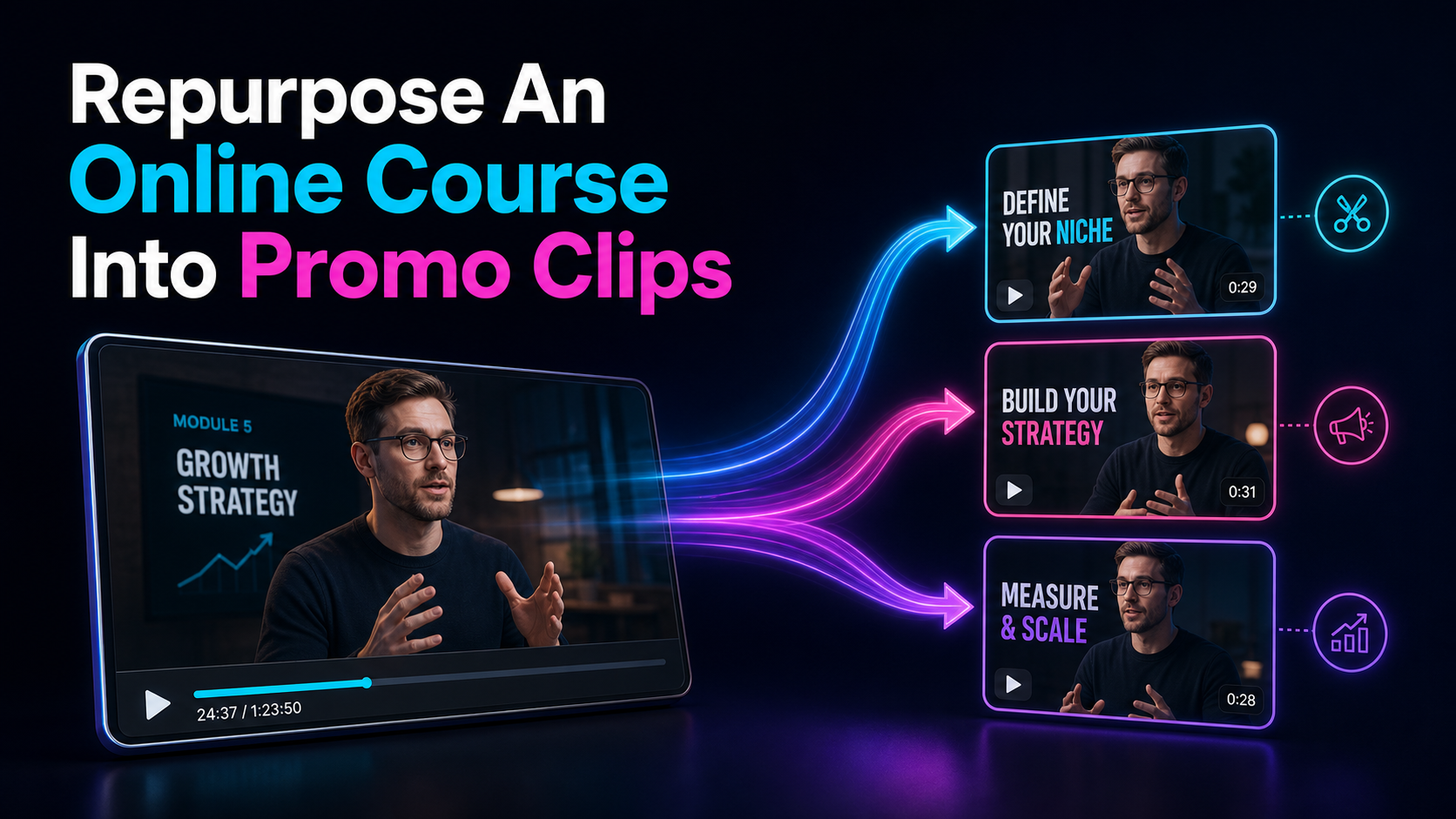
Repurposing an online course into promo clips is the marketing engine most course creators never switch on: you already recorded hours of teaching, and buried inside every lesson are the exact 30-to-90-second moments that would sell a stranger on enrolling. This guide shows you how to repurpose an online course into promo clips using one deliberate split — short social teasers built for reach, and 60-to-120-second lesson previews that prove the teaching is worth paying for — each finished with a scroll-stopping hook, burned-in captions, and a clear call to action back to your course. The angle is intentionally narrow: not a generic "repurpose your content" overview, but the two-track promo pipeline a creator can rerun for every launch and every evergreen enrollment window.
The reason this works is that a course is unusually good raw material for short-form video. The hard part — structuring an argument, teaching a skill clearly, saying something a beginner can act on — is already done and already recorded. What most creators miss is that lessons written to be taught are also, almost accidentally, a remarkably effective ad for the course they belong to. A promo clip that actually teaches something in 60 seconds does more to sell a course than any amount of "enroll now" copy, because it lets the buyer feel the value before they pay. Below is the workflow to extract those clips without turning your marketing into a second full-time job.
Key Takeaways
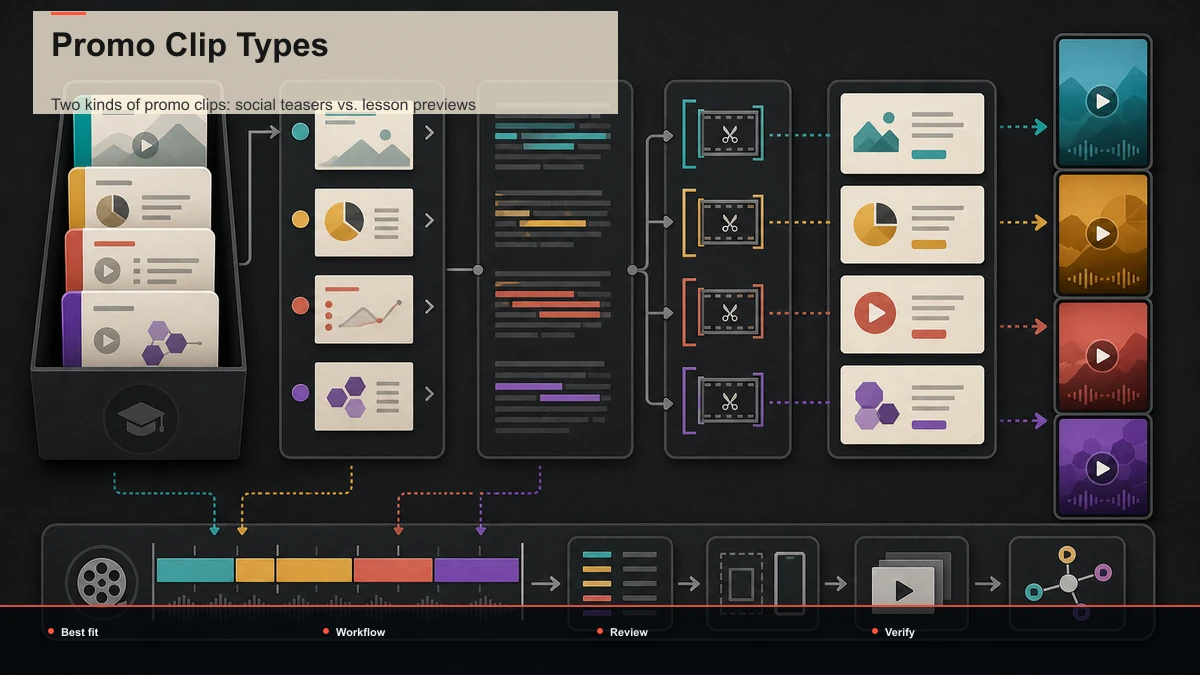
Two kinds of promo clips: social teasers vs. lesson previews
The single mistake that sinks most course-marketing efforts is treating every clip the same. A course actually needs two distinct kinds of online course promo clips, and mixing them up is why so many creators post constantly and enroll no one.
Social teasers are short — roughly 15 to 40 seconds — and their only job is to stop the scroll and spark curiosity. A teaser doesn't teach the whole idea; it opens a loop. It states a surprising claim, poses the question your course answers, or shows a result, then points viewers toward the full lesson inside the course. Teasers are your discovery engine on YouTube Shorts, TikTok, and Instagram Reels.
Lesson previews are longer — 60 to 120 seconds — and their job is to prove the teaching is good. A preview is a genuinely useful, self-contained mini-lesson lifted from a real module: one tip, one framework, one worked example that a viewer can use immediately. It builds trust by giving value away, so the pitch at the end feels earned rather than pushy. These are your conversion clips — the ones you pin, put in your bio funnel, and run when someone is close to buying.
| Length | ~15–40s | ~60–120s | Primary job | Stop the scroll, spark curiosity | Prove the teaching is worth paying for | Content | An open loop, claim, or result | One complete, usable mini-lesson | CTA | "Full breakdown in the course" | "This is one lesson of many — enroll to get the rest" | Where it wins | Cold reach on Shorts/TikTok/Reels | Warm conversion, pinned posts, bio funnel |
You want both in rotation. Teasers bring strangers into your world; course teaser clips earn the first look, and lesson preview clips turn that look into an enrollment. Plan a mix — a few teasers to every preview — rather than defaulting to one shape.
How to repurpose an online course into promo clips: the workflow
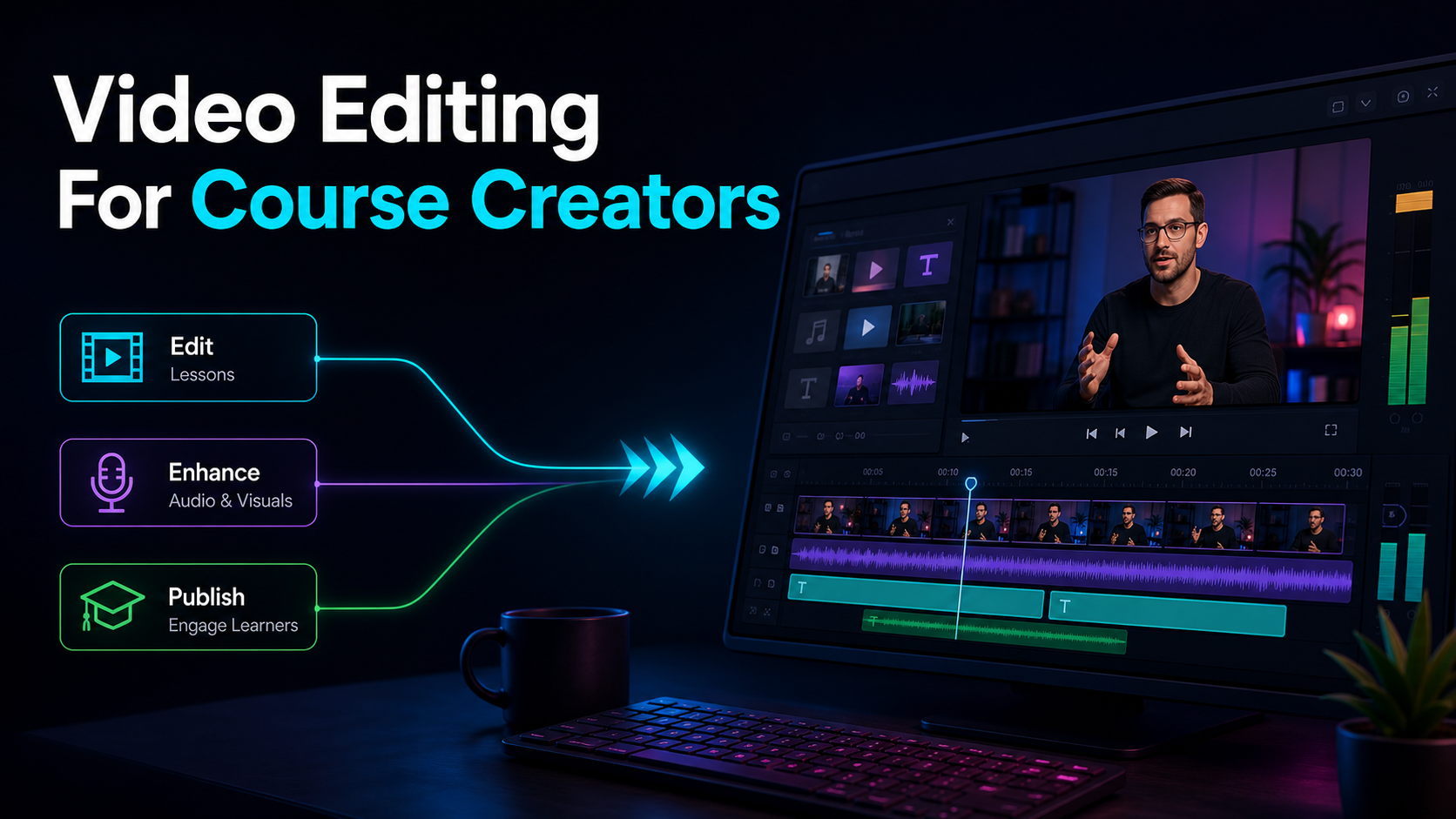
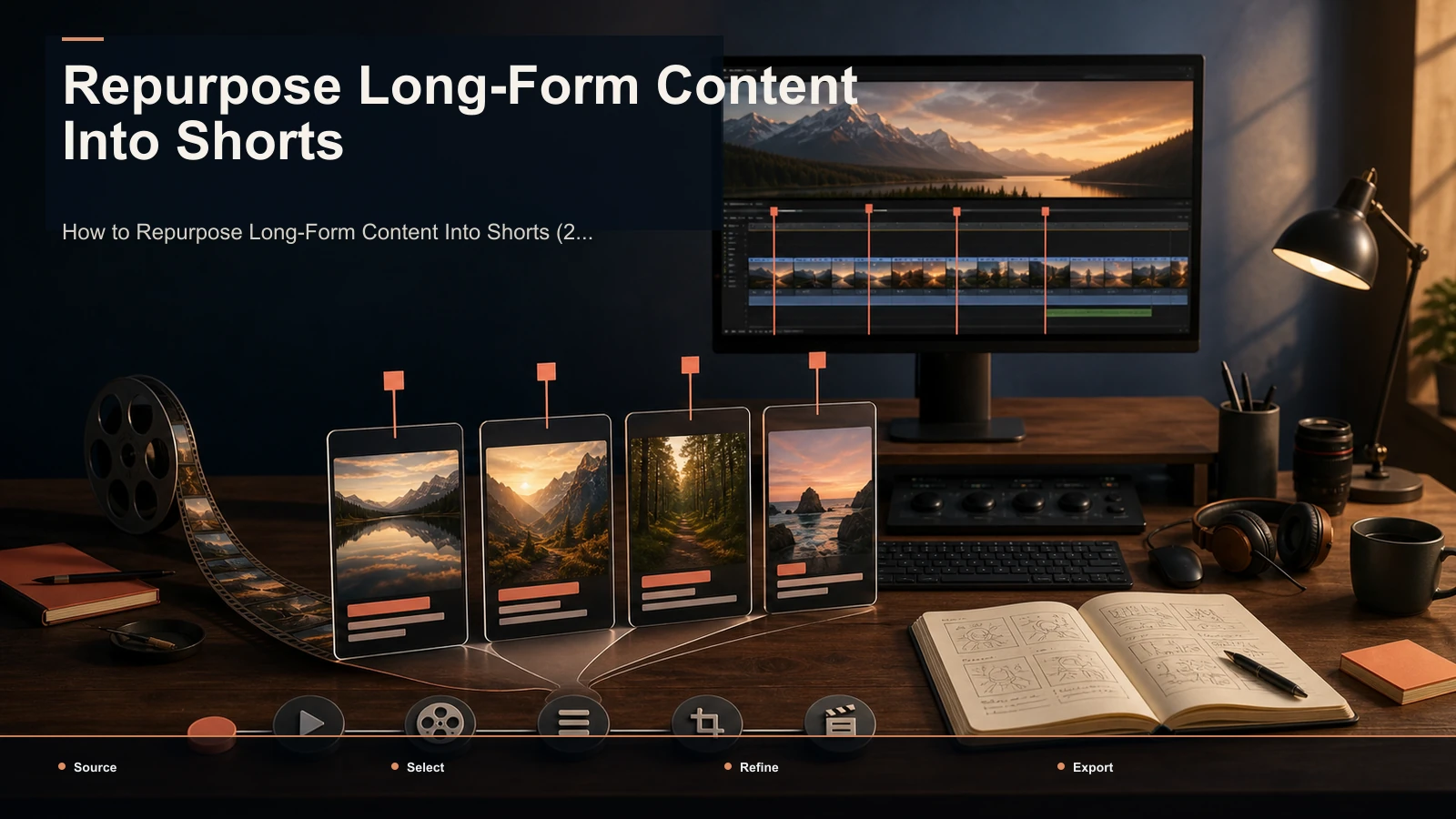
Here is the core system: a linear pipeline that takes one recorded lesson to a batch of publish-ready teasers and previews without you ever opening a desktop editor. It runs end to end inside a browser-based workspace like Recapo; processing and rendering happen in the cloud, and the sequence works with any toolkit you assemble.
- Pull one lesson out of your course platform. Export a single module as a standard video file — most course hosts give you an MP4 or MOV, which is exactly what you want. Work lesson by lesson rather than dumping the whole course in at once; one focused module yields cleaner clips than an eight-hour bundle.
- Auto-transcribe before you cut anything. Run the lesson through a transcription step so you have a timed, searchable text of the whole thing. Reading a transcript to find your best moments is far faster than scrubbing a 40-minute lesson by hand — this is the difference between a 20-minute harvest and a two-hour slog.
- Let AI surface the candidate moments. Feed the lesson into an AI clip generator to get a first pass of high-signal segments. Treat its picks as candidates, not final cuts — the tool is good at finding where a point lands cleanly, but you decide which become teasers and which become previews.
- Sort each candidate into teaser or preview. A short, punchy claim or result becomes a teaser; a complete, standalone tip becomes a preview. Re-cut the boundaries so a teaser opens on the hook and a preview opens on the first useful word — no "so, in this module we're going to" wind-up.
- Reframe to vertical. Convert each clip from the course's 16:9 to a 9:16 frame, keeping you or your slides in the center third and away from where platform UI overlays the edges.
- Burn in captions and add the hook and CTA. Caption every clip, overlay the hook text on the opening frames, and put a clear call to action at the end pointing back to your course.
- Add a cover and export per platform. Pick a clean cover frame, then export a 9:16 MP4 — one clean vertical file uploads natively to YouTube Shorts, TikTok, and Instagram Reels.
Once this is routine, the only variable input is which moments you choose and how you sort them; everything downstream is mechanical.
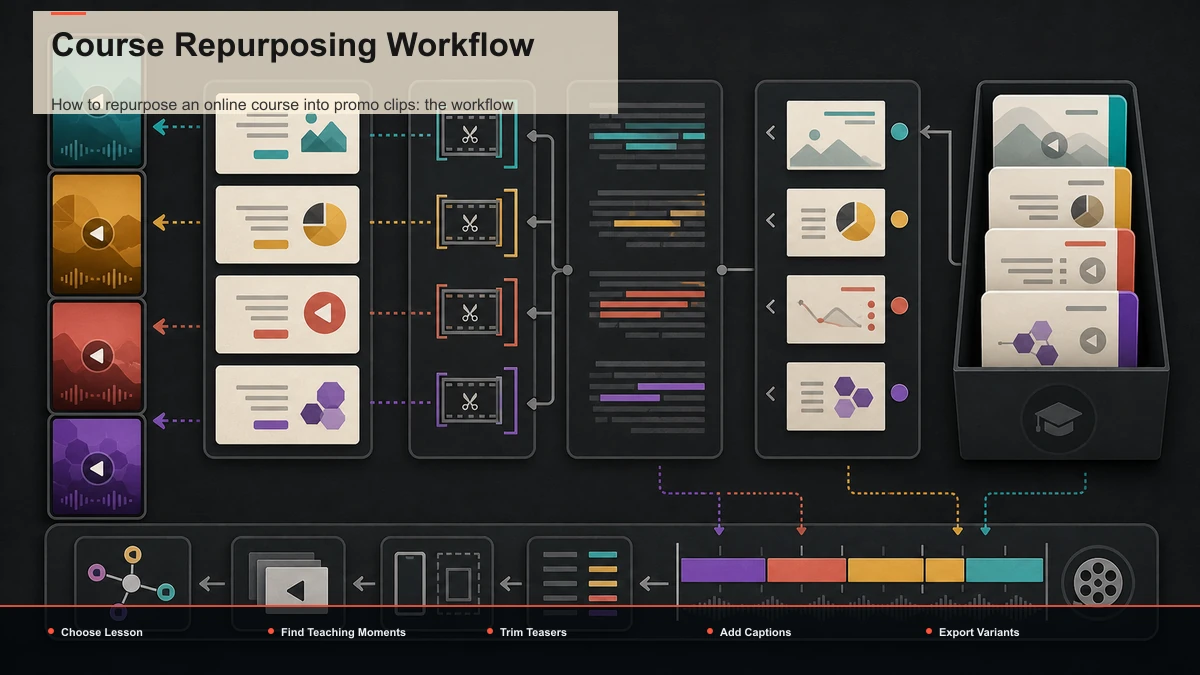
Which lessons and moments make the best promo clips
Not every part of a course is worth clipping. Reading the transcript makes the good moments obvious in a way scrubbing never does — you can literally see where a sentence is quotable or where a tip stands on its own. Use a simple test for every candidate: does it deliver a complete, self-contained idea, and would it make sense to someone who has never taken the course? If a moment needs three earlier lessons of context to land, it's not a clip.
Prioritize in this order:
Don't force volume. One rich lesson usually yields a handful of strong clips; the rest is filler that trains your audience to scroll past your name. To keep the editing side of this efficient across a whole course, a repeatable production routine helps more than any single trick — see video editing for course creators for the wider workflow.
Hooks and CTAs: the two ends that do the converting
A promo clip lives or dies on its first two seconds and its last five. Everything in between can be excellent, but if the open doesn't stop the scroll and the close doesn't tell people what to do, you've made free entertainment, not marketing.
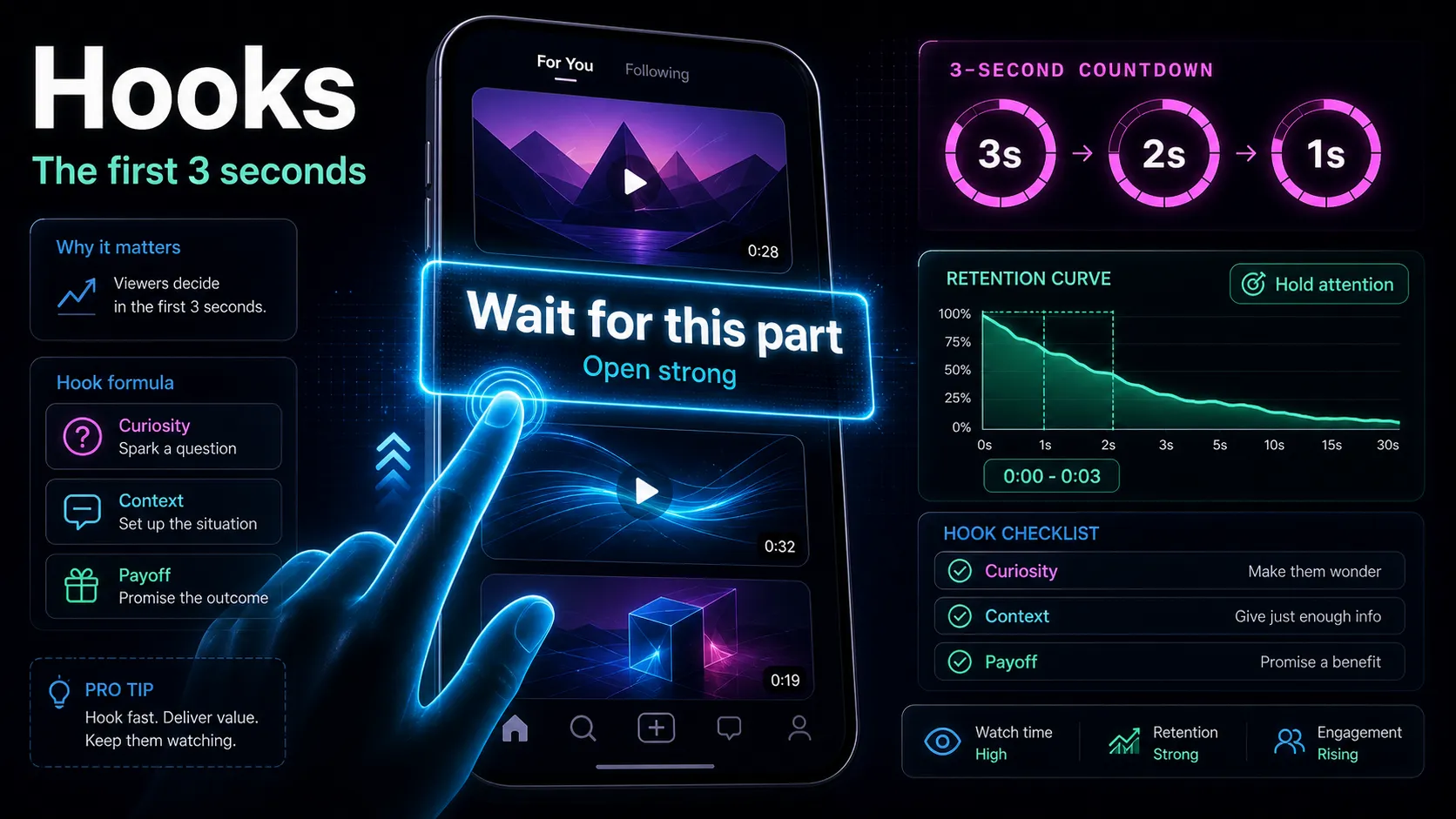
Open with a hook. The first line has to earn the next three seconds. Lead with the sharpest claim, the surprising result, or the exact question your buyer has — never a slow "hi everyone, in today's lesson." If you're staring at a blank opening line, an AI hook generator can spin several angles from your clip's topic so you can pick the strongest rather than settling for the first thing you thought of. For the patterns that reliably work in short form, how to write video hooks breaks down the formulas.
Close with a specific CTA back to your course. This is the step course creators skip most, and it's the whole point. A teaser should end with the loop still open — "the full breakdown is inside the course, link in bio." A lesson preview should end by framing what the viewer just got as one piece of a larger whole — "that's one lesson of forty; enroll to get the rest." Keep the ask concrete and singular. One clip, one action. If you send viewers to a link in bio, make sure that link goes straight to your enrollment or sales page, not a generic homepage where the intent leaks away.
The difference between a clip that grows your audience and a clip that grows your enrollment is almost entirely these two ends. Nail the hook and the CTA, and even a modest teaser starts pulling its weight.
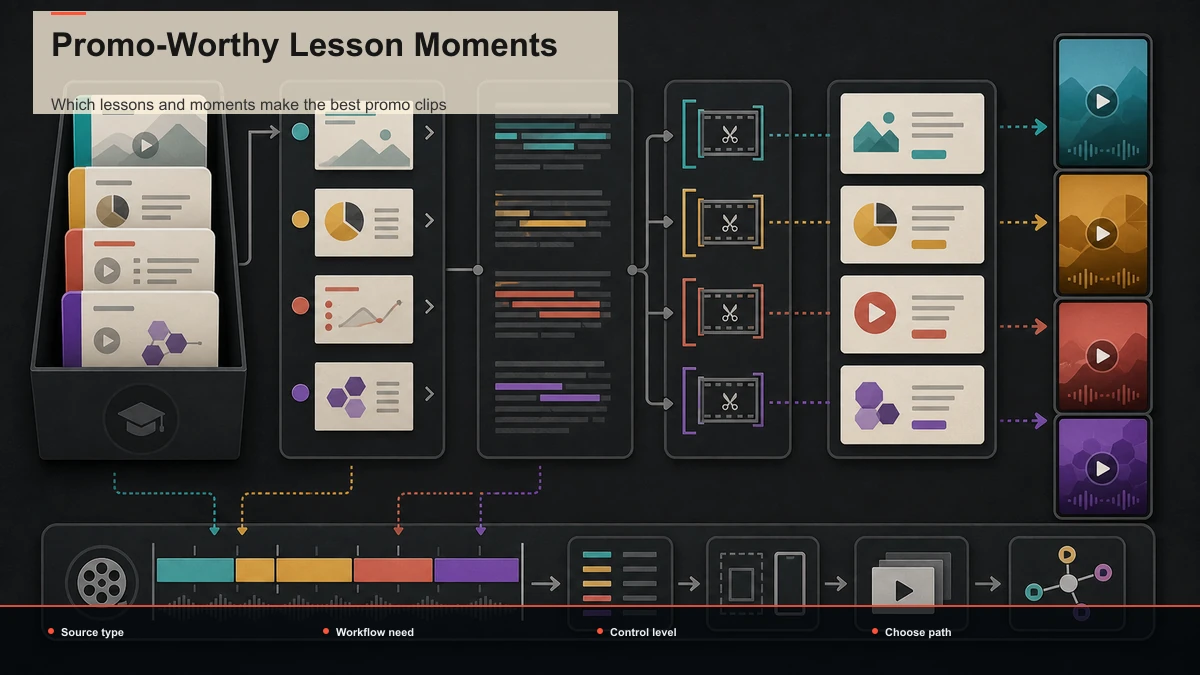
Caption, reframe, and export for every platform
Three finishing details separate a "fine" course clip from a postable one, and course creators routinely skip all three.
Caption for viewers watching without sound. Some short-form video is watched with the sound off, so burned-in captions aren't a nice-to-have — they're what makes a talking-head lesson clip legible at all. Run each clip through auto-captions, then proofread anything with names, technical terms, or numbers. On a teaching clip, one wrong word on the key term undermines the exact authority you're trying to demonstrate.
Reframe with intent. Courses are usually shot or screen-recorded in 16:9; social feeds are 9:16. A naive crop can slice your head off or push your slide out of frame. Keep the subject in the center third, and if your clip cuts between a talking head and shared slides, reframe each so the important content stays in the safe zone away from platform UI.
Export once, post everywhere. A clean 9:16 MP4 uploads natively to YouTube Shorts, TikTok, and Instagram Reels, so you don't need a separate render per platform — you need one solid vertical file and platform-appropriate titles and captions written around it. A consolidated browser workspace like Recapo folds the whole chain — transcribe and caption, long-to-short clipping, summaries and scripts, AI voiceover, resize and vertical reframing, cover and export — into one place, handles common formats like MP4 and MOV, and accepts large source files up to 6GB total per task, which matters when your source is a full-length lesson rather than a trimmed snippet.
A repeatable promo-clip system (and how to choose your tools)
The biggest reason course marketing fizzles isn't the tooling — it's that creators treat each launch as a one-off editing scramble and burn out. Because you market a course continuously, the real win is a system you rerun identically every time, so producing promo clips becomes as routine as writing the launch email.
| Course finished or updated | Export one lesson, auto-transcribe | Searchable transcript ready | Same work block | Read transcript, mark moments, AI first-pass clips | Candidates sorted into teasers vs. previews | Next block | Trim, reframe, caption, add hook + CTA, export | Finished vertical clips | Launch and evergreen | Schedule teasers for reach, pin previews for conversion | Weeks of promo from one lesson |
To choose the setup that actually holds up, don't compare feature lists — every tool promises the same outcome. Run a fifteen-minute test with one of your own lessons and measure four things:
- Round-trips. How many times do you export a file and re-upload it to a different app to go from a raw lesson to a finished, captioned vertical clip? For continuous marketing, fewer is the whole game.
- Selection quality. Do the auto-detected segments match the teasers and previews you'd have chosen from the transcript? Count keeps versus discards.
- Caption accuracy. On a lesson thick with technical terms and numbers, how much do you have to fix by hand?
- Time to a batch. From one lesson upload, how long until you have several publish-ready 9:16 clips with hooks, captions, and CTAs?
Run that same test on any option — including Recapo — and let the results decide, not the marketing. A workspace that keeps transcription, clipping, captions, and export in one tab may reduce round-trips; test the actual time and corrections required on your own lesson. But prove it with your own lesson, not a demo file. This is the same repurposing muscle behind turning any long recording into shorts — a course is just a particularly high-intent source.
FAQ
How many promo clips can I get from one course lesson? For a substantive lesson, identify candidate teasers and previews, then keep only versions that deliver independent value and pass review. You can force more, but quality drops fast once you're past the genuine peaks, and posting weak clips consistently just trains your audience to ignore you. Harvest the best moments and stop.
What's the difference between a teaser and a lesson preview? A teaser is short (roughly 15–40 seconds) and exists to stop the scroll and spark curiosity, ending with the loop still open and a nudge toward the course. A lesson preview is longer (60–120 seconds) and delivers a complete, usable mini-lesson, so the enrollment pitch at the end feels earned. Teasers drive reach; previews drive conversion. Run both.
Do I need a desktop video editor to do this? No. A browser-based workspace handles transcription, AI clip selection, vertical reframing, captions, and export in the same tab with no install, so you can go from a full lesson to a batch of publish-ready clips on any machine. A desktop editor gives you finer control, but it adds real overhead to every launch in a continuous marketing cycle.
Where should the call to action send viewers? Straight to your enrollment or sales page — not a generic homepage. In-feed, keep it to a single clear ask ("link in bio," "full course linked below") and make sure that link lands on the exact page where someone can buy. One clip, one action; splitting the CTA across two asks usually gets you neither.
Can I reuse the same clips across YouTube Shorts, TikTok, and Reels? Yes. A clean 9:16 MP4 uploads natively to all three, so export once and adapt only the caption text and hashtags per platform. Match the on-screen hook to each platform's audience where it helps, but you don't need to re-edit the video itself for every destination.
Turn one lesson into a launch's worth of promo
Repurposing an online course into promo clips isn't extra work bolted onto your launch — it's collecting the value you already recorded and letting it sell for you continuously. Split each lesson into short social teasers and 60–120-second previews, open every clip with a hook, close every clip with a specific CTA back to your course, and one recorded module becomes weeks of promotion that shows buyers the value before they pay. Because you market a course on a schedule, the payoff is a system you rerun every time, not a one-off scramble. Create a free Recapo account, upload one lesson, and turn it into a batch of captioned teasers and previews you can post with a link straight back to your enrollment page.
References and official sources