Best Kapwing Alternatives in 2026 (for Short-Form Video Creators)
Looking for Kapwing alternatives in 2026? Compare CapCut, VEED, Descript, OpusClip and a repurposing-first browser workflow, plus a 30-minute self-test.

By the Recapo.ai Editorial Team · Fact-checked July 10, 2026
Kapwing is a browser-based editor with tools for video creation, subtitles, templates, and collaboration. A search for Kapwing alternatives can point to several different needs: a mobile-first editor, transcript editing, dedicated long-to-short clipping, or a broader repurposing workspace. This guide compares those workflow shapes from public product information and gives you a same-file test for deciding among them. It does not assume that every creator needs to switch.
Disclosure and method: Recapo.ai publishes this guide and may appear among the tools discussed. We checked official product pages on July 10, 2026. This edition is a desk-research comparison, not a standardized hands-on benchmark. We compare stated workflow fit rather than unverified performance scores and recommend testing the same source file in each finalist. Features, limits, and pricing can change.
When to compare Kapwing with alternatives
Start with the task that is creating friction in your own workflow. If you mainly build template-led social posts or collaborate on individual edits, Kapwing may already fit. If your recurring job is extracting many clips from long recordings, compare how each candidate handles transcript search, candidate selection, vertical reframing, caption correction, batch review, and export.
Do not infer current limits from an old review. Open each vendor's current product and pricing pages, then run one representative source file through the exact steps you repeat every week. Record processing time, usable-clip yield, caption corrections, export result, and the plan required for that output.

What "Better" Actually Means for Short-Form
Before comparing names, get clear on the job. If you're a short-form creator, your real workflow is a loop: one long recording becomes many captioned vertical clips, week after week. Judge every Kapwing competitor against that loop, not a feature list:
- Auto long-to-short clipping: does the tool shortlist candidate moments for you, or are you dragging the timeline by hand for every clip?
- Accurate, editable captions: are subtitles generated automatically and easy to correct?
- One-click vertical reframing: can it reframe 16:9 to 9:16 without you rebuilding the layout?
- Everything in one tab: clip, caption, reframe, voiceover and export without dropping a file into the next app.
- Cost that stays predictable as volume grows: a model that doesn't punish you for shipping more.
A tool that nails one of these but forces you to shuttle files for the rest isn't saving time — it's just moving the bottleneck.
The Main Kapwing Competitors, by Job
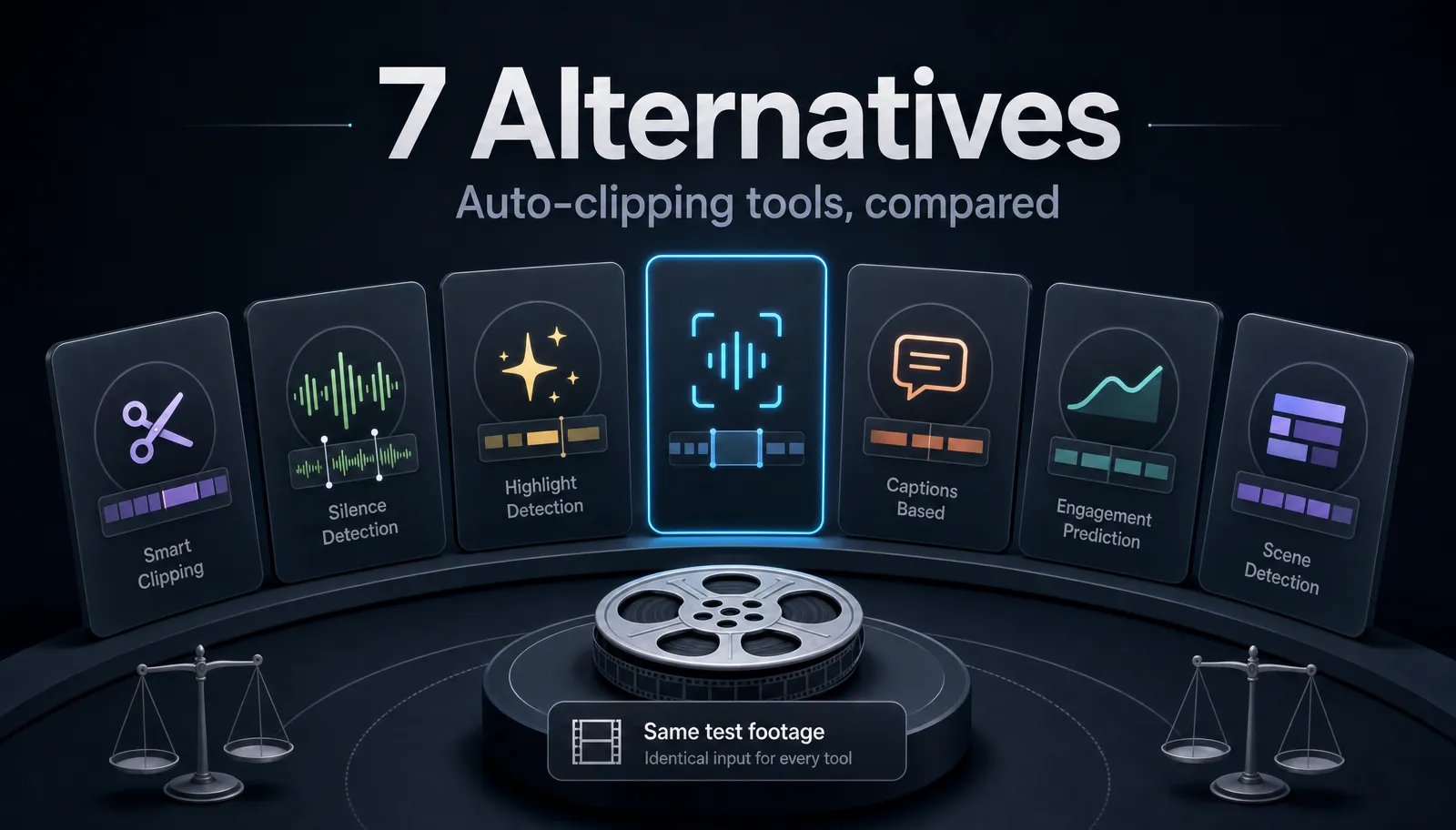
There's no single winner here; the practical answer depends on the job you're hiring the tool for. Here's how the common Kapwing competitors line up at a positioning level — with the one thing you should test yourself before trusting any of them.
| Tool | Known for | Best when your job is | Test this yourself first |
|---|---|---|---|
| CapCut | A template-rich, mobile-first editor | Fast, trend-driven edits from your phone | How batch long-to-short feels at volume |
| VEED | A browser-based editor known for subtitles | Lightweight captioning and simple trims | Export behavior on a longer, layered project |
| Descript | Transcript-based editing (edit the text, edit the video) | Talking-head and podcast content, English-heavy | Transcription accuracy on your own accent and footage |
| OpusClip | Known for AI clipping of long videos | Batch-cutting podcasts and stream recordings | Whether you still need scripts and voiceover elsewhere |
| Premiere | A professional desktop NLE | Frame-precise, high-end deliverables | Whether it's overkill for social-volume output |
| Recapo | A browser-based AI editing workspace built around repurposing | Long→short plus captions plus reframe in one place | The whole flow on one of your real long videos |
A few words on each:
CapCut is template-rich and mobile-first — the convenient choice if you shoot, edit and publish on a phone and lean on trending templates. The thing to test is how it holds up when you need a dozen clips out of one long recording rather than one hero edit.
VEED is a browser-based editor best known for subtitles and quick edits. It suits lightweight jobs; the honest test is to throw a longer, heavier project at it and watch the export step.
Descript is the reference point for transcript-based editing — delete a sentence in the transcript and the footage goes with it. It's comfortable for English talking-head and podcast work. Run your own footage through it before committing, because transcription quality varies with accent and audio.
OpusClip is known specifically for AI clipping of long videos, which makes it strong for podcasts and stream recordings. If your job is only clipping, that focus is a plus; if you also need scripts, voiceover and covers, plan on pairing it with other tools.
Premiere is a professional desktop NLE — the right call for frame-precise, high-end work, and usually overkill for someone shipping social clips daily.
Recapo is a browser-based AI editing workspace built around the repurposing loop rather than single edits. It keeps clipping, captions, reframing, voiceover and export in one tab so you're not exporting files between apps. It fits creators who turn long videos into a steady stream of clips and want the whole flow to run in a browser — more on that next.

A Repurposing-First Workflow in the Browser
Here's the workflow the whole article is built around — the thing Kapwing's single-edit model makes clunky at volume. It runs start to finish in one browser tab:
- Upload one long video. Drop in an MP4, MOV or other common format, up to 6GB total per task — a full podcast episode, a stream VOD, or a long talking-head recording.
- Let AI shortlist the clips. Instead of scrubbing the timeline, run the AI clip generator to surface candidate moments from the long recording, then keep the ones that earn a spot.
- Caption every clip. Send each clip through the auto-subtitle generator for automatic, editable subtitles — a way to keep the message understandable without sound.
- Reframe to vertical. Use the AI video editor to resize 16:9 into 9:16 for Shorts, Reels and TikTok, and add AI voiceover or a summary script when a clip needs narration.
- Export covers and clips. Generate a cover and export the finished verticals — ready to schedule.
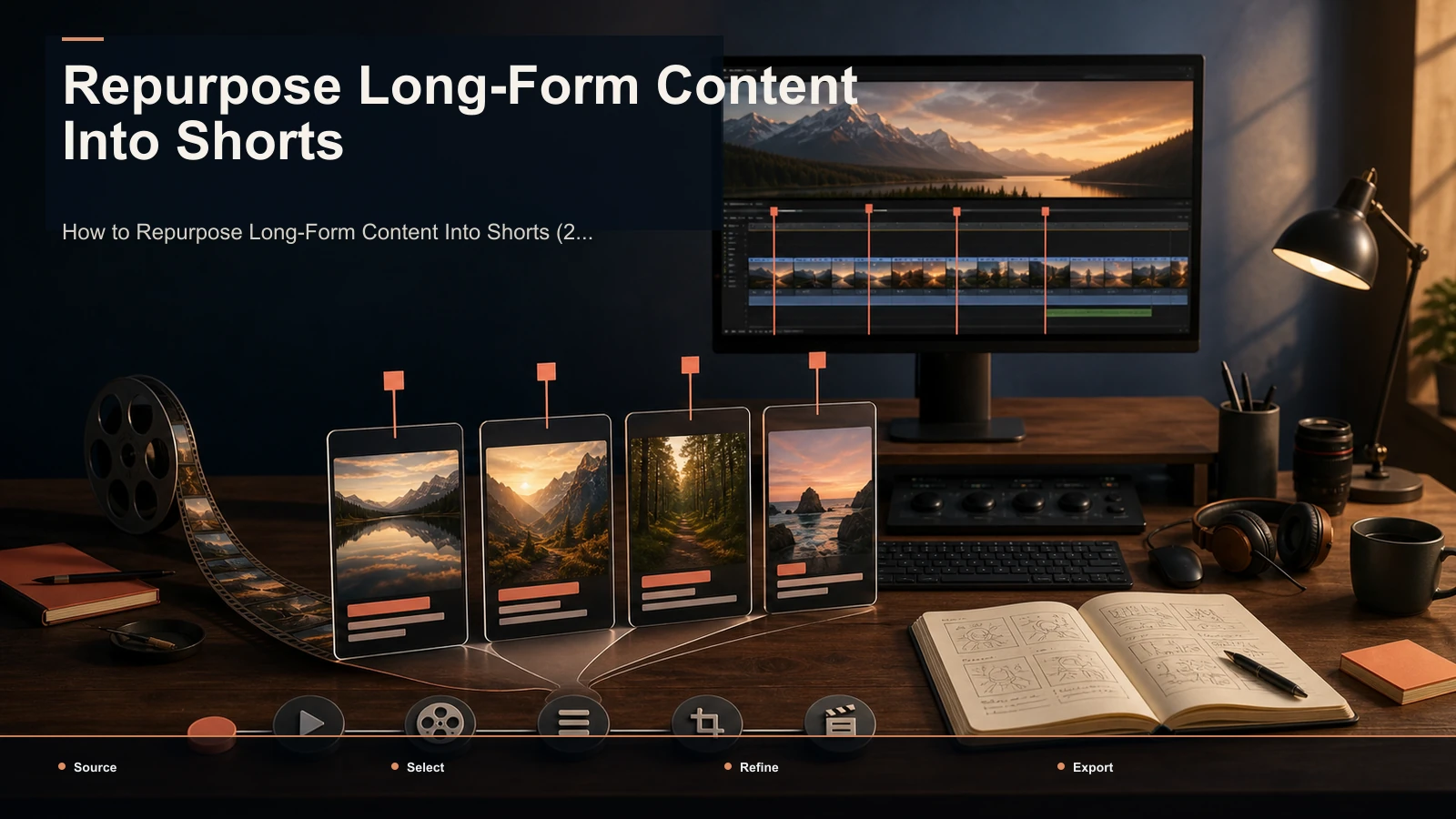
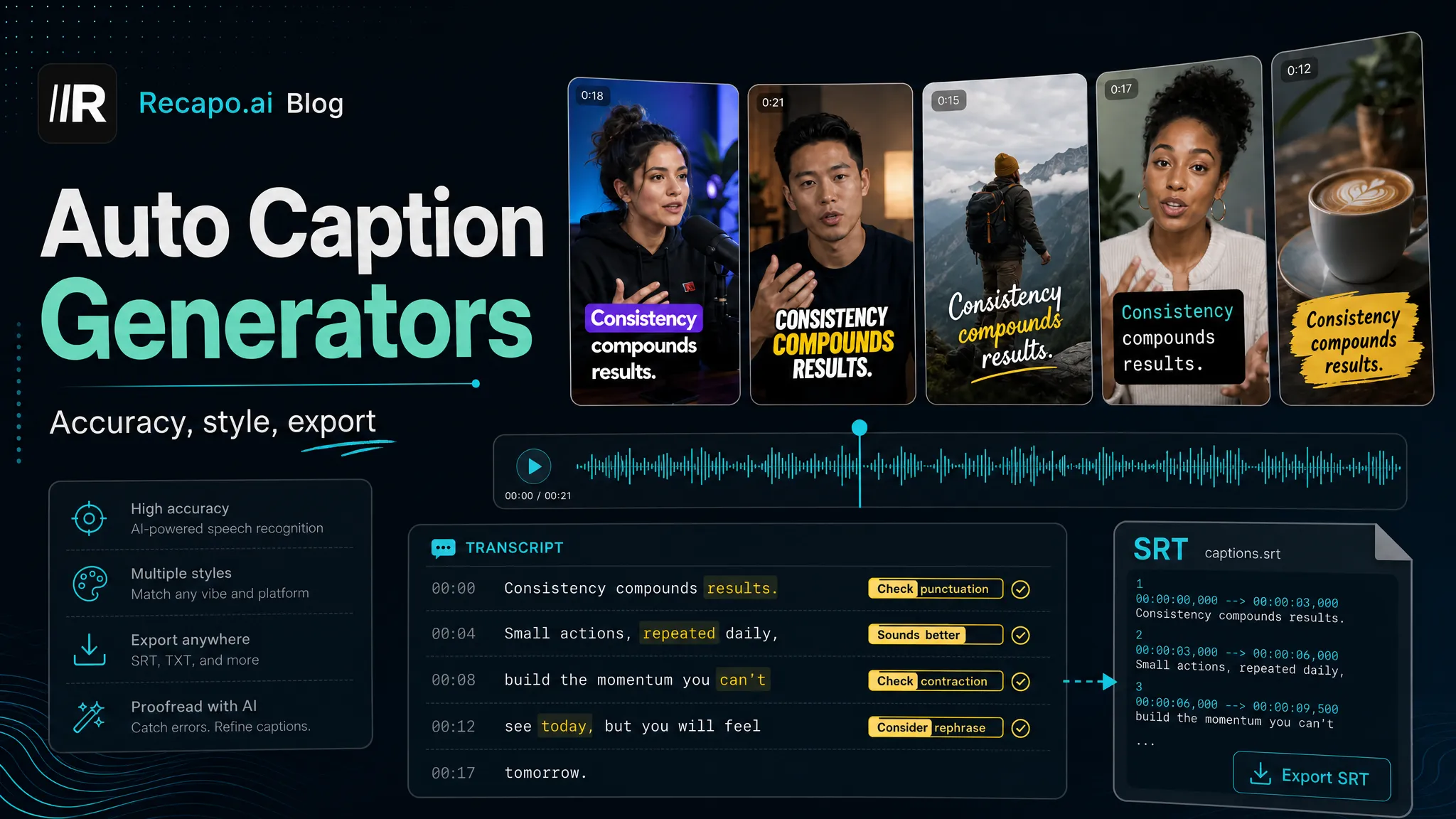
The point isn't that any single step is magic; it's that the whole loop stays in one place, so you're repurposing instead of file-managing. For the strategy behind this loop, read How to Repurpose Long-Form Content Into Shorts; for captions specifically, Best Auto Caption Generators goes deeper on accuracy.
How to Test Any Alternative in 30 Minutes
Don't take anyone's ranking — including this one — on faith. The fastest way to find the best Kapwing alternative for clipping your kind of content is a controlled self-test. Take one representative 20-minute video and run it through each candidate (use the free trial where there is one), measuring the same things every time:
| Step | What to do | What to measure |
|---|---|---|
| 1 | Upload the same 20-min video to each tool | Upload plus processing time |
| 2 | Generate short clips | How many are publishable with zero edits |
| 3 | Auto-caption one clip | Number of caption fixes needed |
| 4 | Reframe to vertical | Whether the subject stays in frame |
| 5 | Export the finished clip | Did the export complete without failing |
Two numbers decide it: publishable-clips-per-upload and caption-fixes-per-clip. Whichever tool gives you the most usable clips for the least cleanup — and exports without drama — wins for your content. Everything else is marketing.
"Free" Kapwing Alternatives: Read the Fine Print
Search volume for "kapwing alternative free" is high, and it's worth a reality check. Nearly every tool in this category has a free tier — the question is never whether "free" exists, but what it caps and where. A free plan that watermarks, shortens or limits your exports can cost you more in reshoots and workarounds than a paid plan that simply lets you finish.
The more useful metric is cost-per-published-clip. Run the 30-minute test above, count how many finished, publishable clips each tool actually produced, and divide by what it would cost to keep doing that at your weekly volume. A per-seat tool can look cheap for one person and expensive for a team; a repurposing tool that yields more usable clips per upload can be cheaper per result even on a paid plan. Recapo's plans and limits live on the pricing page — check them against your own volume rather than the word "free."
Matching the Tool to Your Creator Type
- Solo mobile creator, one or two posts a week: you may not need to switch at all — a mobile-first editor is convenient, and switching for its own sake isn't worth it.
- Podcast or livestream clipper: you live and die by long→short. A clipping-focused tool or a repurposing workspace will save the most time; the test is how many publishable clips come out per episode.
- Faceless or recap channel: you need clipping, captions, voiceover and covers in a line. A single-tab workspace beats stitching four tools together.
- Small team publishing at volume: watch the pricing model closely — per-seat billing is where budgets quietly balloon — and weigh cost-per-published-clip, not the sticker price.
FAQ
Is there a free Kapwing alternative? Most tools in this category, including Recapo, offer a free way to try them. But "free" caps something on every platform, so the useful question isn't whether a free tier exists — it's how many finished, publishable clips you can actually produce before hitting a limit. Run the 30-minute test on your own footage and judge by output, not by the label.
What's the best Kapwing alternative for clipping? It depends on your source material. For batch-clipping long talking footage like podcasts and streams, a clipping-focused tool or a repurposing workspace that shortlists segments for you will beat a manual timeline editor. Decide with the self-test: count publishable clips per upload and caption fixes per clip.
Do I have to fully replace Kapwing? No. Plenty of creators keep a familiar editor for one-off polish and move the repetitive repurposing work — batch clipping, captions, reframing — to a workspace built for it. Split the work by step, not all-or-nothing.
What formats and file sizes does Recapo support? Recapo accepts MP4, MOV and other common formats, up to 6GB total per task. For anything larger, compress or split the footage before uploading.
Are browser-based editors powerful enough? For short-form repurposing, usually yes. Transcoding and AI processing run server-side, so your machine mainly needs a smooth browser — no heavy install, no project files to move between devices. The step to watch is uploading: with large footage, your bandwidth decides the experience.
Going from hand-cutting every clip to a repurposing line takes exactly one video to prove. Sign up for Recapo, upload one long recording, and run clipping plus auto-captions on it — then decide, from your own output, which parts of your Kapwing workflow are worth moving over.
References and official sources
- YouTube Help: Add subtitles and captions
- YouTube Help: Create a Short
- YouTube: Recommended upload encoding settings
- Recapo.ai: Product overview and current upload limits
- Recapo.ai: AI Video Editor
- Kapwing: Official product page
- OpusClip: Official product page
- CapCut: Official product page
- VEED: Official product page
- Descript: Official product page