How to Compress a Video Without Ruining Quality
Compress a video while protecting visible quality by choosing the right resolution, bitrate, codec, and target file size for its final use.
By Recapo Editorial Team · Updated 2026-07-28
Disclaimer: This article provides general product and operational information and does not constitute legal advice. Copyright requirements and platform rules may vary by country, region, and platform. Before processing, modifying, or publishing a video, confirm that you have the necessary rights, authorization, and permissions.
Video compression is a tradeoff, not a magic switch. A smaller file contains less data, so the practical goal is to remove data viewers are unlikely to notice while preserving the detail that matters.
The best settings depend on where the video will be watched. A presentation clip, a talking-head recording, a screen capture, and a fast-moving sports video do not compress equally well.
Product scope, July 28, 2026: Recapo's Video Compressor provides High, Standard, and Small quality options plus Keep resolution and Reduce resolution. Compression uses H.264 with a constant-quality approach. Recapo does not publish the CRF, target bitrate, resolution, or frame-rate values behind each preset, so this article does not claim a specific compression rate, processing time, or quality result.
The current standalone compressor lists MP4, MOV, MKV, WebM, MPEG, MPG, 3GP, and 3GPP, with a 2GB per-file limit and a 180-minute source-duration limit. These limits apply to that tool and should not be generalized to every Recapo workflow.
 A practical workflow for choosing compression settings and reviewing the result.
Start with the final use, not the smallest possible file
Define the destination first:
- Is the video being sent by email or chat?
- Will it be uploaded to a social platform that recompresses it?
- Does small on-screen text need to remain readable?
- Is the viewer likely to watch on a phone or a large display?
A file optimized for quick mobile sharing can tolerate different settings from a master file intended for later editing.
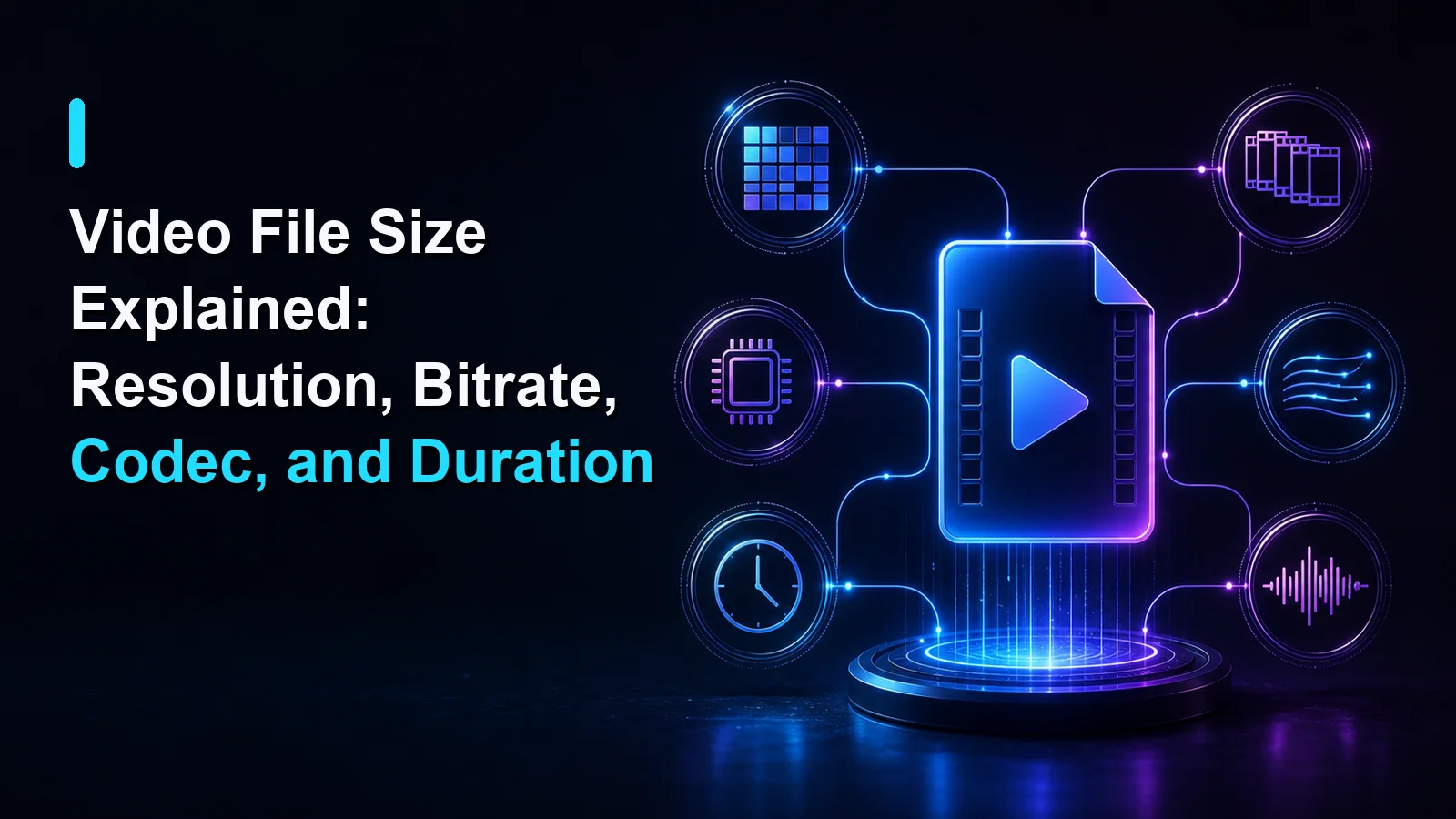
The four settings that matter most
Resolution
Resolution is the number of pixels in each frame. Reducing 4K footage to 1080p can significantly lower file size because fewer pixels need to be encoded. However, scaling down too far can make text and fine detail difficult to read.
Keep the source resolution when detail is important. Reduce it when the delivery screen is smaller and the original contains more detail than the viewer can use.
Bitrate
Bitrate describes how much data is allocated over time. Higher bitrate usually preserves more detail, especially in motion, texture, gradients, and low-light scenes. Lower bitrate produces a smaller file but may introduce blocking, banding, or smearing.
Bitrate should be treated as a quality budget. Spend more of it on complex motion and less on static scenes.
Codec
A codec determines how video is compressed and decoded. Different codecs can produce different quality and compatibility at similar file sizes. The container extension—such as .mp4—does not fully describe the codec inside it.
MDN explains how media types and codec parameters identify the content within a container in its guide to codecs in common media types.
Duration
Longer videos generally require more data. Remove unwanted introductions, pauses, failed takes, or endings before compression. Cutting unnecessary footage is often the cleanest way to reduce file size because it removes content instead of lowering quality across every frame.
How to compress a video online
1. Upload the best available source
Use the original or highest-quality authorized file. Compressing an already compressed copy can amplify artifacts.
Localized tools include nén video online, 동영상 용량 줄이기, сжать видео онлайн, and video boyutu küçültme.
2. Choose a target based on the destination
Select a target size or quality level that fits the real use case. Avoid choosing the most aggressive option by default. If the video contains text, faces, detailed products, or fast movement, start conservatively.
3. Keep the aspect ratio
Unless you intentionally want a new composition, preserve the source aspect ratio. Stretching the picture to fit another ratio distorts people and objects. Cropping is a separate decision and should be previewed carefully.
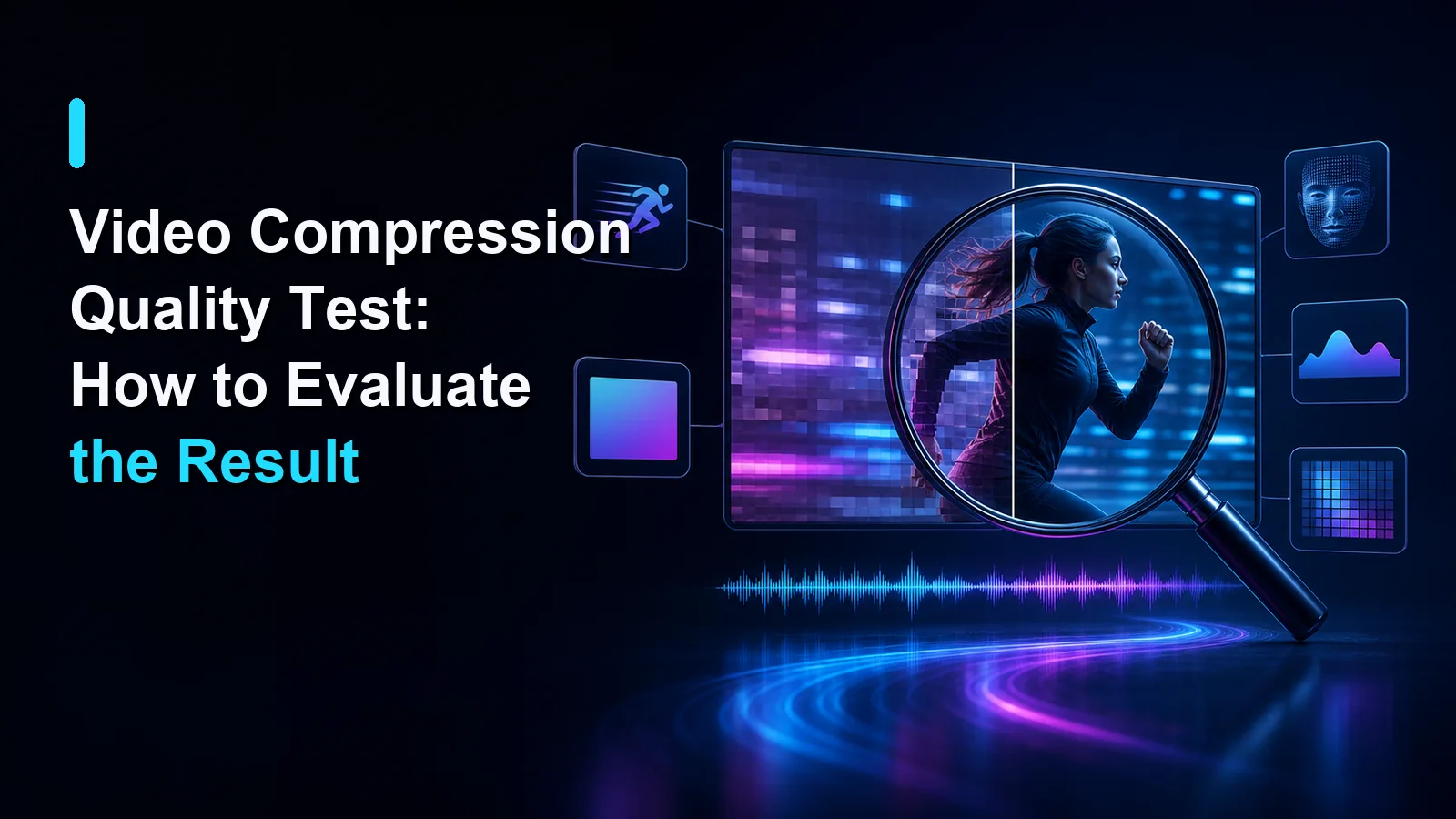
4. Export and compare
Review the compressed file at 100% size. Check:
- faces and hair;
- moving edges;
- small text and interface elements;
- shadows and gradients;
- rapid camera movement;
- audio synchronization.
Also verify that the final file meets the target size. If the result is larger than necessary, reduce the bitrate or resolution in small steps rather than making one extreme change.
What “without losing quality” should mean
Lossy compression changes data. Therefore, “without losing quality” should be understood as without obvious quality loss for the intended viewing conditions, not as a guarantee that the output is mathematically identical to the source.
For trustworthy content, record both objective file data and visible examples. If quality metrics such as SSIM or VMAF are used, explain the method and keep the source files so the test can be reproduced.
Common compression mistakes
Compressing the same file repeatedly
Each new lossy export can add artifacts. Return to the best available source when creating another version.
Reducing resolution before checking the destination
A low-resolution file may look acceptable on a phone but poor on a desktop display. Match resolution to viewing conditions.
Ignoring audio
Audio also contributes to file size. Spoken audio may not need the same bitrate as high-quality music, but overly aggressive audio compression can make speech tiring or difficult to understand.
Trusting the extension alone
Two .mp4 files may use different codecs and parameters. Compatibility depends on what is inside the container, not only the filename.
Promising “zero quality loss” without evidence
Compression results vary by source. Show settings, test files, and limitations instead of making an absolute claim.
Frequently asked questions
Does compression always reduce quality?
Lossy compression discards information, but the change may not be visible under normal viewing conditions when the settings match the content and destination.
Should I lower bitrate or resolution first?
If the destination does not need the source resolution, reducing resolution can be efficient. If fine detail must remain, preserve resolution and make smaller bitrate adjustments first.
Why is screen-recording text blurry after compression?
Small text and sharp interface edges are sensitive to scaling and low bitrate. Preserve adequate resolution and avoid aggressive compression.
Why is a short video still large?
It may use a high resolution, high bitrate, inefficient codec for the target environment, or uncompressed/high-bitrate audio.
Can I use the compressed file as an editing master?
Keep the original master. A delivery copy is optimized for sharing, not for repeated editing and export.
Make the file smaller for a specific reason
The best compression setting is the smallest version that still looks and sounds right where it will be used. Choose a destination, protect the details that matter, export once from a strong source, and verify the result.
CTA: Compress a video you own with the Recapo Video Compressor, then compare the output with the original before sharing it.