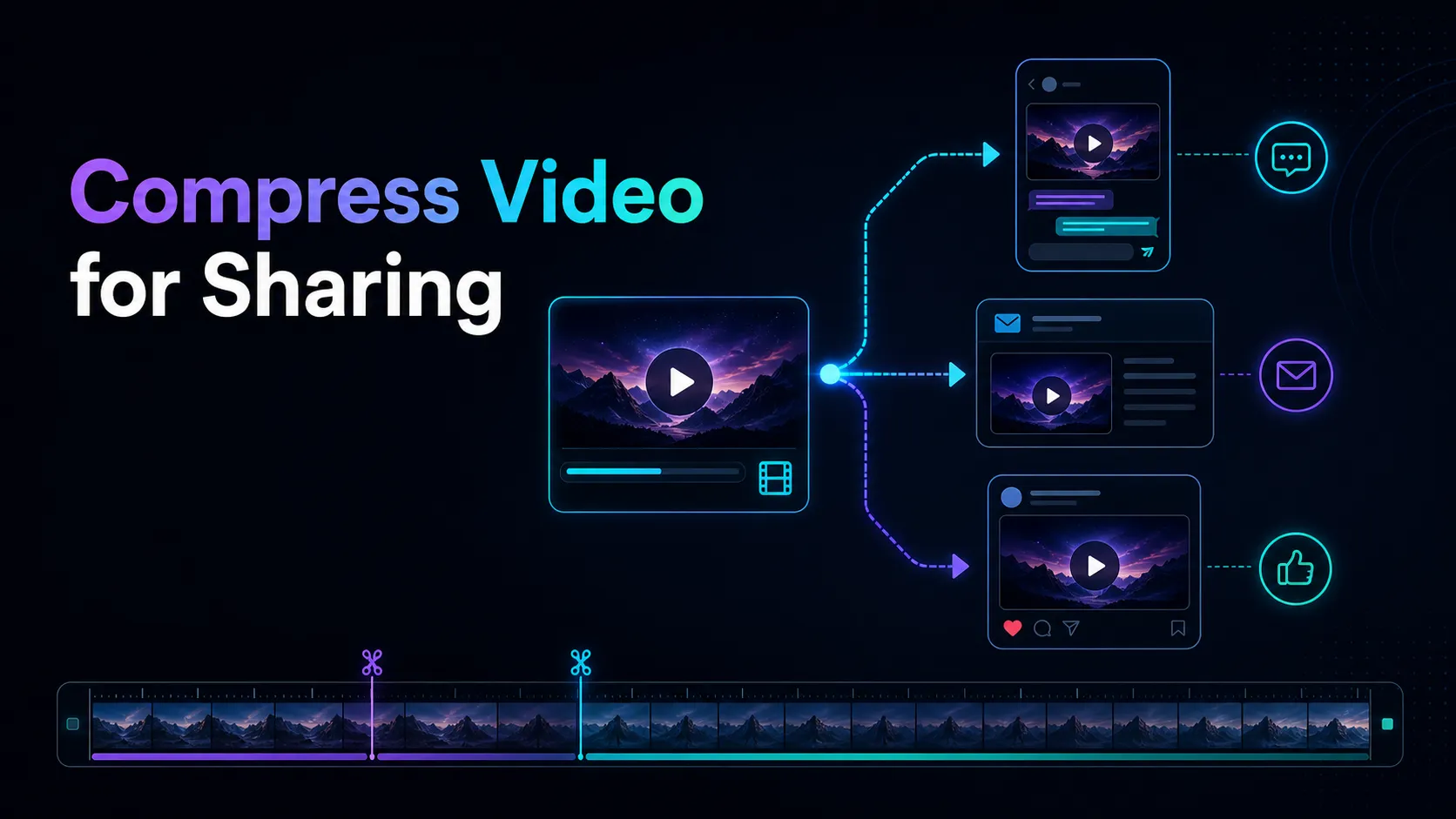
Video Compression Quality Test: How to Evaluate the Result
Use a practical video compression quality test to compare file size, resolution, motion, text, gradients, and audio without relying on unsupported claims.
By Recapo Editorial Team · Updated 2026-07-28
Disclaimer: This article provides general product and operational information and does not constitute legal advice. Copyright requirements and platform rules may vary by country, region, and platform. Before processing, modifying, or publishing a video, confirm that you have the necessary rights, authorization, and permissions.
A smaller video is useful only when it still works for its destination. A video compression quality test should therefore compare more than file size. Resolution, small text, faces, motion, gradients, audio, playback compatibility, and the intended viewing device all affect whether an output is acceptable.
This guide provides a repeatable evaluation method. It does not report Recapo compression results, promise a specific reduction percentage, or claim that one preset is best for every source.
Product scope, July 28, 2026: Recapo's Video Compressor provides High, Standard, and Small quality options and lets users keep or reduce the source resolution. Compression uses H.264 with a constant-quality approach. Recapo does not publicly specify the CRF, target bitrate, output resolution, or frame-rate values associated with each preset.
 A qualitative checklist for reviewing compressed video.
What a compression quality test should answer
A useful review should answer four practical questions:
- Does the output meet the required file-size or upload limit?
- Is important visual detail still clear at the intended viewing size?
- Does motion remain stable without distracting artifacts?
- Does the file play correctly, with synchronized and understandable audio?
The answer depends on the source. A static talking-head video, a screen recording with small text, and a fast-moving outdoor clip place different demands on an encoder.
Start with an authorized source
Use a video you own or have permission to process. Keep the original file unchanged and create a separate output for each compression option you want to compare.
Record the source properties before compression:
- duration;
- width and height;
- frame rate;
- video and audio codecs;
- video and audio bitrate when available;
- file size;
- aspect ratio.
These details make the comparison understandable without implying that the same result will apply to every video.
Change one major variable at a time
If the purpose is to compare quality presets, keep the resolution unchanged. If the purpose is to compare resolution, use the same quality option where possible.
Changing the quality preset, resolution, frame rate, and source simultaneously makes it difficult to explain which change caused a visible difference.
For Recapo, begin with one of the current High, Standard, or Small options and decide separately whether to keep or reduce resolution. The service does not publish the numerical encoding values behind those labels, so describe the option selected rather than guessing a CRF or target bitrate.
Inspect the scenes most likely to reveal problems
Watching only the first few seconds is not enough. Review the most difficult sections in the source.
Faces and talking-head footage
Check:
- hair and eyelashes;
- edges around glasses;
- skin texture;
- teeth and lip movement;
- the boundary between the speaker and background.
Watch for smearing or unstable detail during head movement.
Screen recordings
Inspect:
- small text;
- thin interface lines;
- icons;
- cursor movement;
- scrolling and animated menus.
A screen recording may look acceptable as a thumbnail while text is difficult to read at normal desktop size.
Fast movement
Review camera movement, sports, crowds, water, foliage, confetti, and detailed backgrounds. Look for blocks, smearing, lost texture, and unstable edges.
Gradients and dark scenes
Skies, shadows, studio backdrops, and low-light footage can reveal banding and color breakup. Review them on the device and brightness level closest to the intended use.
Compare at the intended viewing size
Quality is partly contextual. A delivery file for a phone screen can have different requirements from a product demonstration shown on a large monitor.
Check the output:
- at 100% scale;
- on the main target device;
- during motion, not only on paused frames;
- with the same player and display conditions used for the source.
Avoid enlarging one version differently from another because scaling can change the comparison.
Check the audio
Compression review should also cover:
- speech clarity;
- music detail;
- distortion;
- channel layout;
- synchronization;
- playback from beginning to end.
A visually acceptable file is not ready if speech is difficult to understand or audio drifts out of sync.
Record results without overclaiming
For each output, record:
| Field What to document |
| Selected option | High, Standard, or Small |
| Resolution choice | Keep resolution or Reduce resolution |
| Output dimensions | Width × height reported by the file |
| Output file size | Exact bytes or MB |
| Video and audio properties | Codec, bitrate, frame rate, channels when available |
| Visual review | Specific scenes and artifacts inspected |
| Audio review | Clarity, synchronization, and playback |
| Intended destination | Phone, desktop, social platform, archive, or another use |
Do not convert one file's outcome into a universal product claim. Describe the source, option, destination, and observed limitation together.
Common evaluation mistakes
Comparing different source files
Use the same source for every output in one comparison. Different content complexity can overwhelm the effect of the selected preset.
Looking only at file size
A dramatic size reduction is not automatically a better result. The file must still preserve the details required for its use.
Reviewing only paused frames
Some artifacts appear during motion. Watch difficult sections at normal playback speed.
Assuming a preset has fixed hidden settings
Recapo does not publicly disclose the numerical parameters behind High, Standard, and Small. Do not invent them.
Promising no quality loss
Lossy compression changes the encoded data. A responsible conclusion is limited to whether the difference is acceptable for the documented viewing conditions.
How to apply the method with Recapo
- Open the Recapo Video Compressor.
- Upload a video you own or are authorized to process.
- Select High, Standard, or Small.
- Choose whether to keep or reduce resolution.
- Create one output at a time.
- Record the output properties.
- Review the difficult scenes and audio using the checklist above.
- Keep the original as the master file.
Localized compressor pages include nén video, 동영상 압축, and сжать видео онлайн.
Frequently asked questions
Does a smaller video always look worse?
Not necessarily at the intended viewing size, but reducing the available data increases the risk of visible artifacts. The source, selected option, resolution, and destination all matter.
Which scenes are hardest to compress?
Fast movement, complex texture, noise, gradients, crowds, foliage, water, and small interface text commonly require careful review.
Can one metric prove that a video looks good?
No. File properties and objective metrics can support a comparison, but they do not replace documented visual and audio review.
Should I reduce resolution?
Reduce it when the destination does not require the source resolution. Keep it when small text, product detail, cropping, or large-screen playback matters.
Should I keep the original?
Yes. Keep the best authorized source and create delivery versions from it.
Evaluate for the destination
A useful video compression quality test is transparent about the source, selected option, viewing conditions, and limitations. Compare the details that matter, avoid unsupported universal claims, and choose the smallest output that remains suitable for its intended use.
CTA: Use the Recapo Video Compressor and review the output with the same checklist before sharing it.