Video File Size Explained: Resolution, Bitrate, Codec, and Duration
Understand how resolution, bitrate, codec, frame rate, duration, and audio affect video file size—and which settings to change first.
By Recapo Editorial Team · Updated 2026-07-28
Disclaimer: This article provides general product and operational information and does not constitute legal advice. Copyright requirements and platform rules may vary by country, region, and platform. Before processing, modifying, or publishing a video, confirm that you have the necessary rights, authorization, and permissions.
Two videos with the same duration can have very different file sizes. One may be a small phone clip; the other may be a large screen recording or high-frame-rate camera file. Duration matters, but it is only part of the calculation.
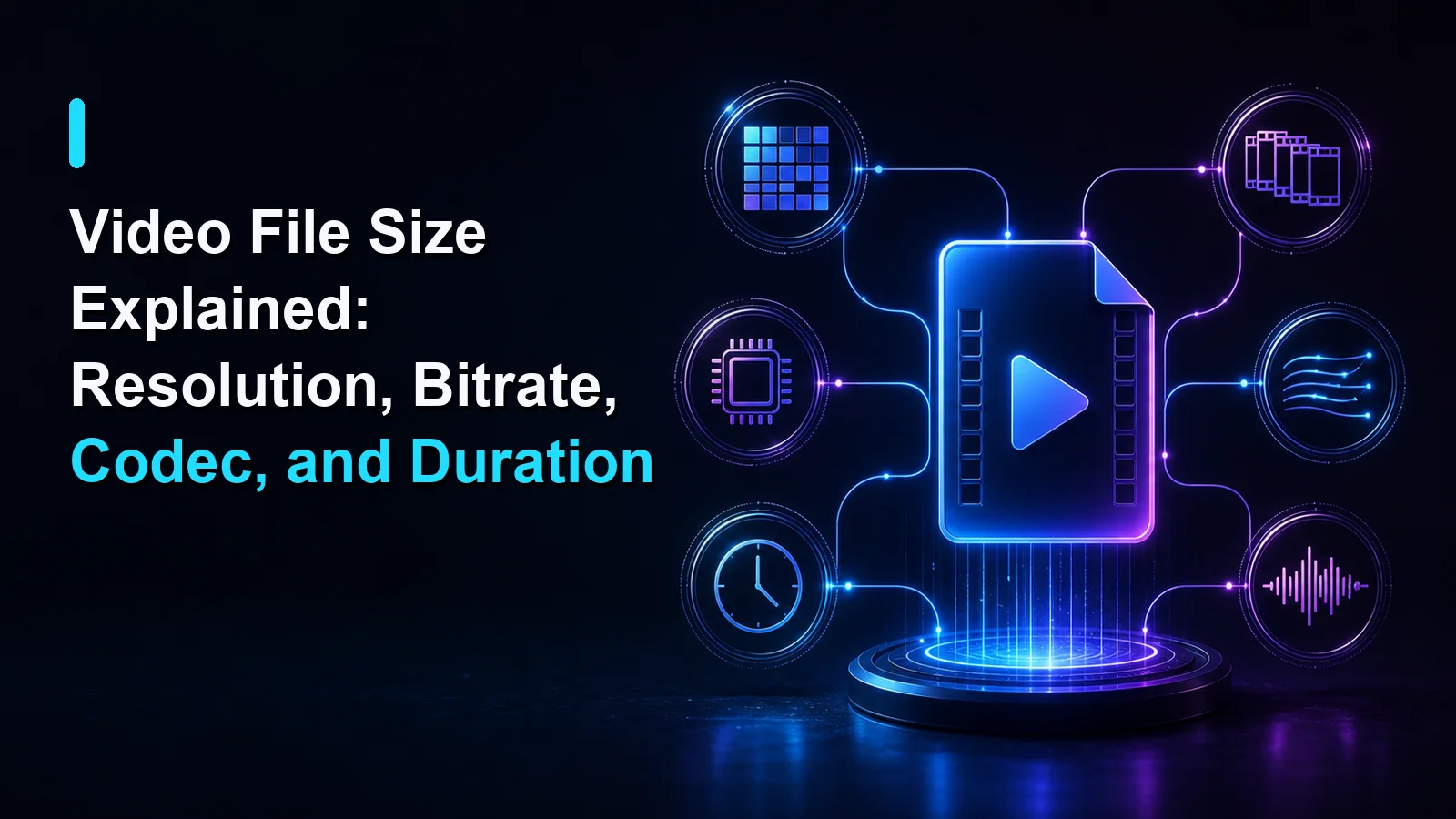
The biggest variables are bitrate, duration, resolution, frame rate, codec efficiency, scene complexity, and audio settings. Understanding their roles helps you reduce size without changing settings that viewers actually need.
Product scope, July 28, 2026: The Recapo Video Compressor provides High, Standard, and Small presets plus Keep resolution and Reduce resolution. It uses H.264 with a constant-quality approach, but Recapo does not publish the CRF, target bitrate, resolution, or frame-rate values behind each preset. This guide therefore explains the variables that affect file size without claiming product-specific results.
 The main factors that influence video file size.
The quickest estimate: bitrate × duration
For constant or average bitrate media, an approximate relationship is:
File size ≈ total bitrate × duration
“Total bitrate” includes video, audio, and a small amount of container overhead. This estimate is useful for planning but will not predict every variable-bitrate file exactly.
For example, doubling the duration at similar settings will roughly double the size. Doubling the combined bitrate will also roughly double the size.
Resolution: how many pixels are in each frame
Resolution describes the width and height of the picture, such as 1920×1080. Higher resolution gives the encoder more pixels to describe. That often requires more data to preserve the same visual quality.
However, resolution does not determine size by itself. A 1080p video can be larger than a 4K video if the 1080p file uses a much higher bitrate or less efficient encoding.
Reduce resolution when:
- the destination screen is smaller;
- the source contains more detail than viewers need;
- the file is mainly for quick review or messaging.
Preserve resolution when:
- small text must remain readable;
- the video will be shown on a large display;
- the file will be cropped or edited again.
Bitrate: the data budget over time
Bitrate is one of the most direct controls over file size. A higher bitrate gives the encoder more data to represent motion, detail, color changes, and texture.
Too little bitrate can produce:
- blocky edges;
- smearing during movement;
- banding in skies or gradients;
- loss of hair, foliage, fabric, or product detail;
- unreadable small text.
Variable bitrate allocates more data to difficult scenes and less to simple ones. That can be more efficient than applying the same amount to every second.
Codec: how efficiently the data is represented
A codec compresses and reconstructs audio or video. A more efficient codec may preserve similar visible quality at a lower bitrate, but device support and encoding time also matter.
The filename extension is the container, not necessarily the codec. For example, an MP4 container can carry different video or audio formats. MDN's codec parameter guide explains how codecs can be identified within common media types.
Choose a codec based on:
- browser and device compatibility;
- desired file size;
- encoding and decoding speed;
- whether the file is for delivery or further editing.
Frame rate: how many frames are shown each second
A higher frame rate supplies more frames to encode. Fast sports, gaming, and smooth camera movement may benefit from a high frame rate. A static presentation or simple talking-head clip may not.
Reducing frame rate can lower complexity, but it may make motion feel less smooth. Do not change it without watching the result.
Scene complexity: why some videos compress better
Simple scenes compress efficiently because many pixels remain similar across frames. A speaker against a plain background is usually easier to compress than falling confetti, water, foliage, crowds, or rapid camera movement.
Noise and film grain also increase complexity. An encoder may spend data preserving noise that viewers do not value. Clean lighting and a stable camera can help before compression begins.
Audio settings also affect size
Video usually accounts for most of the file, but audio is not free. Stereo music may justify a different format or bitrate from a single spoken voice. For long recordings, audio settings can create a meaningful size difference.
Do not remove quality blindly. Check speech clarity, music detail, synchronization, and compatibility.
Metadata and container overhead
Containers store media streams plus information needed for playback. Thumbnails, chapters, subtitles, and metadata may add some size, although they are often small relative to the video stream.
Which setting should you change first?
Use this order:
- Remove footage you do not need. Shortening duration removes data cleanly.
- Confirm the destination. Do not optimize for a screen or platform the viewer will not use.
- Reduce unnecessary resolution. Keep text and details readable.
- Adjust bitrate gradually. Compare motion and complex scenes.
- Choose a compatible codec. Efficiency is useful only if viewers can play the file.
- Review audio settings. Protect intelligibility and intended sound quality.
You can use a localized Recapo compressor to reduce video file size after deciding which tradeoff is acceptable. Other localized versions include nén video and video boyutu küçültme.
A practical comparison checklist
When comparing two files, keep the source and intended destination consistent. Record the duration, resolution, frame rate, codec, bitrate, audio settings, and file size for each version. Review small text, moving edges, gradients, faces, and audio synchronization at the actual viewing size.
Do not describe one preset as universally “best.” A useful comparison explains which setting changed, what the destination requires, and which visible tradeoffs a reviewer should inspect.
Frequently asked questions
Does higher resolution always mean a larger file?
No. Bitrate, codec, duration, frame rate, and content complexity also influence size.
Why is a screen recording so large?
It may use high resolution, frame rate, or bitrate. Small text and sharp edges can also require more data to remain clear.
Why did compression make text blurry?
The output may have insufficient resolution or bitrate for the text size. Review the file at its real display size.
Can I calculate the exact size before export?
You can estimate size from total bitrate and duration, but variable bitrate and container overhead make the final result less exact.
Should I keep the original?
Yes. Keep the best source as the master and create smaller delivery versions from it.
Change the variable that matches the goal
File size is the result of several decisions. Do not lower everything at once. Remove unnecessary duration, match the destination, adjust resolution and bitrate carefully, and verify the result with the content's most difficult scenes.
CTA: Choose a quality preset in the Recapo Video Compressor and compare the output with the original.