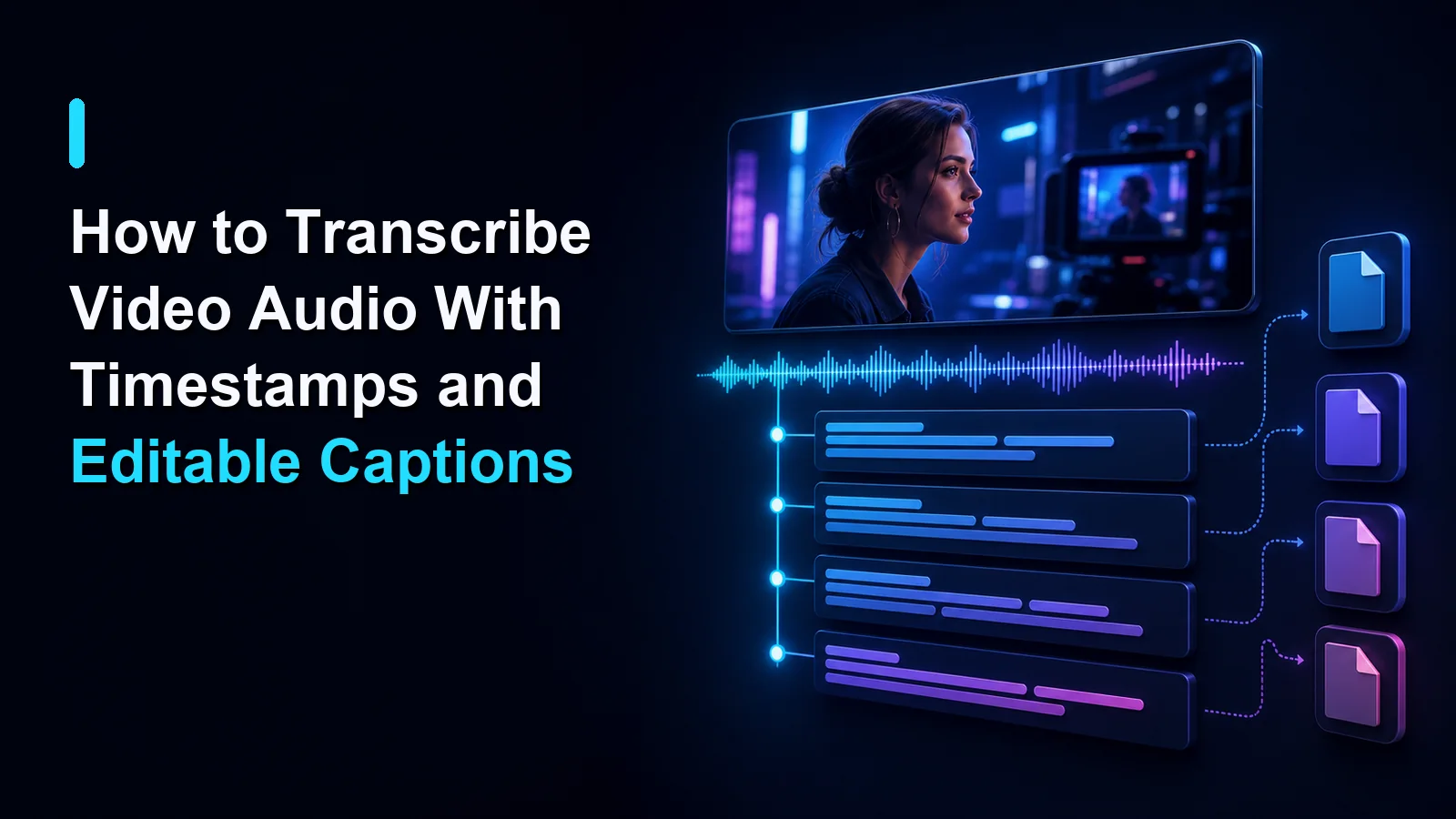
How to Transcribe Video Audio With Timestamps and Editable Captions
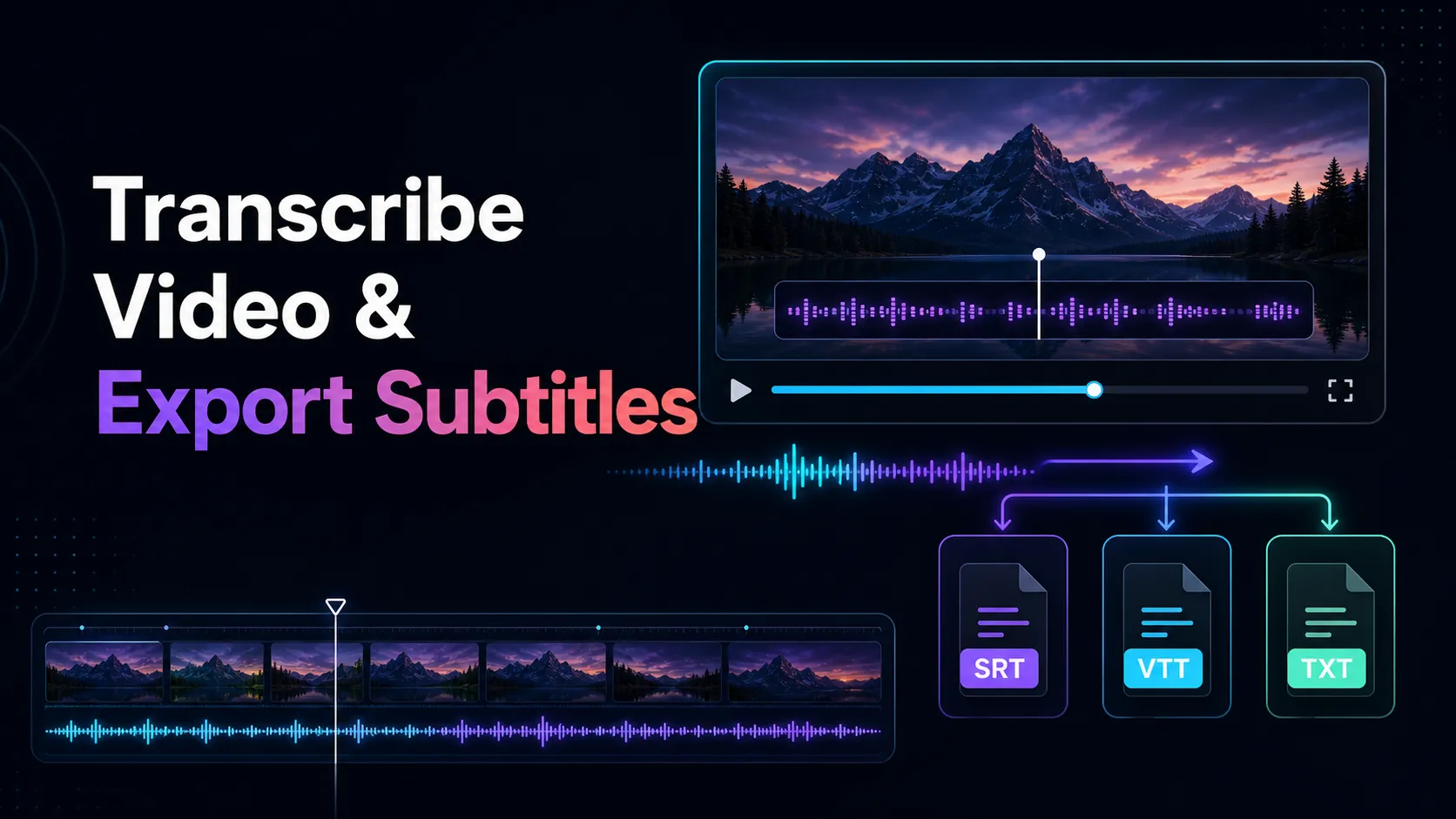
Upload a video, generate and edit timed captions, export SRT or VTT, or burn reviewed captions directly into an MP4 with Recapo.
By Recapo Editorial Team · Updated 2026-07-28
Disclaimer: This article provides general product and operational information and does not constitute legal advice. Copyright requirements and platform rules may vary by country, region, and platform. Before processing, modifying, or publishing a video, confirm that you have the necessary rights, authorization, and permissions.
A useful caption transcript is more than a block of words. Timestamps connect each cue to the original recording, making interviews, meetings, podcasts, and social videos easier to review and reuse.
Automatic transcription can create a strong first draft, but human review remains important—especially when the recording contains noise, accents, specialized vocabulary, or overlapping speech.
Product scope, July 28, 2026: Recapo's current Speech to Text and AI Caption Generator workflows accept video input, not a standalone audio-only upload. Users can select or auto-detect language, import existing subtitles, edit captions, control line length and visual styling, preview the result, export SRT/VTT, or burn captions into an MP4. The public product description does not confirm automatic speaker identification, and this article makes no unverified accuracy claim.
The current upload panel lists MP4, MOV, MKV, WebM, MPEG, MPG, 3GP, and 3GPP, with a 2GB per-file and 180-minute source limit. It also warns that very long videos may fail when the extracted ASR audio exceeds 100MB.
 A caption workflow from video audio to reviewed SRT, VTT, or captioned MP4.
Prepare the audio before transcription
The quality of the transcript begins with the recording. Before uploading:
- use the original file when possible;
- listen for missing or corrupted sections;
- identify the spoken language;
- note the expected speakers and technical terms;
- confirm that you have permission to process the recording;
- reduce avoidable background noise at the source rather than relying on cleanup later.
Clear, close-mic speech is generally easier to recognize than distant speech in a reverberant room. Overlapping speakers are especially difficult because multiple voices occupy the same moment.
How to transcribe audio to text
1. Upload an authorized video containing the audio
Indonesian users can open the localized Speech to Text tool. Japanese users can use the localized Speech to Text tool, and Korean users can use 음성 텍스트 변환.
2. Select the correct language
Choose the language spoken in the recording. If the audio regularly switches languages, review how the tool handles multilingual speech and expect additional manual correction.
3. Review timestamps and add speaker names when needed
Recapo creates time-aligned caption cues. Review the start and end of every important cue while listening. The current public product description does not promise automatic speaker identification, so add speaker names manually when the publishing format requires them.
4. Review while listening
Do not review the text in isolation. Play the audio and check:
- names and organizations;
- numbers, dates, and prices;
- industry terms and acronyms;
- sentence boundaries;
- speaker changes;
- words spoken during interruptions;
- sections marked as uncertain.
Correcting high-impact details first makes the transcript safer to reuse.
5. Export the right format
Choose the output based on the next task:
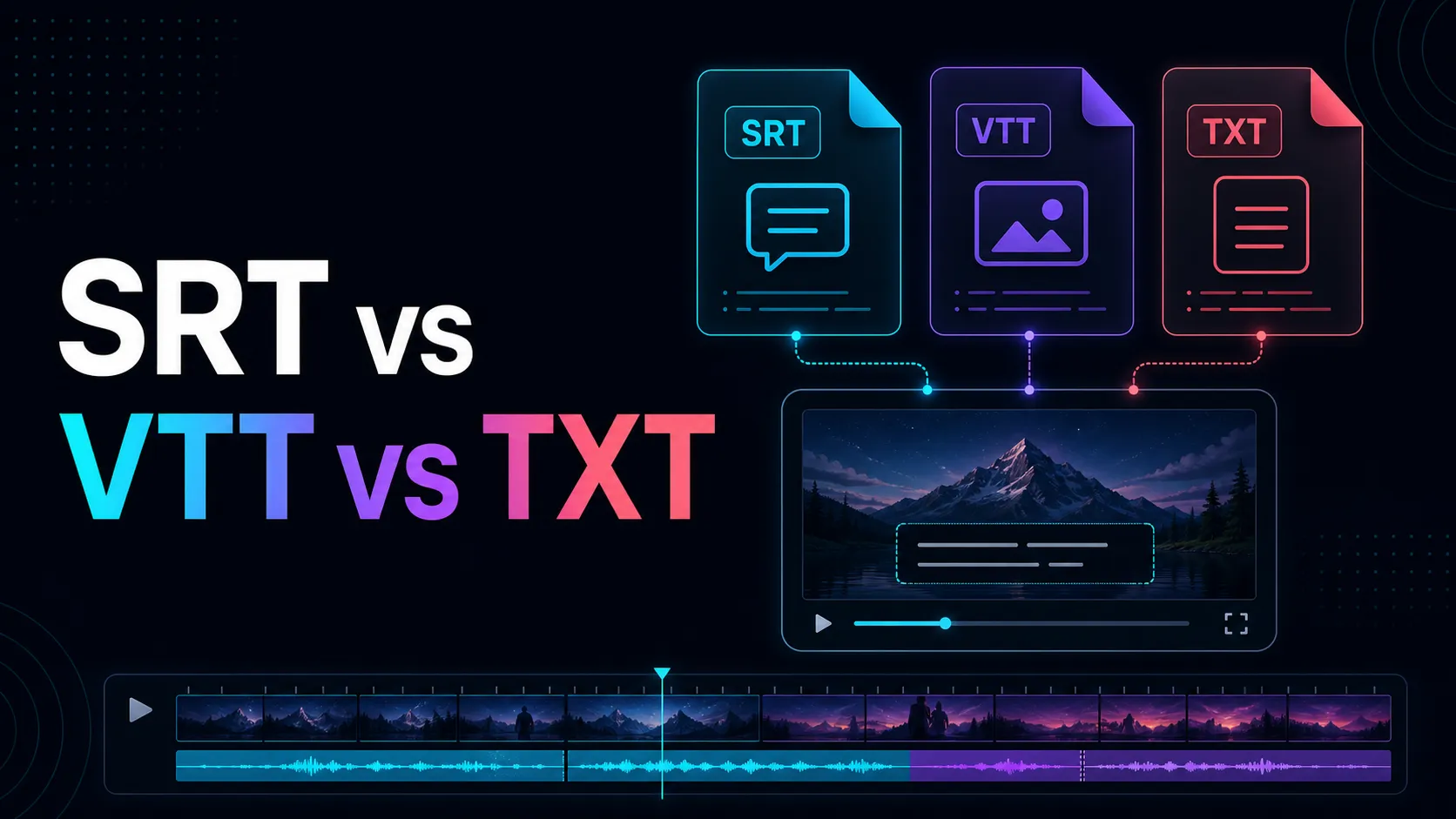
- SRT: widely used subtitle cues with sequence numbers and timestamps.
- VTT: a web-focused timed-text format that can also carry cue settings and metadata.
- Captioned MP4: reviewed captions are rendered directly into the picture for consistent playback across platforms.
The W3C's WebVTT specification defines the Web Video Text Tracks format for time-aligned text such as captions, subtitles, and related metadata.
How precise should timestamps be?
The right timestamp frequency depends on how the transcript will be used.
- Research and review: timestamps at paragraph or speaker-change level may be enough.
- Video captions: cues need tighter alignment with the spoken words.
- Quote verification: timestamps should make the original sentence easy to locate.
- Editing notes: timestamps can mark sections that need cuts, graphics, or B-roll.
Too many timestamps can make a reading transcript noisy. Too few can make a long recording difficult to navigate.
How to add and review speaker attribution
Create a simple speaker map before making global replacements:
| Working label Verified person Role Notes |
| Speaker 1 | [Name] | Host | Opens the recording |
| Speaker 2 | [Name] | Guest | Quieter microphone |
| Speaker 3 | [Name] | Moderator | Appears after 12:30 |
Listen at every important speaker transition. Add names only after the voice has been verified, and do not infer identity from an uncertain recording.
Common causes of transcription errors
Background noise and echo
Noise can mask consonants, while room echo can blur word boundaries. A closer microphone and quieter environment usually help more than aggressive correction after recording.
Overlapping speech
When two people speak simultaneously, both transcription and speaker separation become less reliable. Mark uncertain sections for human review.
Names and specialized vocabulary
Proper nouns may not be common in a general language model. Prepare a spelling list and check each occurrence.
Mixed languages
Language switching can affect both recognition and punctuation. Verify whether a single-language or multilingual workflow fits the recording.
Poor source files
Clipping, very low volume, missing channels, and heavily compressed audio can remove information that no transcription system can recover completely.
A quality-control workflow
Use two passes:
- Content pass: correct meaning, names, numbers, technical terms, and speaker identity.
- Presentation pass: correct punctuation, paragraphing, capitalization, cue length, and formatting.
For sensitive interviews, legal material, healthcare conversations, or financial decisions, use an appropriately qualified reviewer and follow the relevant privacy requirements. Automatic output should not be the only basis for a high-stakes decision.
Frequently asked questions
Does Recapo automatically identify every speaker?
The current public feature description does not claim automatic speaker identification. Review the recording and add speaker attribution manually when it is required.
Should I export SRT or VTT?
Choose based on the publishing environment. SRT is common across editing and video platforms; VTT is designed for web-based timed text. Confirm the destination's requirements.
Can I transcribe a video instead of audio?
Recapo's current workflow is designed around video input. Japanese users can use the localized AI Caption Generator for Video. Video also provides visual context for reviewing speaker changes.
Is the transcript automatically ready to publish?
No. Review names, numbers, specialized terms, timestamps, and speaker labels. Publication-quality captions may also require line-length and reading-speed checks.
What should I do with confidential recordings?
Review the Recapo Privacy Policy before uploading. It does not publish a fixed retention period or automatic-deletion schedule and allows uploaded or derived content to be used for model and service improvement subject to its stated conditions.
Turn the recording into a useful working document
Transcription saves the most time when the output is designed for the next step. Review timestamps, add speaker names only when verified, check high-impact details against the audio, and export a format that matches the final workflow.
CTA: Upload a video you are authorized to process with Recapo Speech to Text, then review and export the captions in the format you need.